Showing posts with label Purchasing. Show all posts

Tuesday, June 9, 2015

Security Hierarchy functionality Setups and Flow in Oracle Purchasing


Using Security Hierarchies

Security hierarchies let you control who has access to certain documents.

For example, you can create a security hierarchy in which only you and other buyers in that hierarchy can view each other's purchase orders.

Security hierarchies are not an alternative to approval hierarchies, but something different altogether. Changes you make to a security hierarchy do not affect the approval hierarchy and vice versa.

If you want to specify a Security Level of Hierarchy for any of your document types, you must first define all positions which should have access to the documents you want to restrict in this manner. (Even if you are using jobs to route documents for approval, you must define positions before you can enable this Security Level).

You then define a security position hierarchy, and specify it in the Purchasing Options window.

To define Purchasing Options:

Document Control Options

Select a Security Hierarchy, which is a position hierarchy from the Position Hierarchy window in “Security Hierarchy” field of Purchasing Options page. When the Security Level is set to Hierarchy for a document in the Document Controls window, this position hierarchy governs access security for the document.

Important: This field is enterable only when the form is accessed from the Purchasing menu.

For user-defined quotations and RFQs, Purchasing displays as a default the Security Level of the Standard Quotation or RFQ, and you cannot enter the field. Otherwise, choose one of the following options:

Hierarchy - Only the document owner and users above the owner in the defined purchasing security hierarchy may access these documents.

Private - Only the document owner may access these documents.

Public - Any user may access these documents.

Purchasing - Only the document owner and users listed as buyers in the Define Buyers window may access these documents.

Important: Note that a “Security Hierarchy” controls which positions (and therefore which employees) have access to a particular document type. It does not control whether an employee has the authority to approve a document or perform other actions.
----------------------------------------------------------------------------------------------------------------------------------


Security Hierarchy – Setup Steps

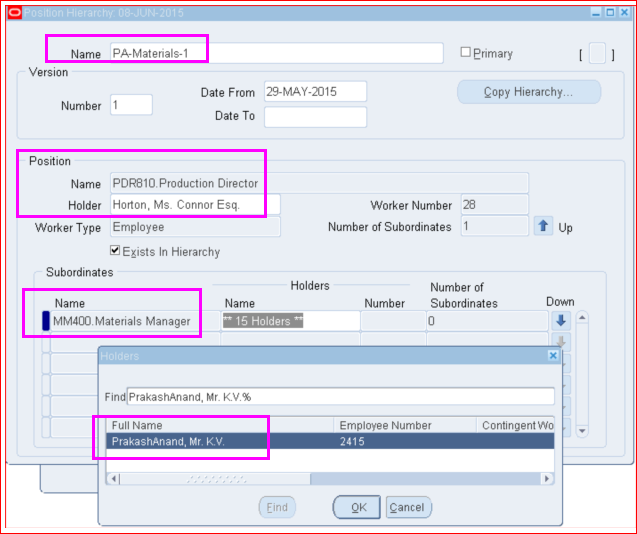
  1. Define Position (Approval) Hierarchy

  Position Hierarchy Name : PA-Materials-1


Navigation : Setup > Personnel > Position Hierarchy


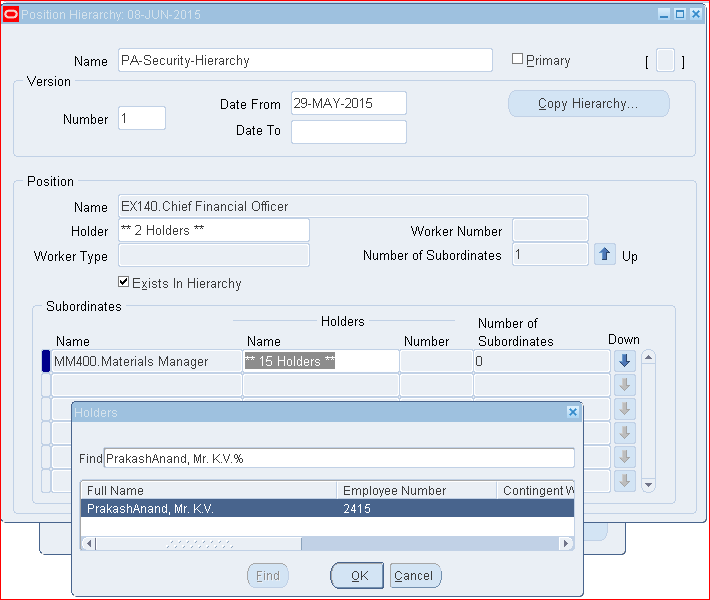
  1. Define Security Hierarchy

  Security Hierarchy Name : PA-Security-Hierarchy


Navigation : Setup > Personnel > Position Hierarchy


  1. Approval Assignment

  Approval Group “Director Production ” is assigned to
  
  Position  “PDR810. Production Director”

Navigation : Setup > Approvals > Approval Assignments


  1. Approval Group : Director Production

  Amount Limit is USD 100,000.00

Navigation : Setup > Approvals > Approval Groups


5. Purchasing Options

Navigation : Setup > Organizations > Purchasing Options

Select the Security Hierarchy “PA-Security-Hierarchy” in the field Security Hierarchy.


6. Document Types

Navigation : Setup > Purchasing > Document Types


In the above Document Type page, select as below for Document Name “Standard Purchase Order”

“PA-Materials-1” in the field “Default Hierarchy”

“Hierarchy” in the field “Security Level”


7. Financial Options

Navigation : Setup > Organizations > Financial Options
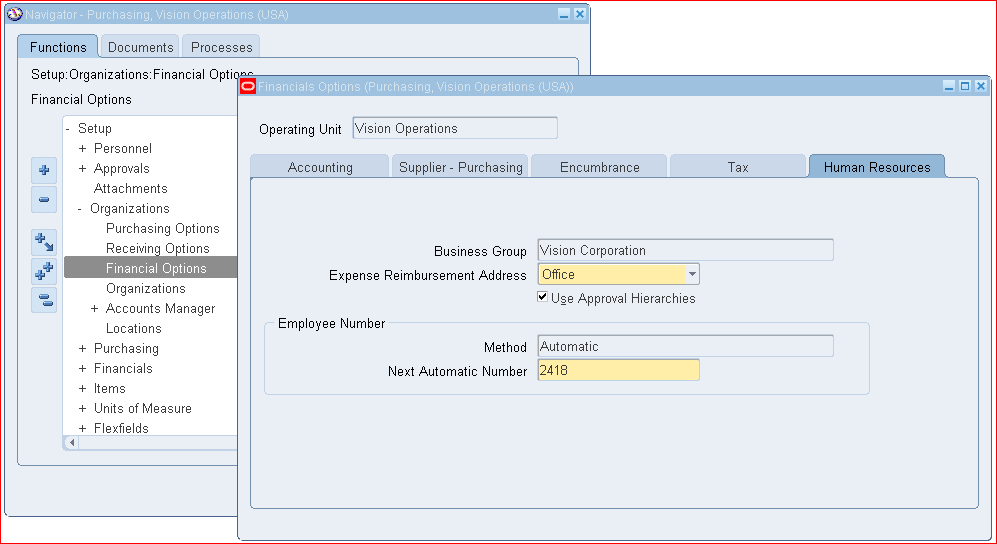


Select the check box against “Use Approval Hierarchies”.


Scenario Testing

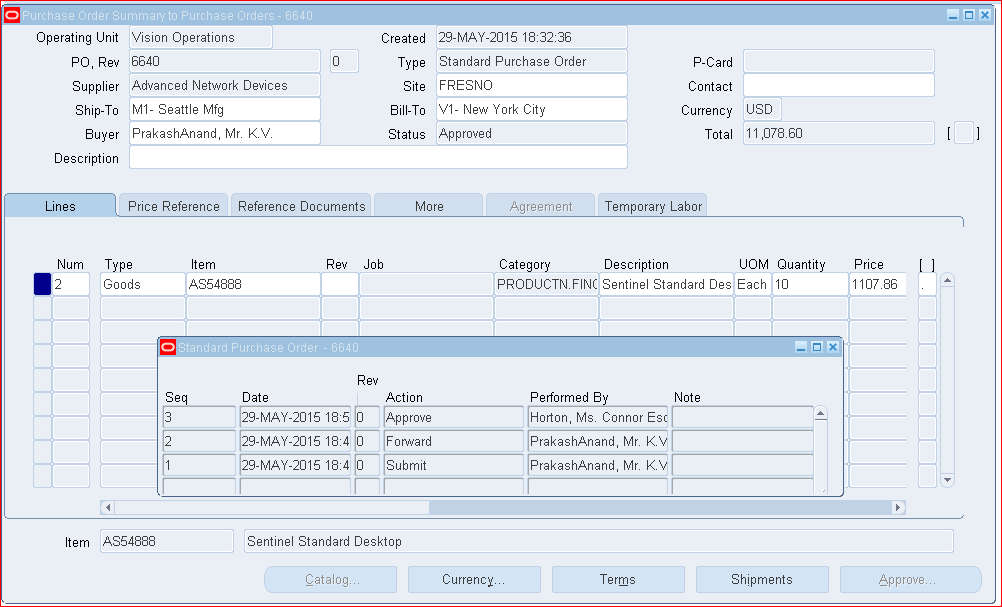
1. Purchase Order Number 6640 is created by “PrakashAnand”


2. PO 6640 is approved by “Horton, Connor”.

Please see the “View Action History” showing the approval path.


3. Log-in as “cbrown”

  • “cbrown” is the user name of “Brown, Ms Casey”
  • Brown, Ms Casey is a Buyer
  • She is also present in the Security Hierarchy “PA-Security-Hierarchy“
  • She is not present in the Approval Hierarchy “PA-Materials-1“


4. Query the Approved Purchase Order “6640”


5. Brown, Casey is able to open / access the PO 6640, even though Brown Casey is not in the Position (approval) hierarchy; but, present in the Security hierarchy.
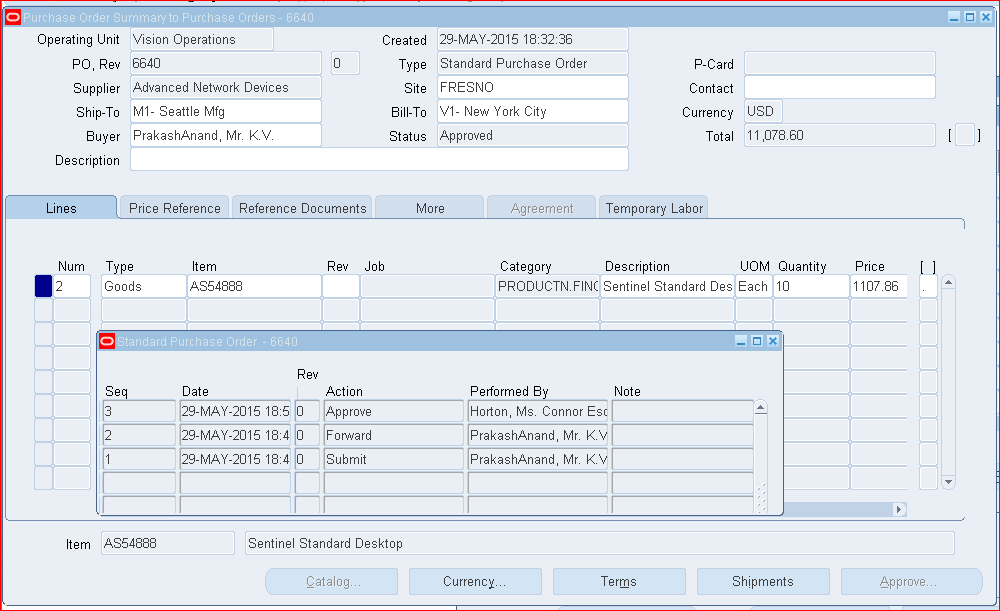
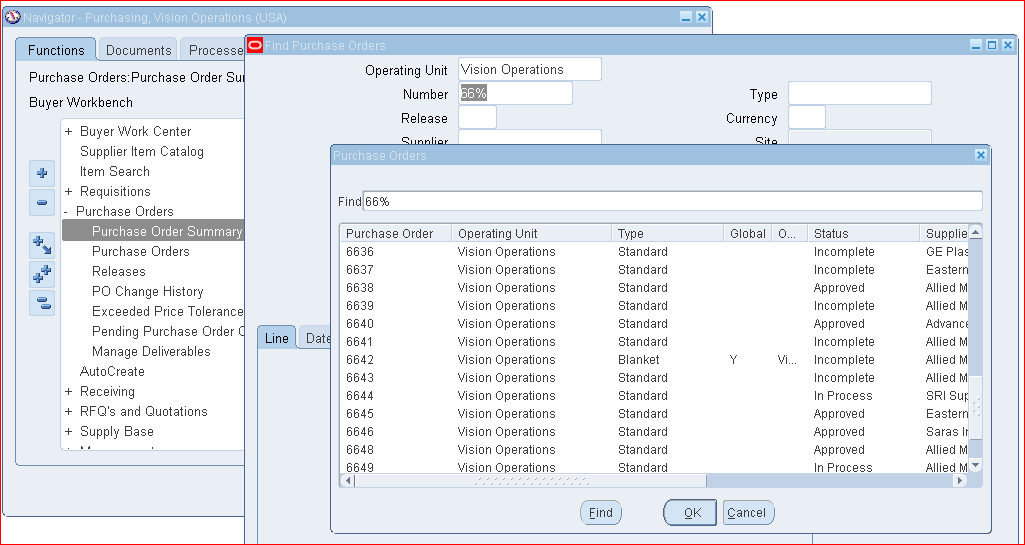


6. Brown, Casey is not seen in the view action history which means she is not part of the Approval hierarchy “PA-Materials-1”.


7. Buyers


Above window shows the employees defined as “Buyers”.

“Barton, Jeffrey M” is one of the Buyers.

Barton, Jeffrey M is not present in the Position (Approval) Hierarchy as well as Security Hierarchy.


8. Log-in as “EBUSINESS-MFG” (which is the user name of Barton, Jeffery”)
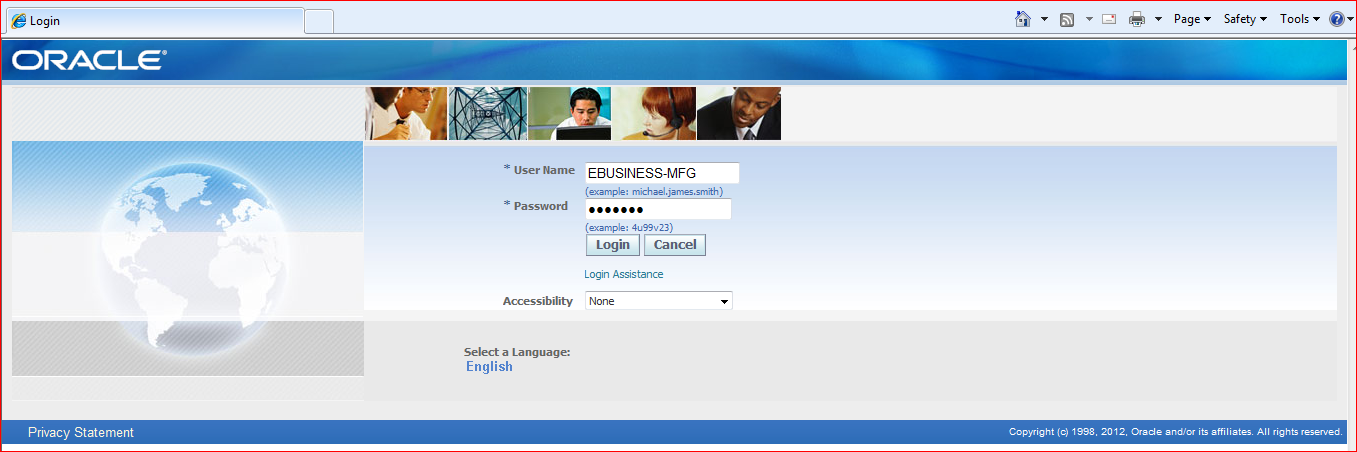


9. Query Purchase Order “66%”
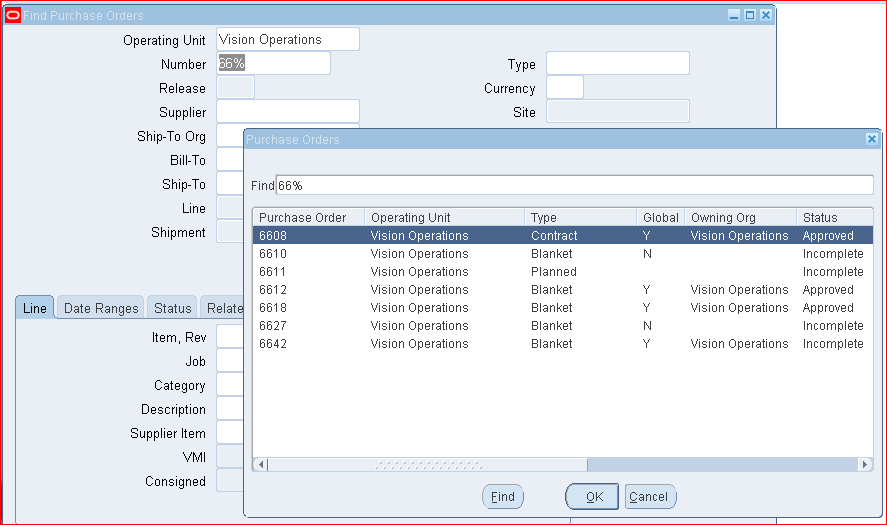

PO 6640 is not displayed, which means any Buyer other than those in the Security hierarchy and or Position Hierarchy can not access the Purchase Order.

---- Prakash Anand KV.


Tuesday, March 31, 2015

Defaulting Requisition Sourcing details using Sourcing Rules


Sourcing Rules in Oracle R12:

  • You can define sourcing rules that specify how to replenish items in an organization, such as purchased items in plants. Sourcing rules can also specify how to replenish all organizations, as when the entire enterprise gets a subassembly from a particular organization.
    If there is a conflict between a sourcing rule and a bill of distribution, the sourcing rule takes precedence.

  • For instance, if you assign a bill of distribution to AUS that tells it to source a part from NYC, AUS can still define a sourcing rule to source the part from SAC. In this case, the local sourcing rule overrides the bill of distribution.
    Since purchasing only uses the default assignment set specified by the MRP: Default Sourcing Assignment Set profile option. 

  • Verify the value prior to creating a sourcing rule assignment in Purchasing.

1) MRP: Default Sourcing Assignment Set > Supplier Scheduling


2) PO: Automatic Document Sourcing

  • Navigate to Responsibility
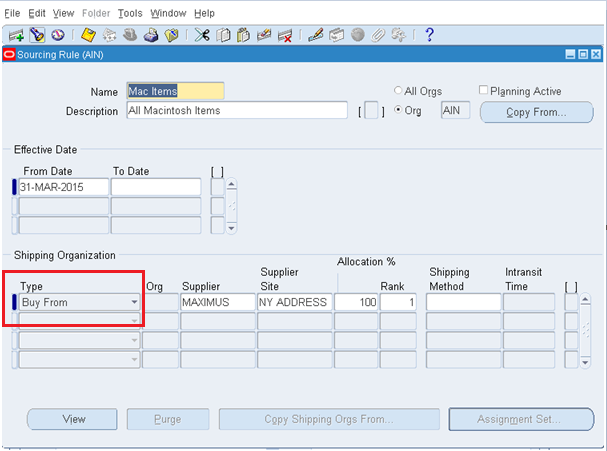
    Purchasing, Vision Operations >Supply Base >Sourcing Rules

Replenishment sources can be.
1) Make At – The replenished organization that manufacture the item
2) Buy From – An external supplier
3) Transfer From – An inter-organization Transfer

 
  • Allocation % will determine the portion of the total order to each source.
    You can enter Shipping Method which will determines the Intransit time and shipping cost which planning will use in its calculations.
    You can Rank supplier Named and bills, giving one priority over another.


Assign Sourcing Rule :

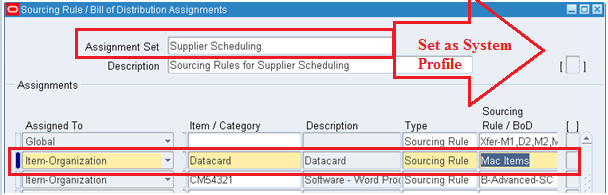
Purchasing, Vision Operations >Supply Base >Assign Sourcing Rules


  • You can assign each sourcing rule to single item or category across all organization or specific organization. 
    Verify Sourcing Rules.
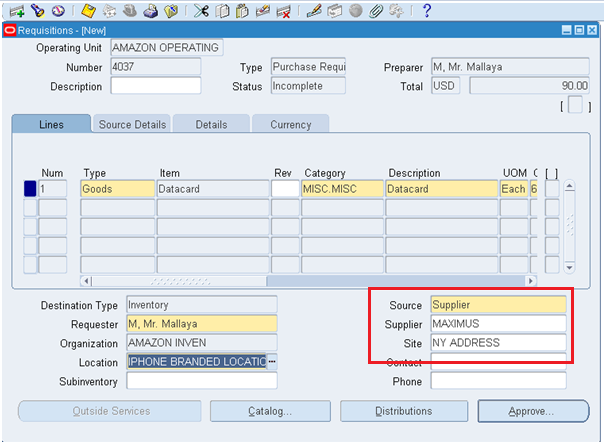
    Purchasing, Vision Operations > Requisitions > Requisitions 


  • Here Source has populated by default in purchase requisitions. Click approve button. You can view requisition summery.


  • This completes the sourcing rule assigning explanation.


||Raja||


Contract Purchase Agreement Creation Process in R12.2


Definition: Contract Purchase Agreements in Oracle EBS

  • You create contract purchase agreements with your suppliers to agree on specific terms and conditions without indicating the goods and services that you will be purchasing. You can later issue standard purchase orders referencing your contracts, and you can encumber these purchase orders if you use encumbrance accounting.

  • Navigate to Purchasing Responsibility
Purchase Orders > Purchase Orders


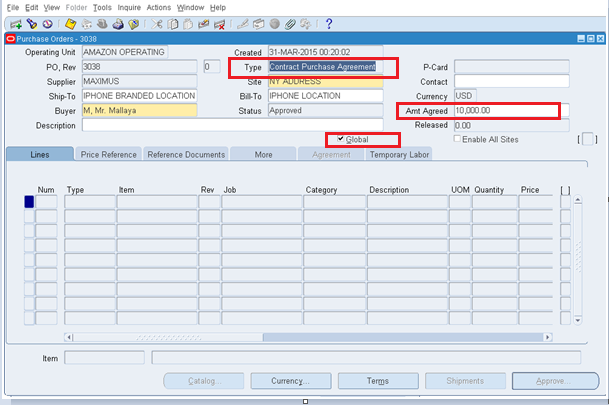
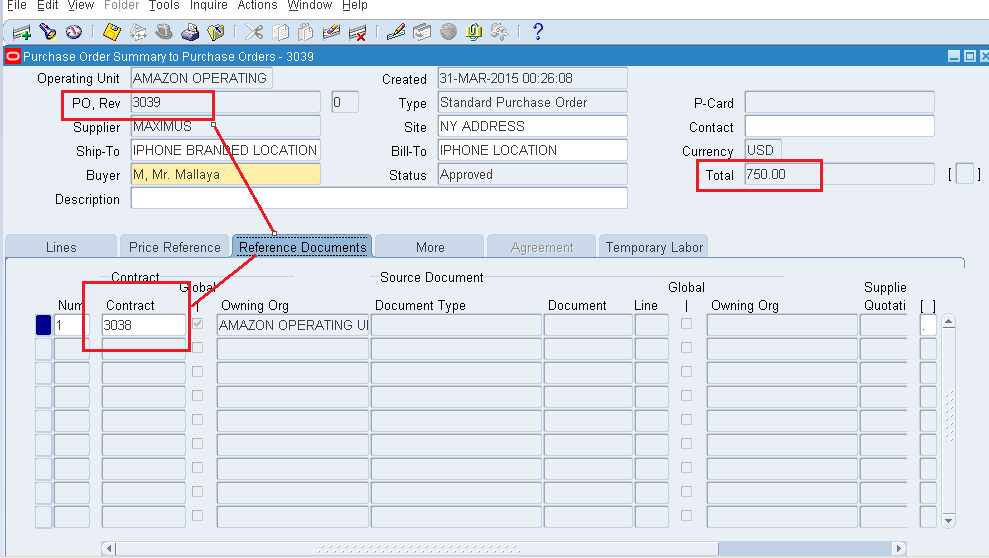
  • Here you can include agreement dollar amount, Ship to and Bill to address with supplier details. Select the Global checkbox only if you are creating a Global agreement.

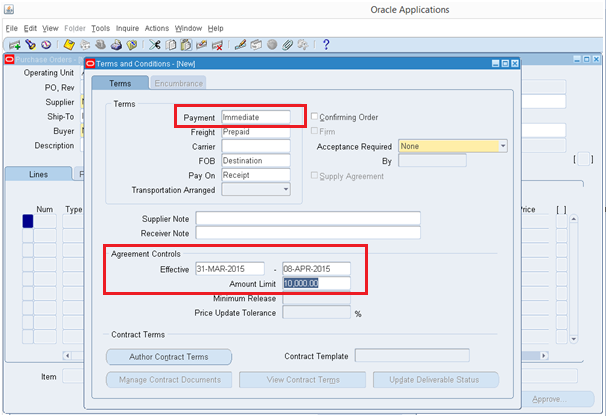
  • Standard purchase orders can only reference the contract during its effective dates. Part of the terms and conditions could include a percentage discount off list prices for all products the supplier sells or different discounts for different groups of products.
  • Click Approve button and then Ok.
  • Once contract purchase agreements is approved you can use it with standard purchase order per agreed amount or less than committed amount.

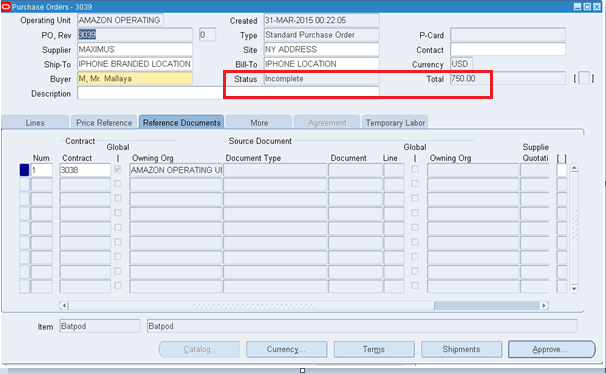
  • Click on Referenced Document tab.


  • Here you can refer previously created contract purchase agreements.
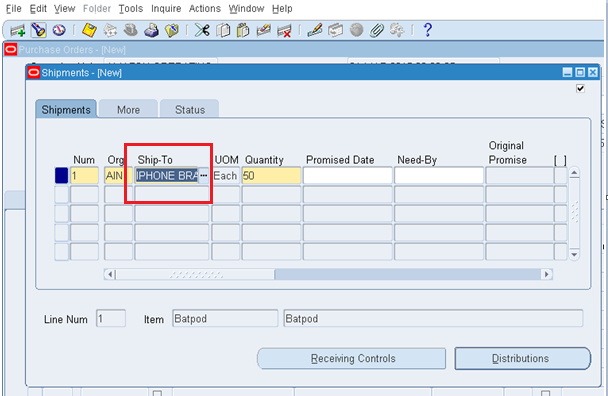
  • Click on Shipment button.


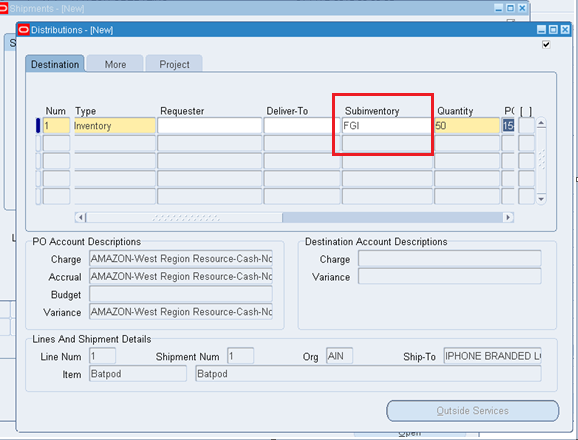
  • You can enter sub inventory here.
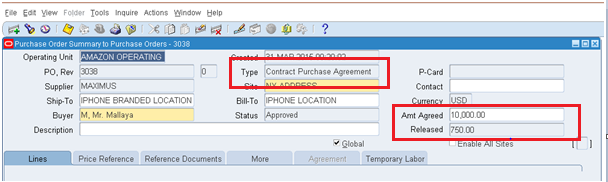
  • Click on Approve button. Once Standard Purchase order is approved you can check contract purchase agreement. Open purchase order in query mode and check released amount. The dollar value displayed in Released field is the total dollar value of all standard purchase order lines referencing the contract.

  • This completes the explanation of Contract Purchase Agreement in Oracle EBS R12.
||Raja||

Thursday, February 12, 2015

Price Tolerance Percentage and Price Tolerance Amount Functionality in Purchase Orders - R12.2


GOAL:

Understanding the Price Tolerance Amount functionality in Oracle Purchasing.


Exercise 1: Price Tolerance (%) options in Purchasing.

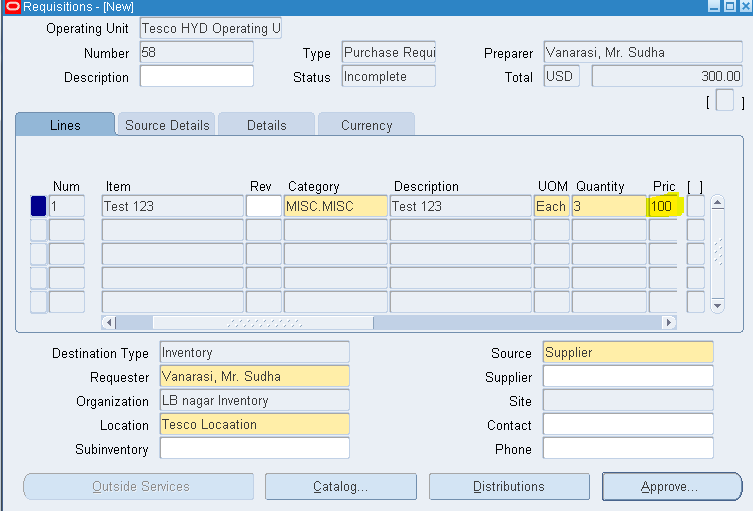
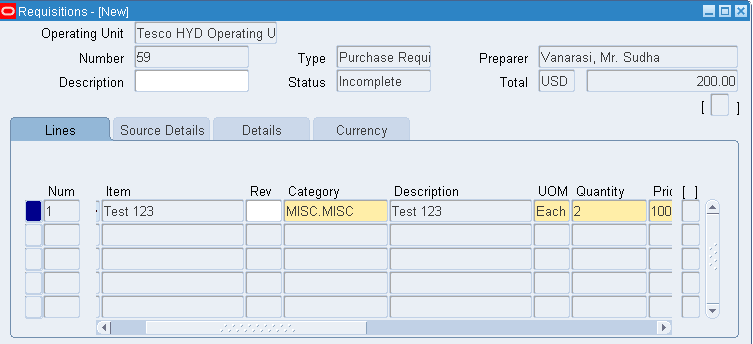
Step 1: Raise a requisition for an item (Test 123) with price as 100.

Responsibility: Purchasing.
Navigation: Requisitions >Requisitions.

Approve the Requisition.

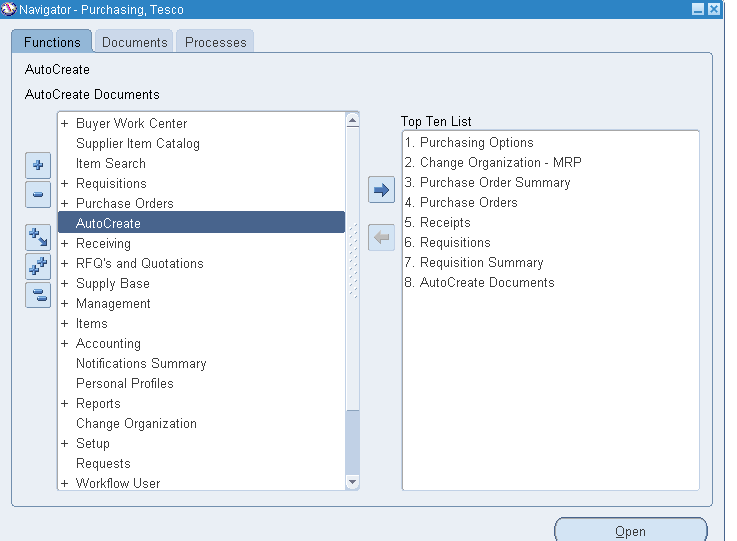
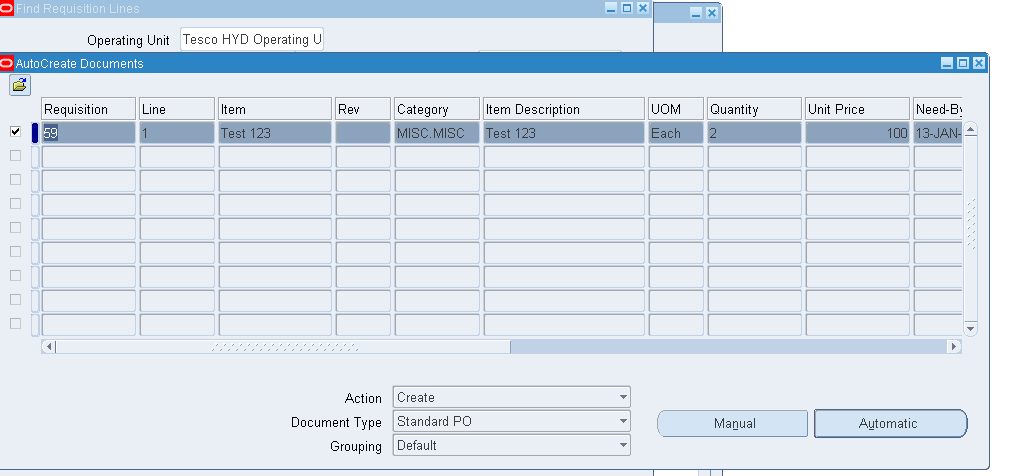
Step 2: Auto Create the Requisition into Purchase Order.
Navigation: AutoCreate.
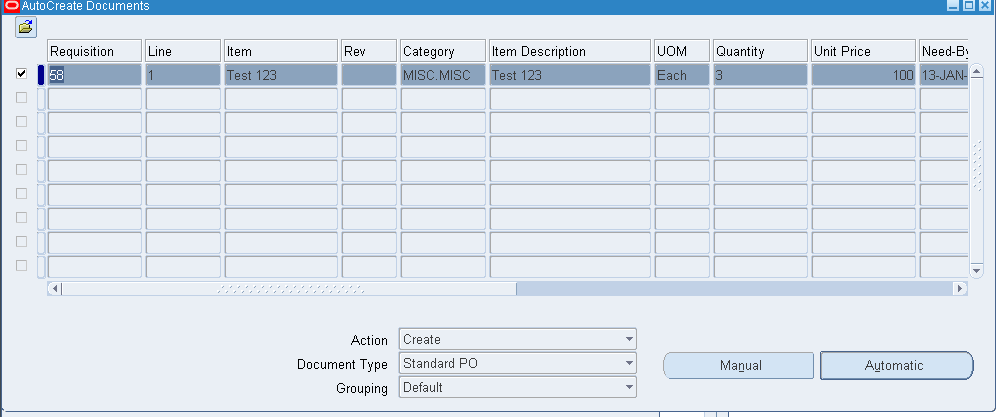
Select the Requisition line by checking the box and click on Automatic option at the bottom and say OK.
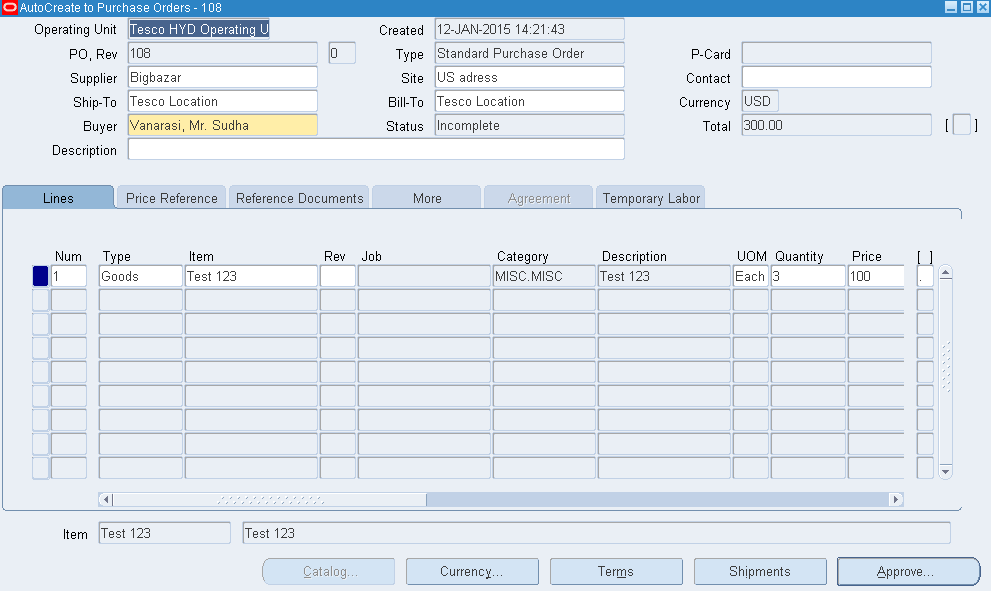
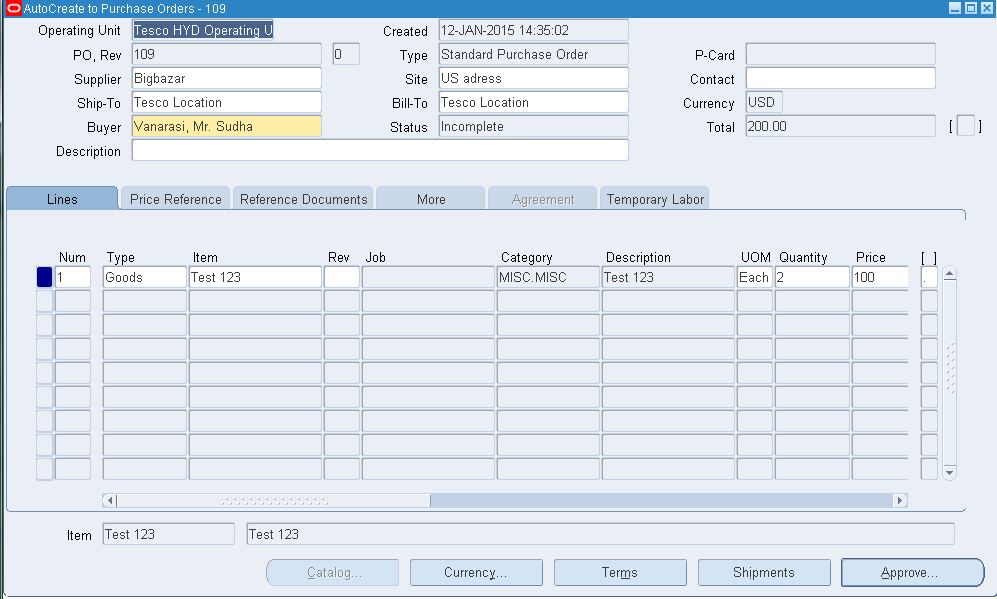
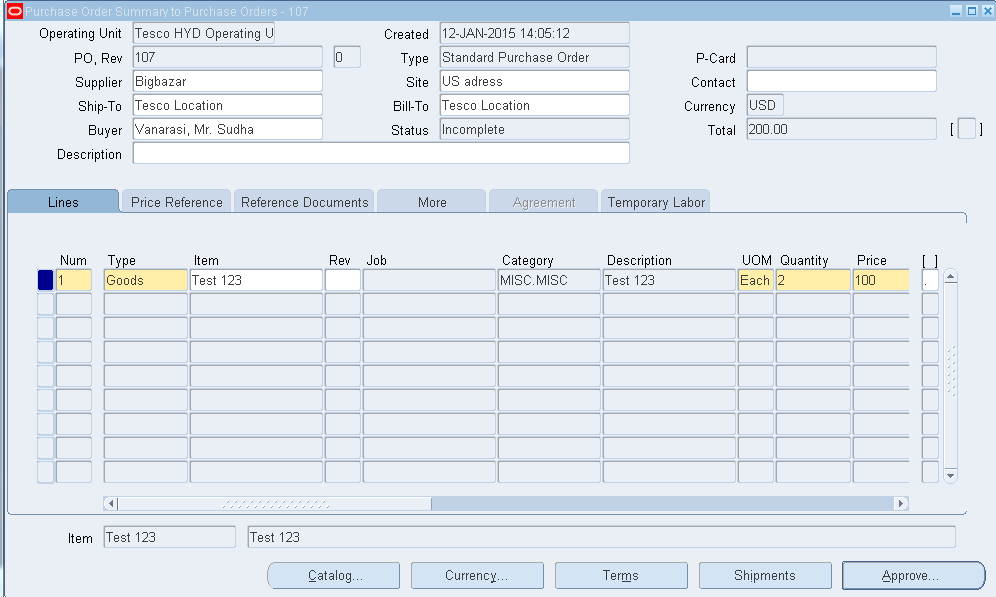
Now the PO will be auto created as below.
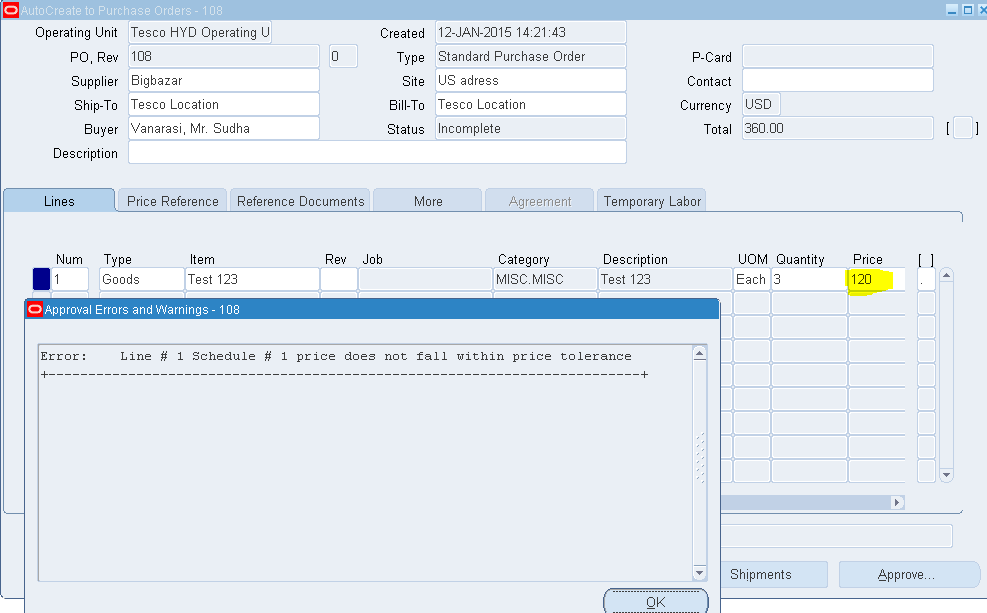
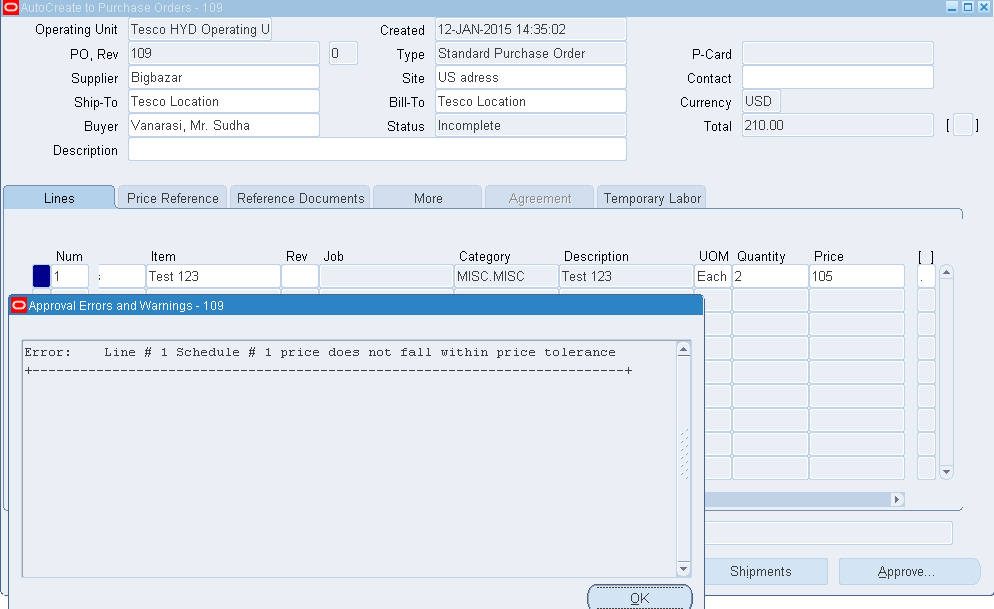
Now try to change the line price (Say 120 here from 100) and approve.
We will get an error message saying as “Price does not fall within tolerance.”
Step 3: Check Purchasing Options.
Navigation: Setup >Organizations >Purchasing Options.
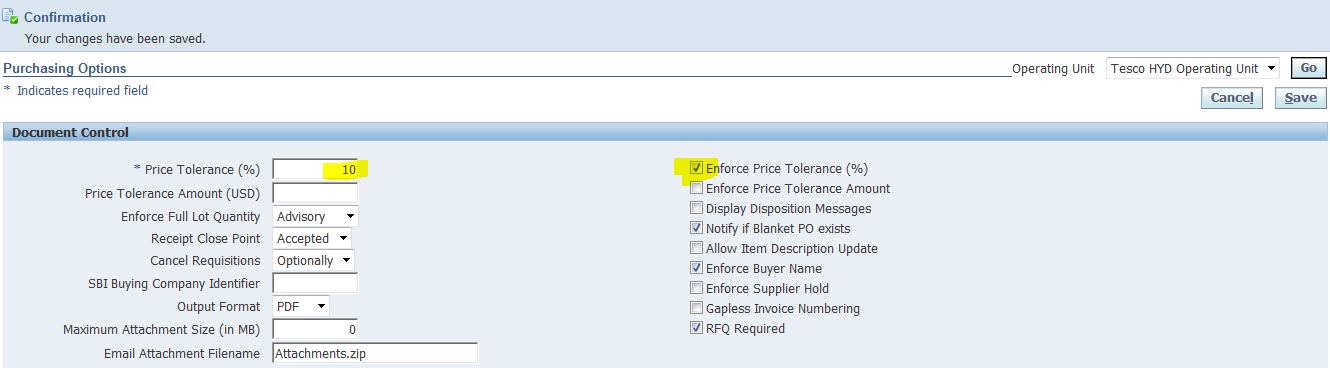
Note that we have price tolerance of 10% and Enforce Price tolerance is checked.
“This is the percentage by which the Autocreated purchase order line price cannot exceed the requisition line price. If you select Enforce Price Tolerance, you can create, but not approve, purchase orders for which this tolerance is exceeded. There is no restriction on how much a price can decrease.”
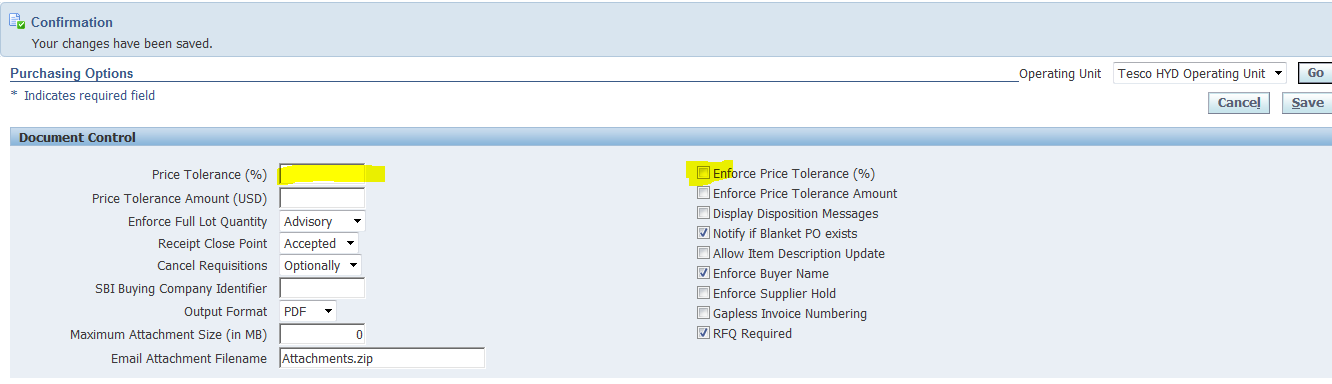
Now Make the both fields blank as below and save.
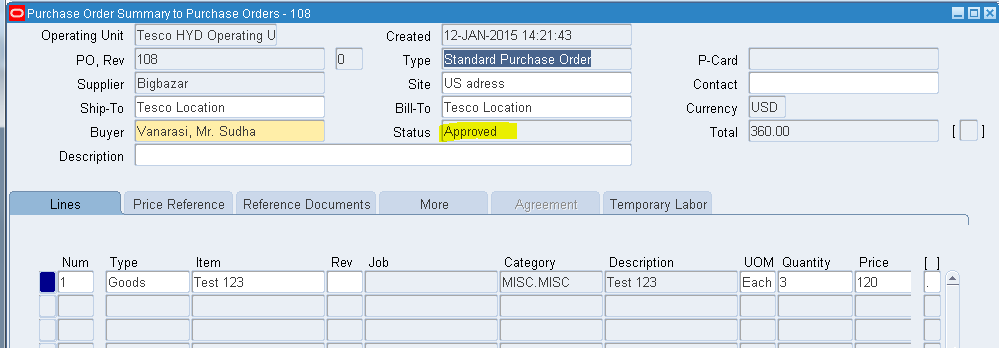
Now you will be able to approve the PO, no matter how much is the price.
Exercise 2: Price Tolerance (%) options at Item levels.

Make the Price tolerance at purchasing level as below.
Now create a requisition with price as 100.
Auto Create the Requisition line into PO.
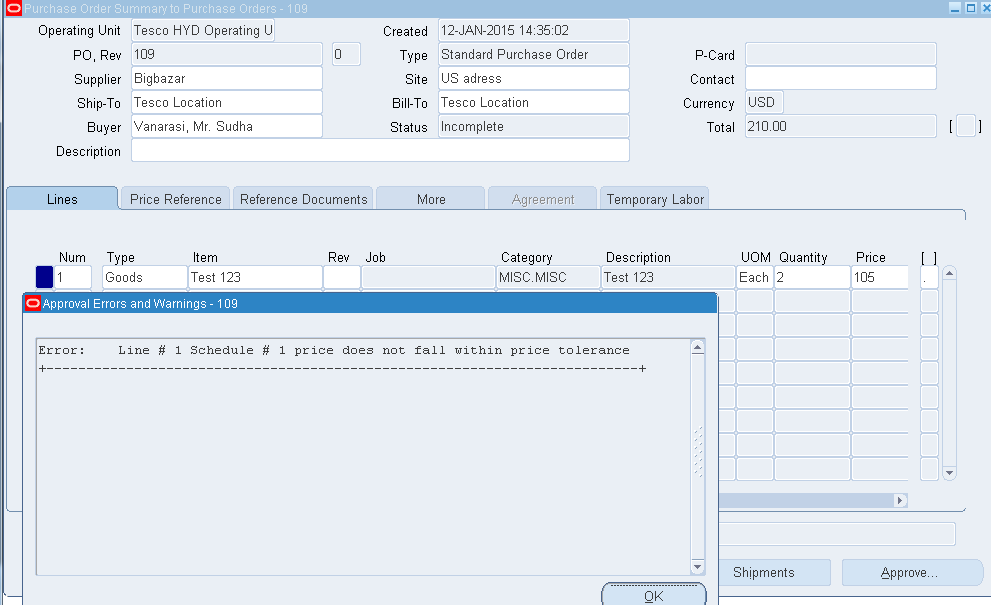
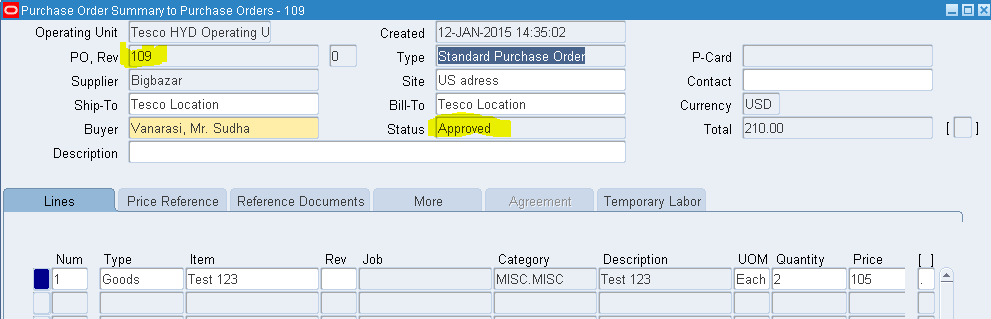
Try to change the price in the Purchase order as 105 as it falls within the tolerance and try approving.
System throws the below error message again.
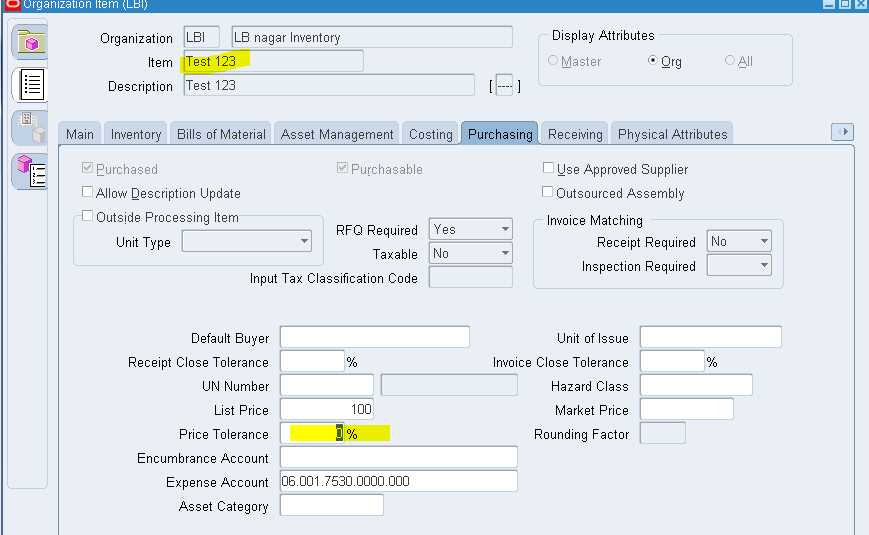
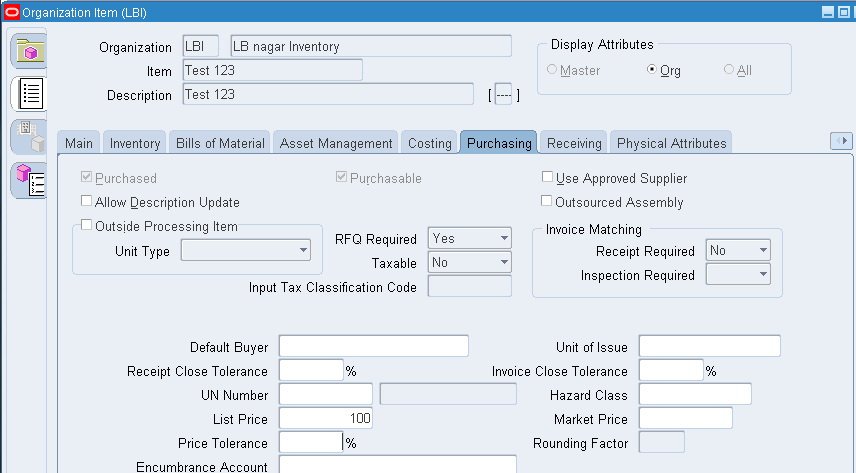
To overcome the error, Go To Organization Items and query the Item.
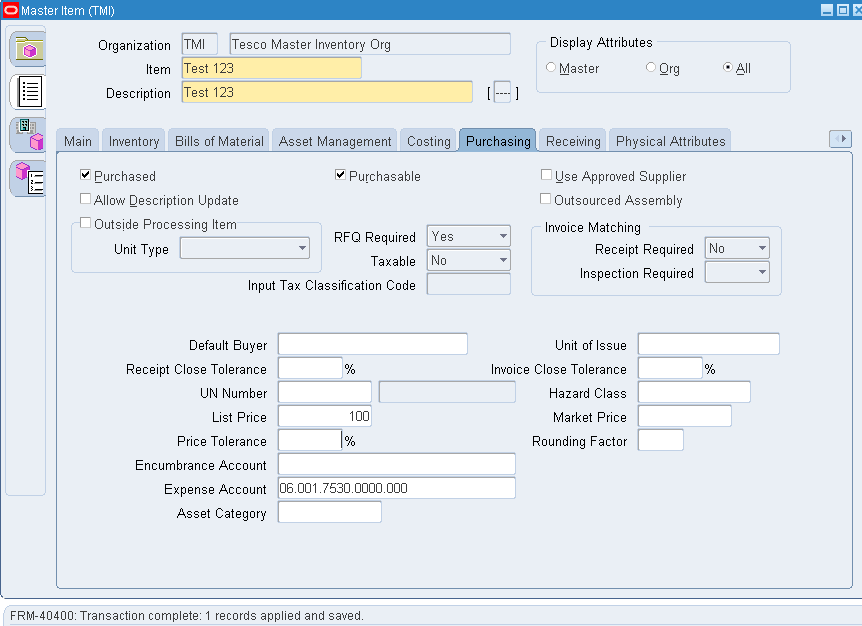
Check the Price tolerance % and make it to null as below and save.
Now if you try to approve the system still throws the error again.
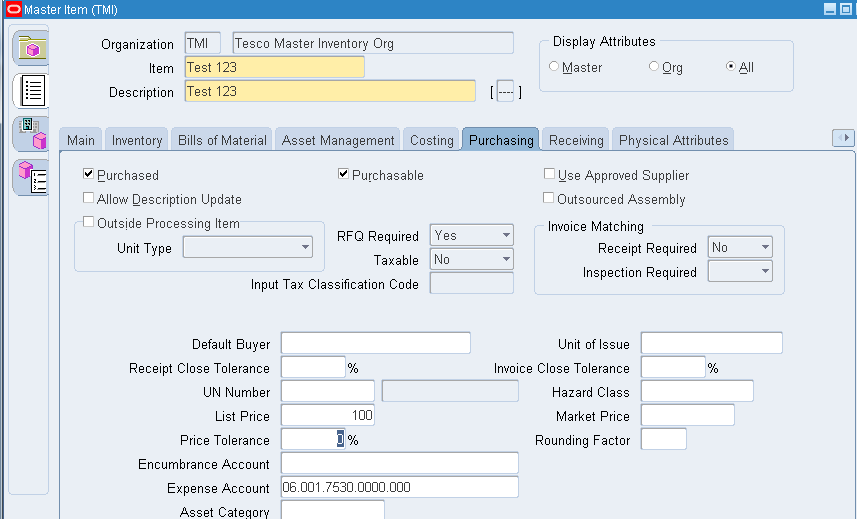
Go to master Item form and query the Item and make sure the tolerance is cleared and save.
You can now able to approve the Purchase Order.
Note:
There are 3 levels of check for the above functional error to look out for:
  • Purchasing Options.
  • Organization Item level.
  • Master Item level.

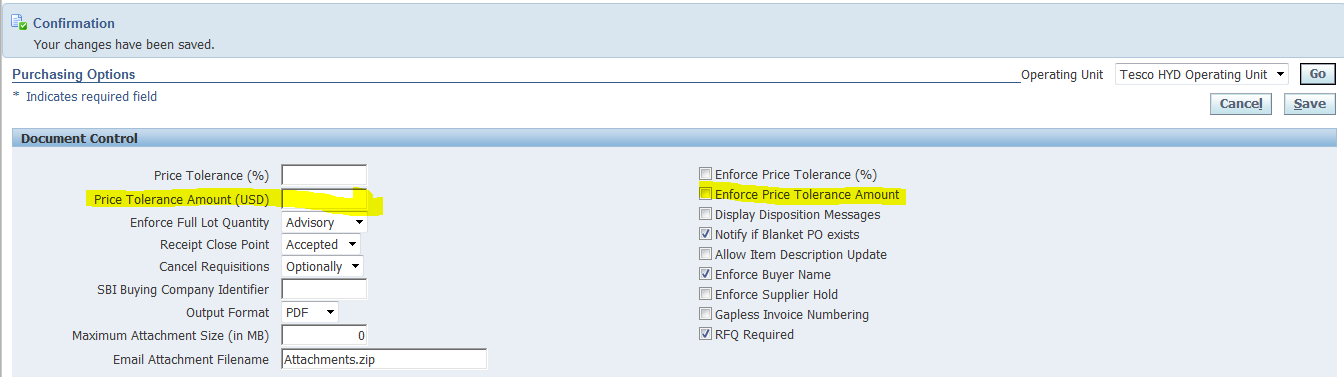
Exercise 3: Exercise on Price Tolerance Amount.


Follow the same process of creating a requisition and auto create with 100 as its price as in the above exercises.

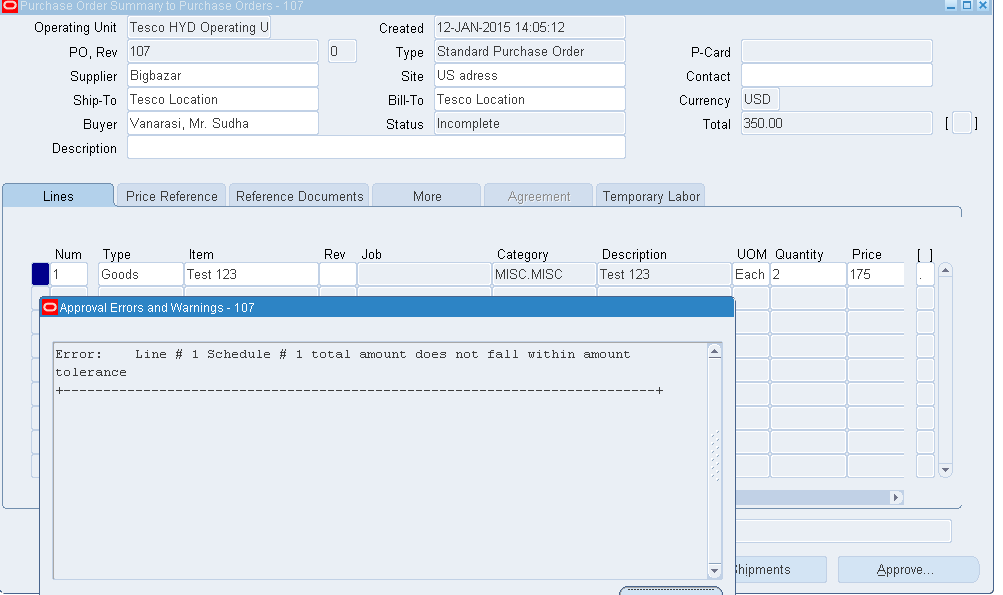
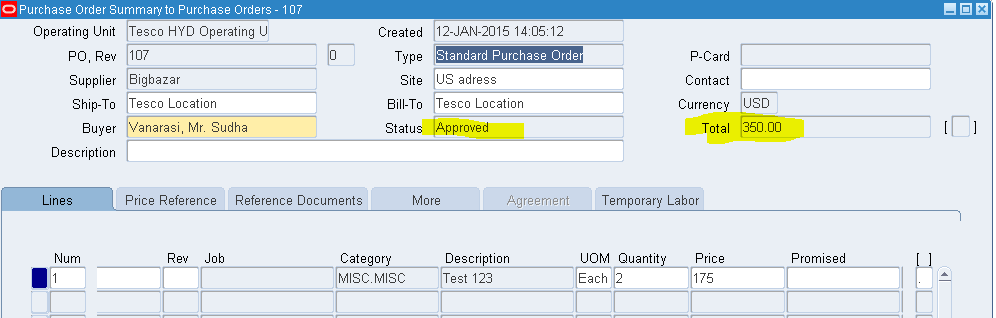
Change the price to 175 and try to approve the purchase order.
The system throws a error saying Total amount does not fall within amount tolerance”.
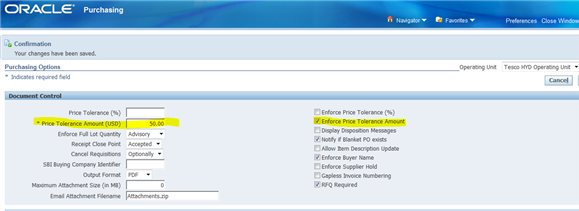
Now look into the Purchasing Options and there is a tolerance of 50 given in the Price tolerance amount field and that’s the reason the system is giving error as we have exceeded the tolerance.
Because earlier the PO Total Amount was 200 and now that has been changed to 350 which is above 50, means we can only change the amount with in 50 as per the tolerance we have given.
Now clear the tolerance amount and uncheck the enforce button and save.
Now you can be able to approve the purchase Order.