Showing posts with label Blanket Purchase Agreement. Show all posts

Friday, November 28, 2014

BPA With Allow Price Override and Price Limit Functionality - R12.2

Allow Price Override and Price Limit in BPA

Case 1: Checking Allow Price Override

Step 1 - Create and Approve BPA:
Responsibility: Purchasing.
NAV: Purchase Orders--------Purchase Orders.
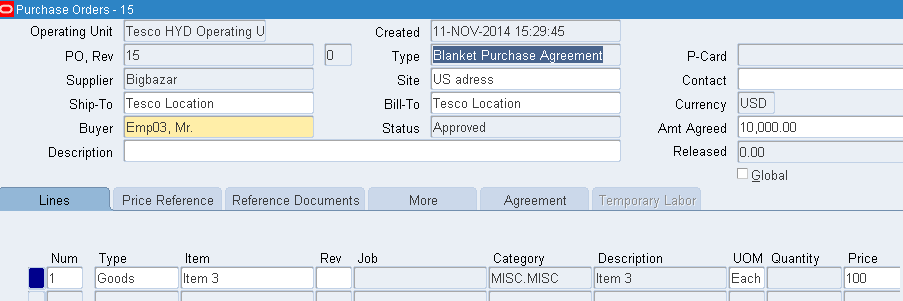
Create a Blanket Purchase Agreement for Item 3 with price as 100.
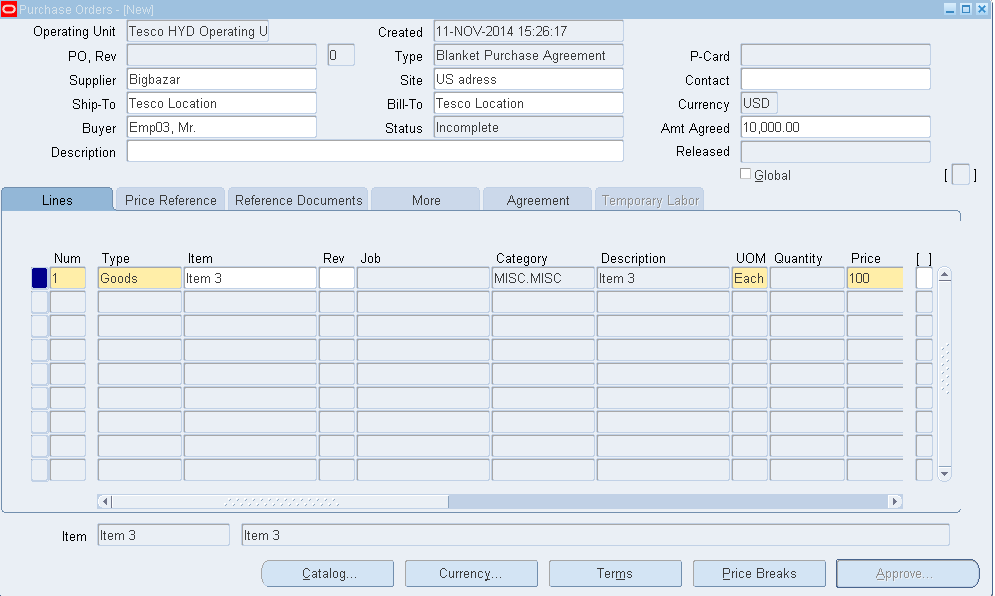
Approve the Blanket Order and note down the BPA number (15). 
Step 2 - Create Releases:
Now Release the Blanket Purchase Order.
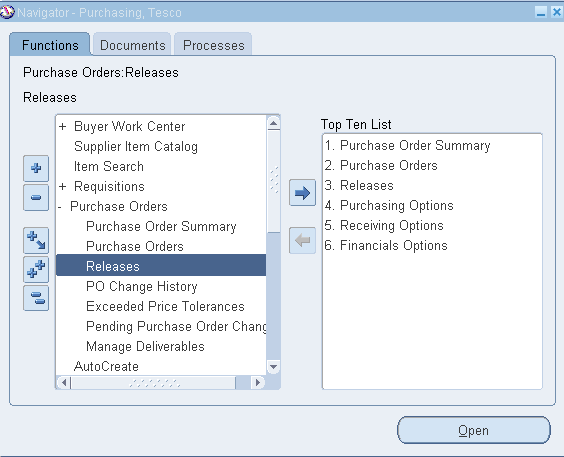
NAV: Purchase Orders--------- Releases.
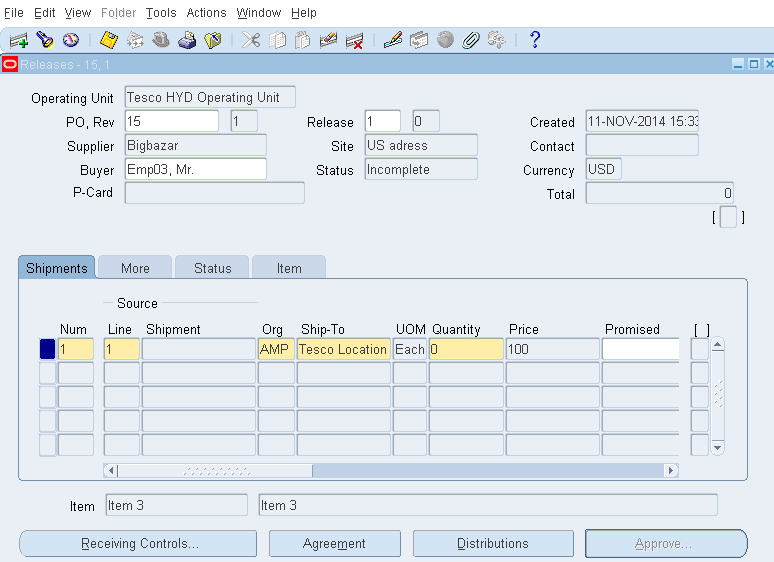
Query with PO number come to line level where you can notice that Price option is grayed out in the Price Tab which makes sure that you can only edit the quantity and not the Price while releasing the Blanket PO.
Step 3 - Enable "Allow Price Override":
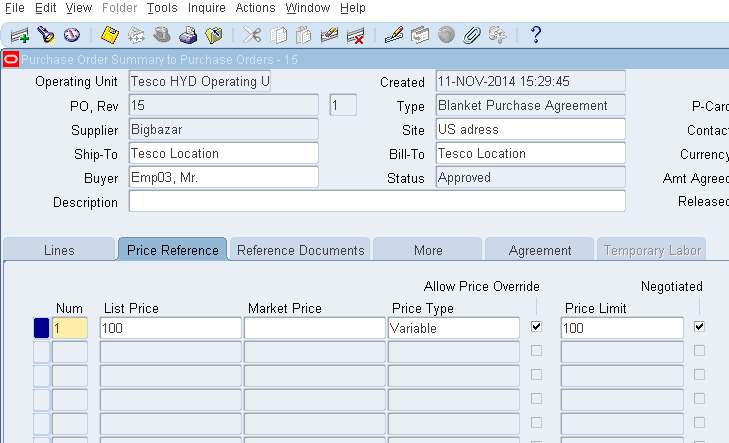
Now again go to same purchase order and enable the "Allow Price Override" option in "Price Reference" TAB in the line level and save. (Price Limit will be defaulted from the List price)
Please note that any modifications in the approved blanket purchase agreement will change the status to Requires Re approval and creates the new Revision Number. Approve the Blanket PO again.
Now try to release the same line and notice as we gets the option to edit the price as below.
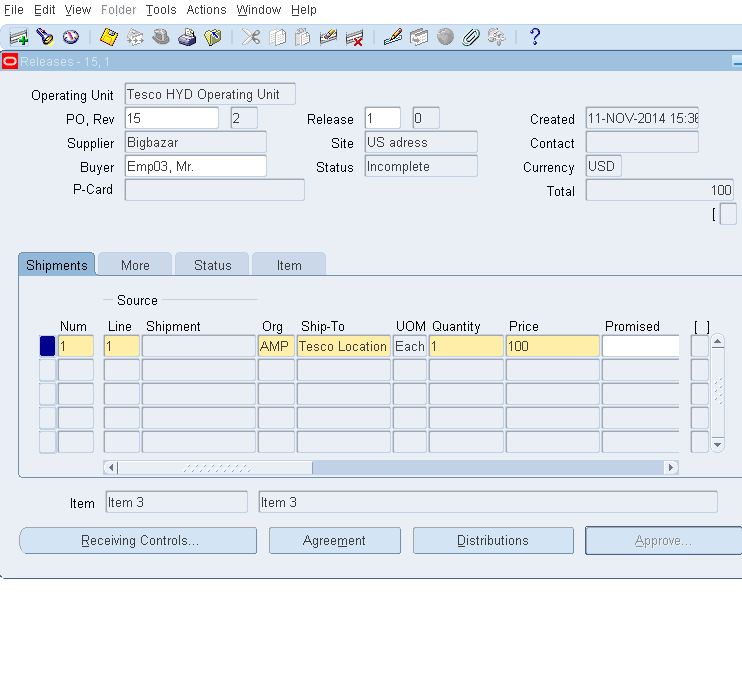
Note: Checking Allow Price Override option in the Line level makes you edit the price in the Blanket Release for that particular line.

Case 2: Price Limit control for Blanket release

Step 1 - Enter "Price Limit" Amount in BPA Lines:
Go to the same Blanket PO (above one) and change the Price Limit to 120 from 100 and save.
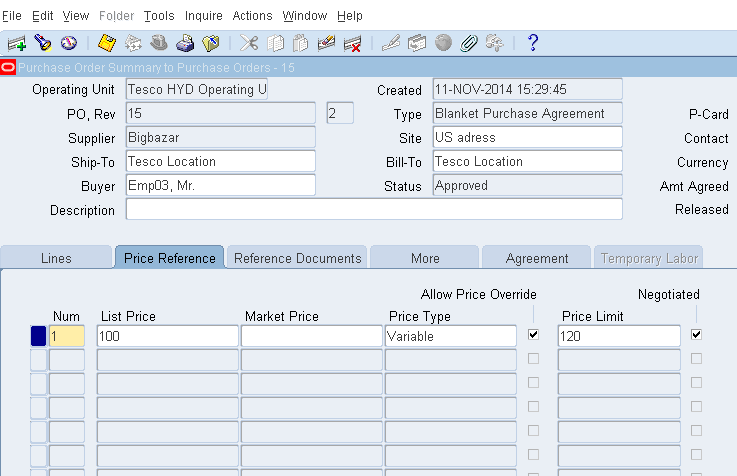
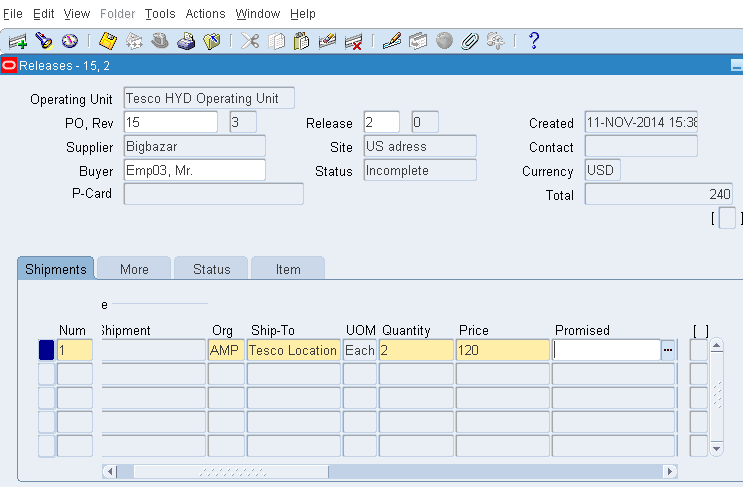
Step 2 - Change the Price in BPA Release upto 120:
Now if you try to release the Banket PO, you will be able to change the price maximum till 120.
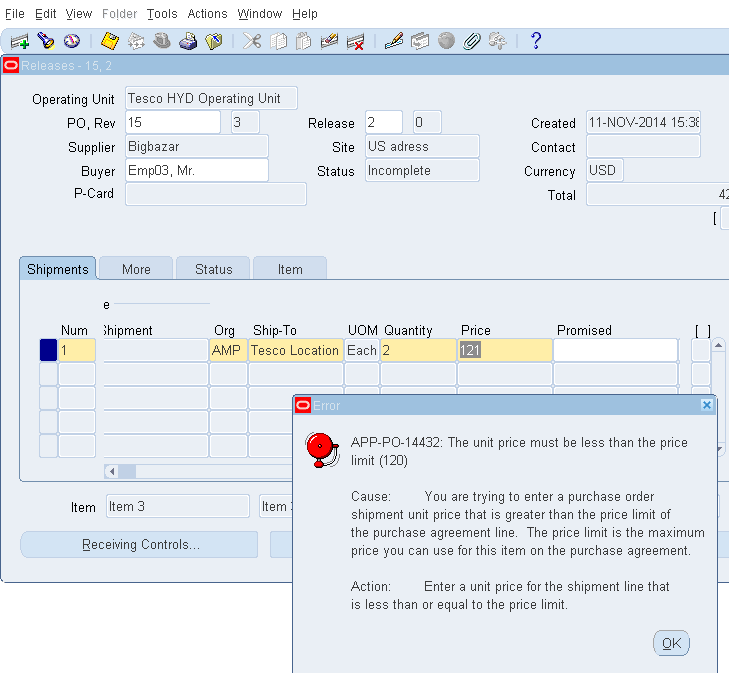
Step 3 - Change the Price in BPA Release More than 120:

The system will not allow you to increase the price more than 120 as we have limited the line price to 120 in "Price Reference" TAB.





Friday, November 14, 2014

BPA - Blanket Purchase Agreement with Cumulative Pricing


Cumulative Pricing in Blanket Purchase Agreement

Cumulative: Price Breaks will be applied to the cumulative quantity on all released shipments for the item.


Step 1 - Create BPA:
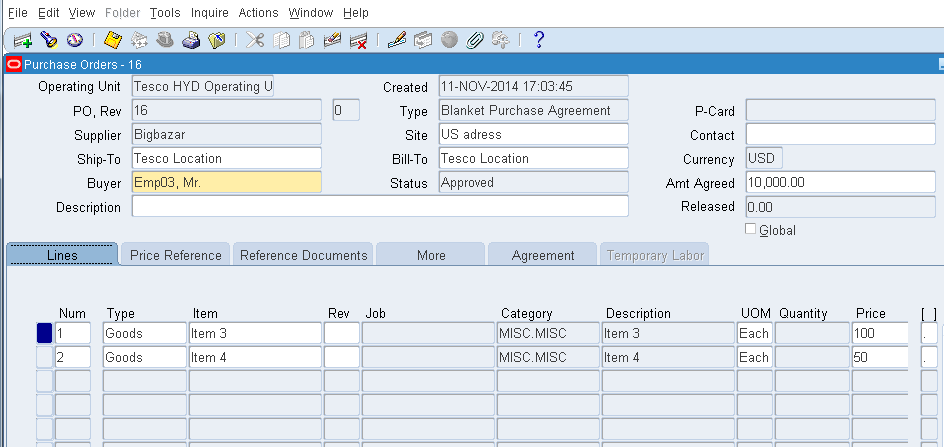
Create an Blanket purchase Agreement with two Items pricing 100 for first item and 50 for second item.


Step 1(a) - Enter Price Breaks:
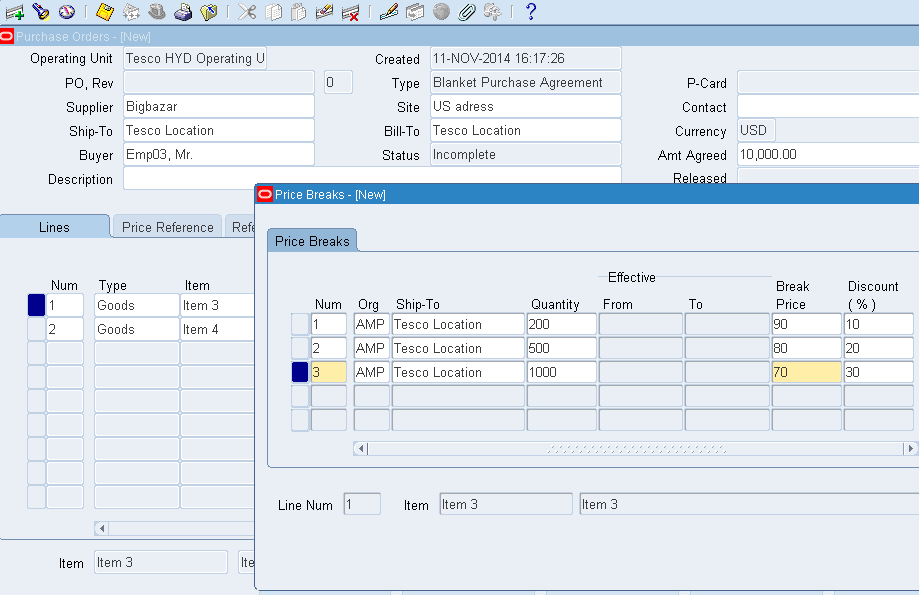
Click on "Price Breaks" and give as if the release reaches 200 quantity the discount will be 10% and the so the price becomes 90 instead of 100. Likewise 20% for 500 and 30% for 1000 quantities.
Do the same exercise for the second line item as well.


Step 1(b) - Enable Cumulative Pricing:
Now go to "Agreement" TAB and Enable the "Cumulative Pricing" box.
Approve the PO.


Step 3 -BPA Releases:
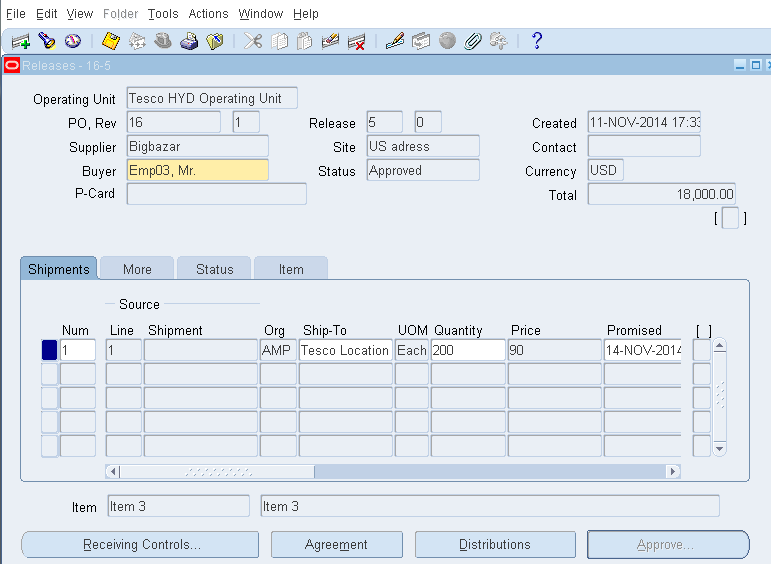
Now Perform the Blanket release for the above PO (16).
Navigation: Purchase Orders > Releases.
Query with the PO number.


Step 3(a) - Release - I:
Make the Quantity as 150 for both the line items and check the price where it doesn't differ.
No changes in the Unit Price for each lines.


Step 3(b) - Release - II:
Release 75 quantities for both the line items and now the price changes as per our price breakups given in the line level. Here the discount applied for the items as the total quantities have crossed the 200 (150 in Release I and 75 in Release II) where it should apply 10% discount.

Step 4 - BPA Without Cumulative Pricing:

Now go to the same PO (16) and Uncheck the"Cumulative Pricing" in the "Agreement" TAB.
Now release the Blanket PO.

Step 4(a) - Release I:
Release for 150 quantities for both the line items.


Step 4(b) - Release II:
Release 75 quantities for line item1 and check the discount have not applied and notice the price is still 100.


Step 4(c) - Release III:
Now try to release 200 quantities in single individual line and notice the discount have applied to 10% and the price turns to 90.

Note: Price breaks apply to quantities on individual released shipments for the item in case when we have price breakups and not selected cumulative pricing.

Thursday, November 13, 2014

Blanket Purchase Agreement (BPA) with Minimum Release Amount Functionality

Minimum Releases in Blanket Purchase Agreement

Step 1 - Create Items:
Responsibility: Purchasing Super User
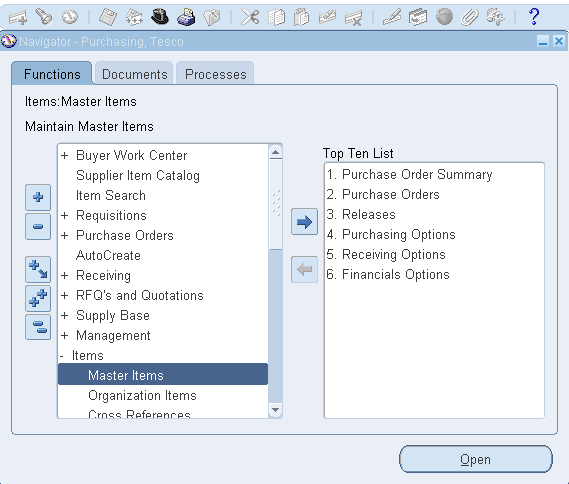
Navigation: Items > Master Items.
Create two different items (Test Item1 and Test Item2) as below, apply Purchasing Template and Assign it to the required Organizations.

Test Item1:
Test Item2:

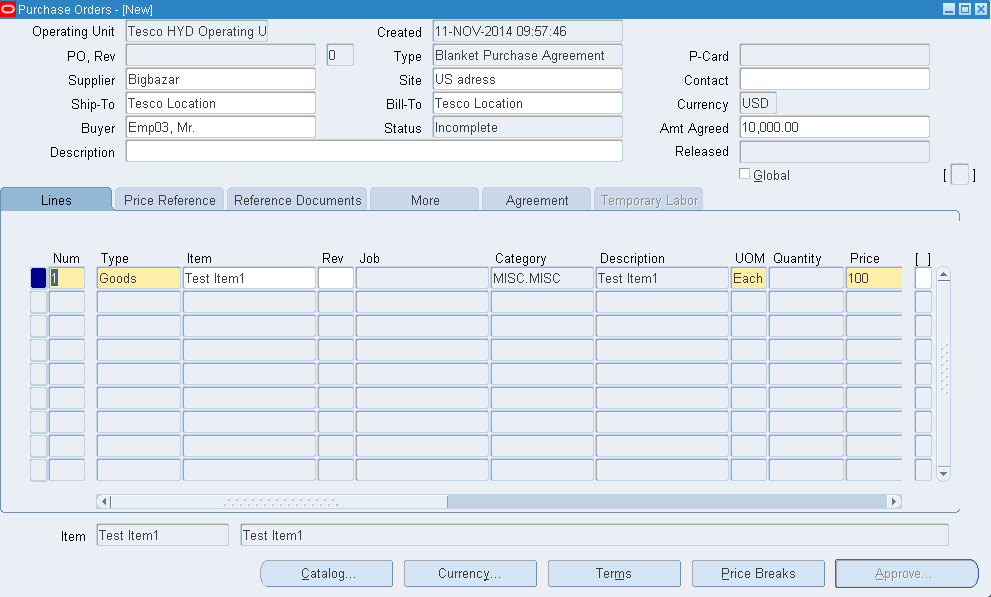
Step 2 - Create BPA:
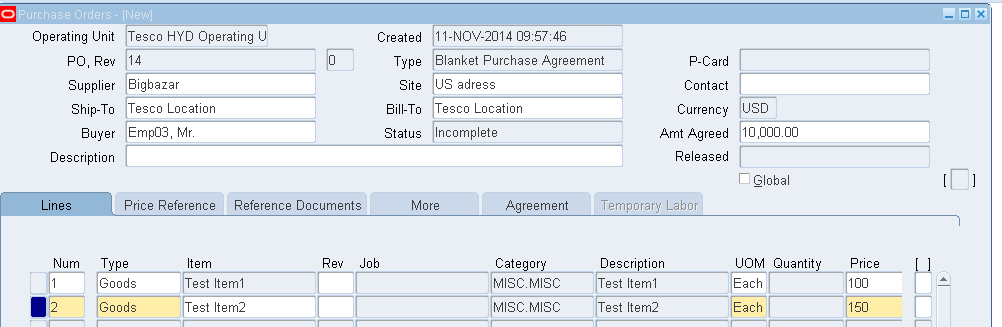
Now create the Blanket Purchase Agreement for both the lines with Price as 100 for Item1 and 150 for Item2.
Navigation: Purchase Orders > Purchase Orders

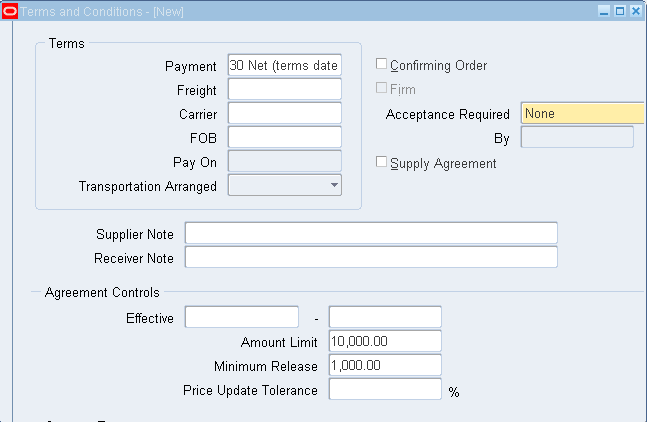
Step 2(a) - Enter Minimum Release Amount in "TERMS":
Click Terms on the bottom of the document and give "Minimum Release" as 1000 in "Minimum Release" field. The "Amount Limit" will be defaulted from the header level "Agreed Amount" as seen in the above screen.
Step 2(b) - Enter Minimum Release Amount in "Agreement" TAB for each lines:
Now come to "Agreement" TAB in the line level and give the "Minimum Release" to 500 in line1 and 600 in line2 which restricts the line level minimum release for both the Items.
Approve the Blanket Purchase Agreement and check the Status on the header level.

Step 3 - Blanket Releases:
Now Release the Blanket Purchase Order.
Navigation: Purchase Orders > Releases.
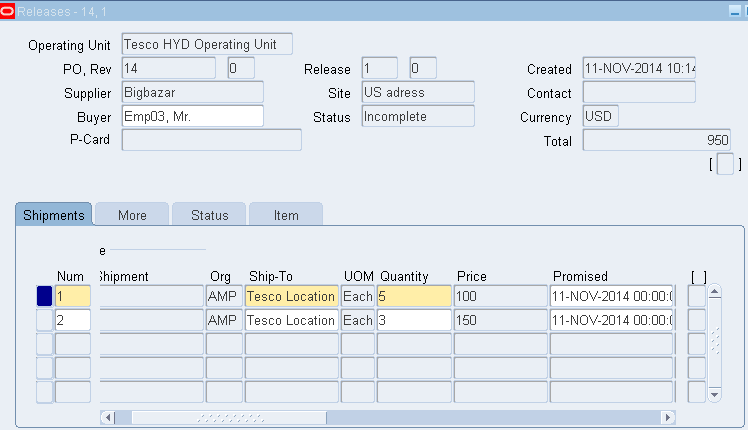
Query with PO number. (Here PO no is 14).
Try to release Item1 for 500 (5 Quantity X 100 USD) and Item2 for 450 (3 Quantity X 150 USD).
Click "Approve"
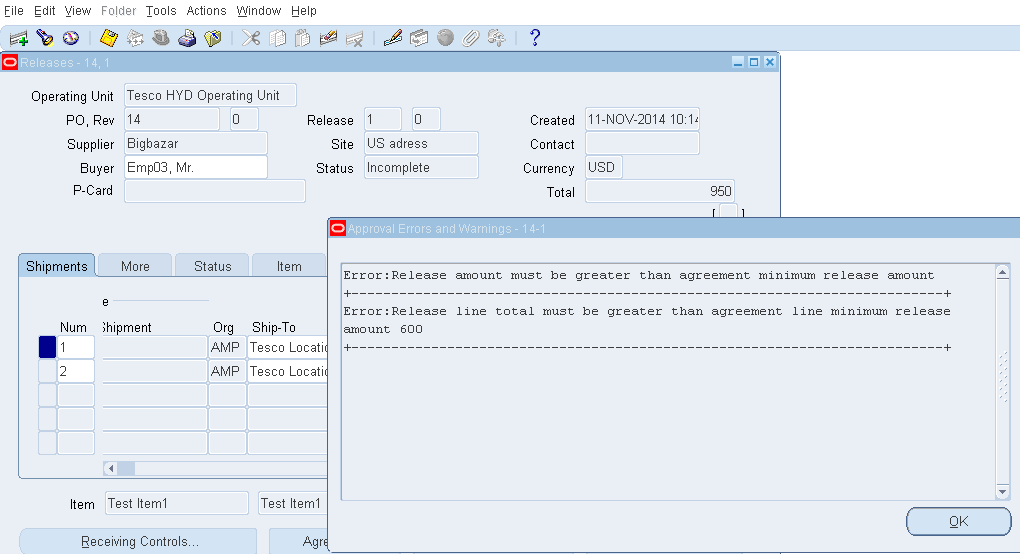
You cannot release as you get the below error which says,
  1. Release amount must be greater than agreed Minimum release amount.
Reason: The Total Release Amount for both the lines 950 (500+450) is less than the Agreed Minimum Release Amount in the Terms Tab (1000).
  1. Release line total must be greater than agreement line minimum release amount 600.
Reason: The Total Amount for Item 2 is 450 (3 Qty X 150 USD) where in which we have agreed for minimum release of 600 in the line level Agreement Tab.
Now try to Increase the Iem2 amount to 600 which satisfies the Agreed Minimum Release Amount in Line level (600) and header level (1000).
And now you will be able to release the Purchase Order. (Check the status).