Showing posts with label Blanket Sales Agreement - BSA. Show all posts

Thursday, August 13, 2015

Blanket Sales Agreement with Approvals and Release in Oracle R12.2


Setups Required:

1. Transaction Type:
Create an order transaction type.
Sales Document type should be "Sales Agreement".
Fulfillment flow: Sales Agreement - Generic
Negotiation Flow: Negotiation Flow - Generic with Approval
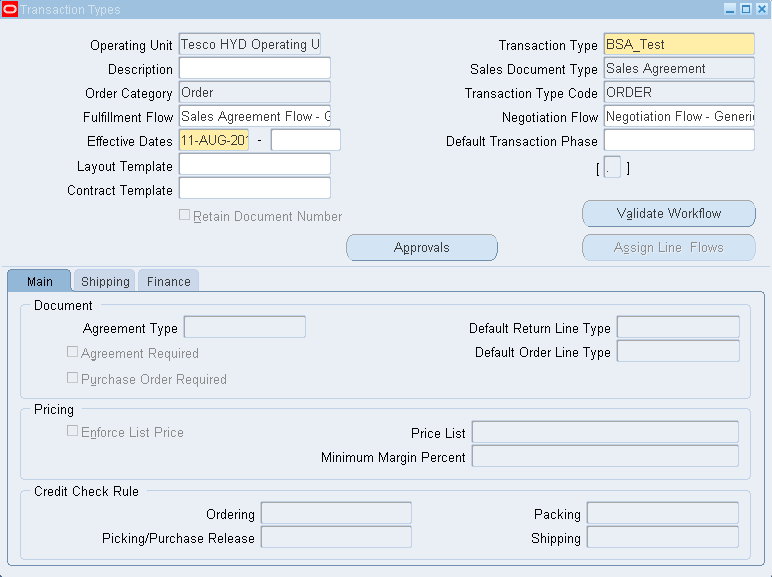
Note: Please note that for sales agreement does not require separate line transaction type, as it follows the regular fulfillment flow as like sales order.

2. Document Sequence:
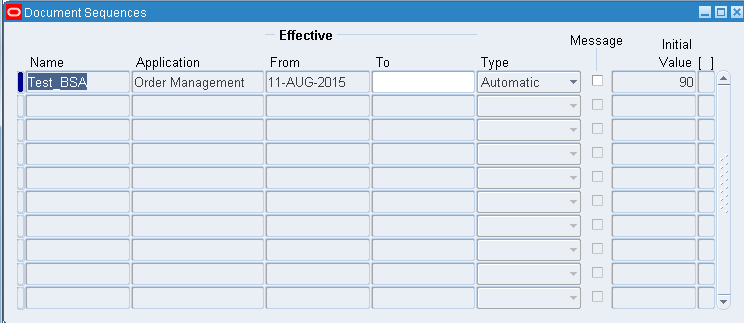
Create a document sequence for the Order type we created above.
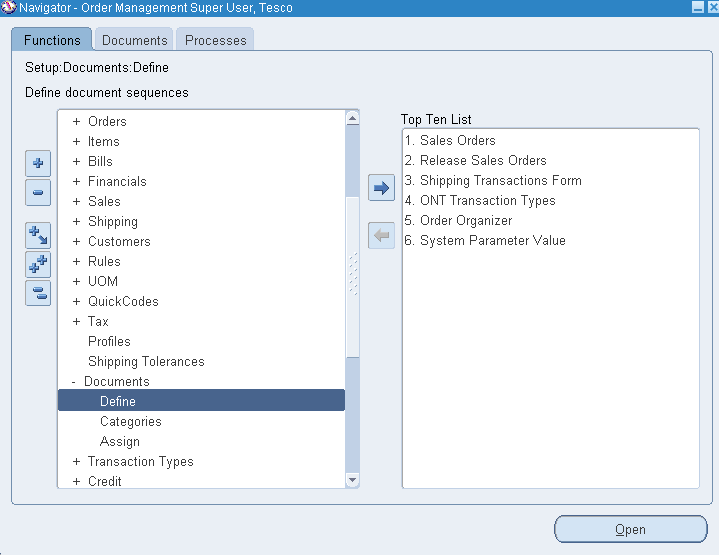
Create the document sequence with some initial value as below (here 90) and make it automatic.

Now assign the document sequence to the Order type that was created for blanket sales agreement.
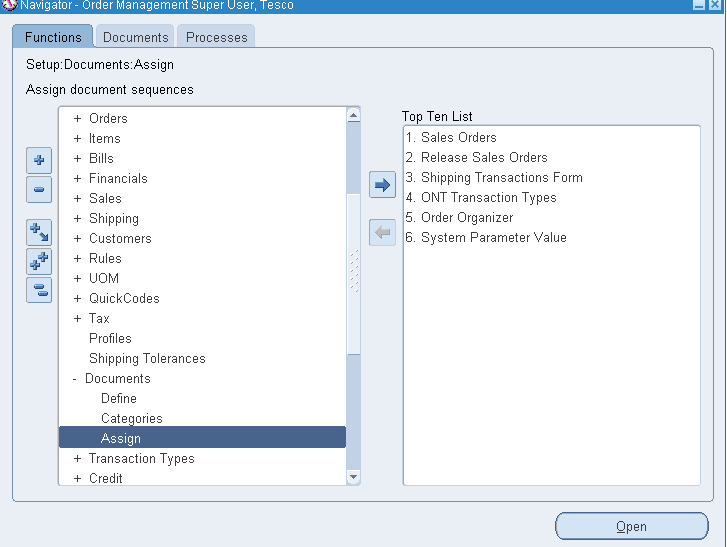

Select the application, category (Order type) and your sequence as below.

3. Create Approval List

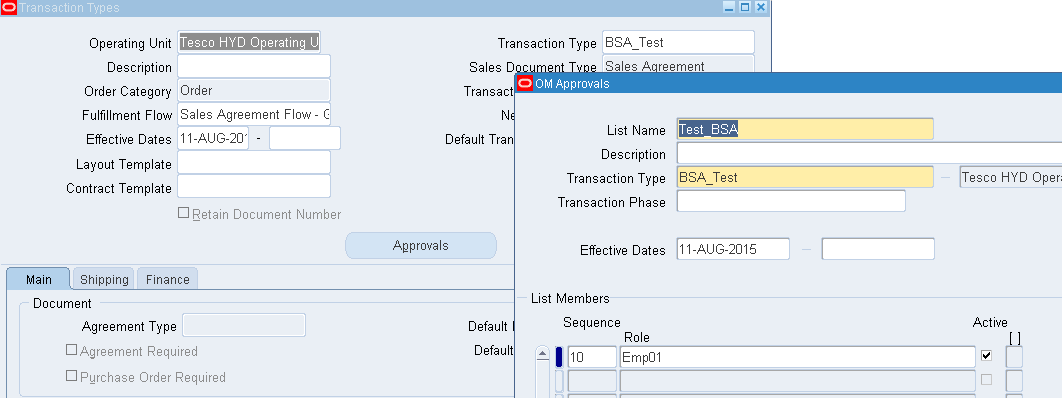
We can create and add an approval list for the order type so that the sales agreement goes for an approval process. We can attach the approval list in the order type as below.
Select the transaction type and click on “Approvals” button and create a list of approvers as below by giving the sequence and note that we can have multiple levels of approvers by listing in the approval list form below.
Now the sales agreements will follow the approval process as mentioned here in the form to those users.


Sales Agreement process flow
1. Create a Sales Agreement:
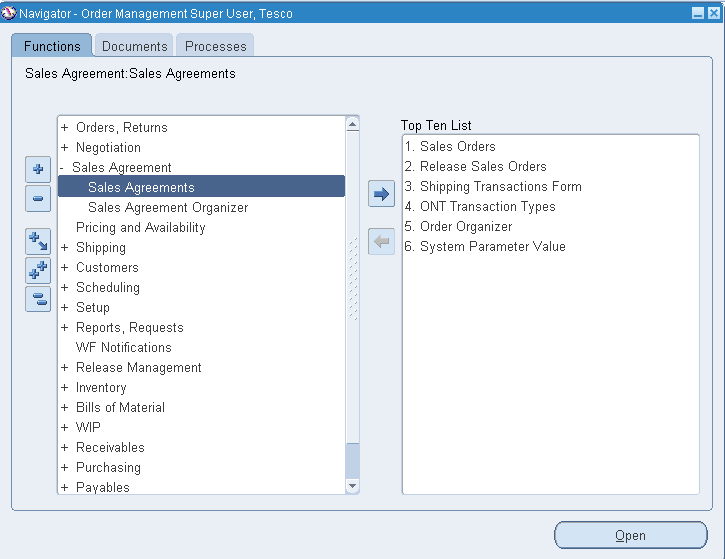
Navigation:  Sales Agreement > Sales Agreements.
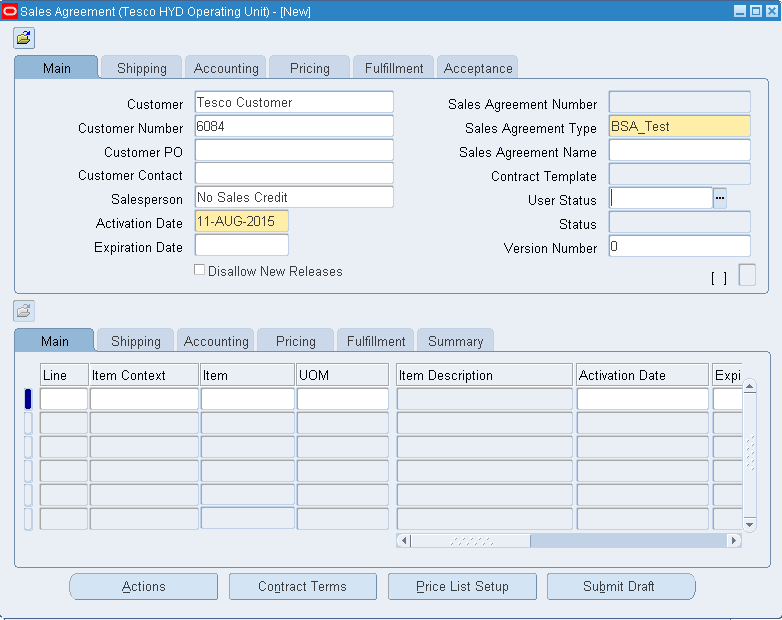
Select the Customer and transaction we have defined for sales agreements.
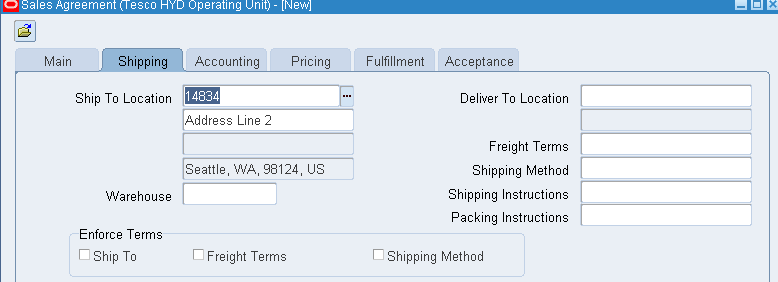
Come to "Shipping" tab and give the ship to location.
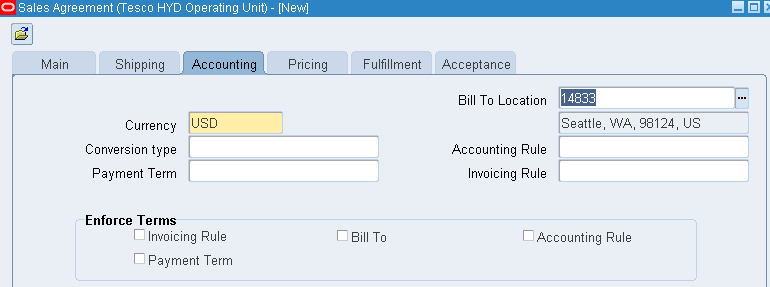
Come to "Accounting" tab and give the currency and Bill to location.
Enter the price list name in "Pricing" tab as below.
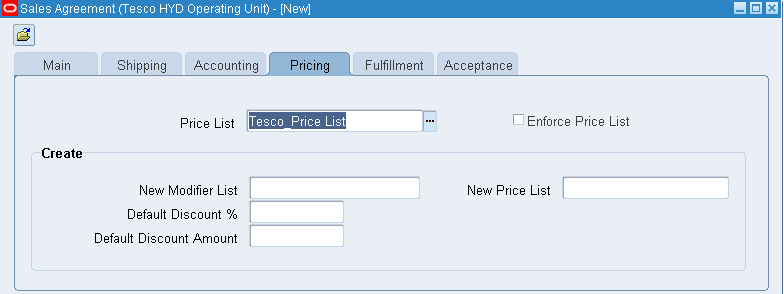
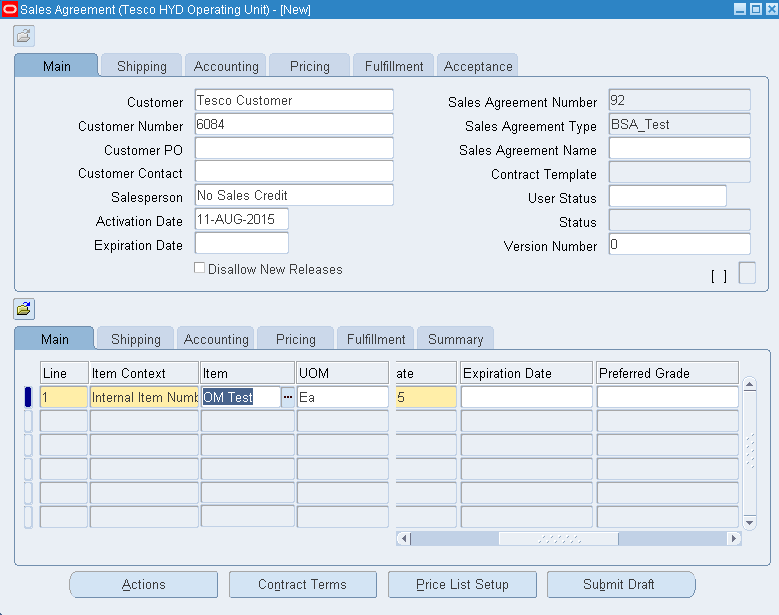
Now go to the line level. Select the item in item field where item context should be “Internal Item Number
Save the form and note the agreement status will change to “Draft” as below.
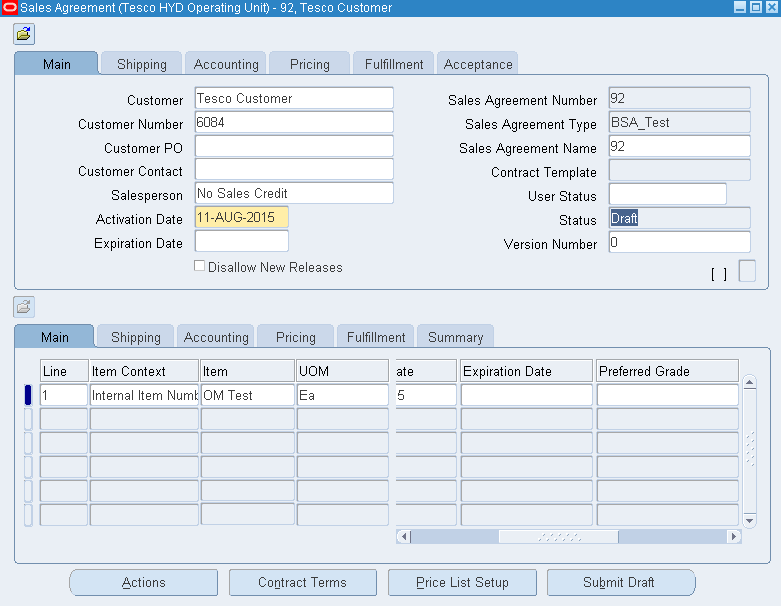
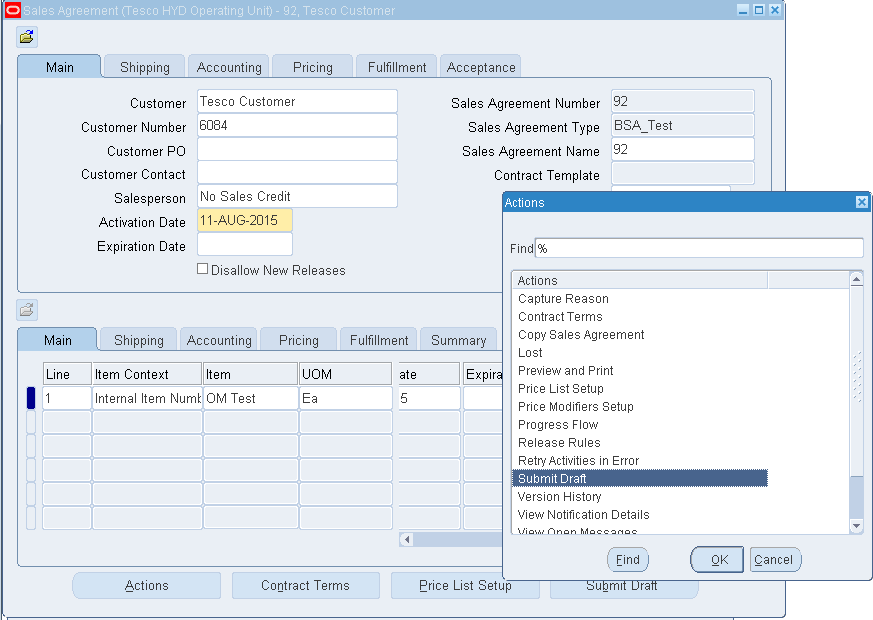
Now go to “Actions” button at the bottom of the form or click “Submit Draft” and click OK.
Note that the status changes to “Internal Approval Required”. That means the Sales Agreement has gone to the user for approval whom we defined as the approver in the approval list at the transaction type.
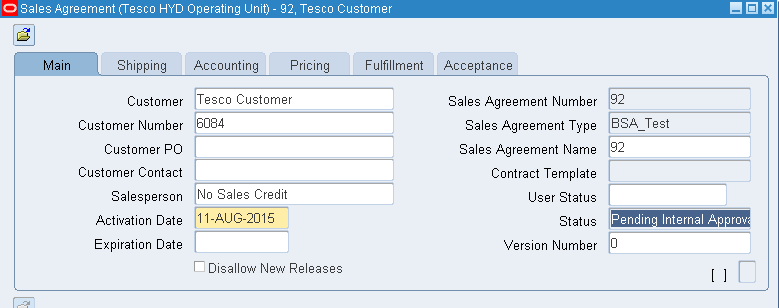
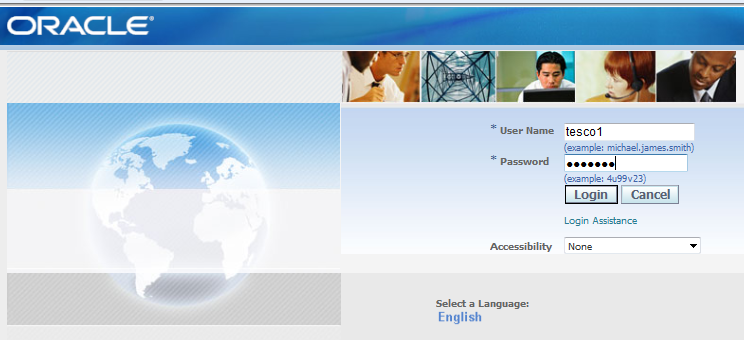
Now login as approver.
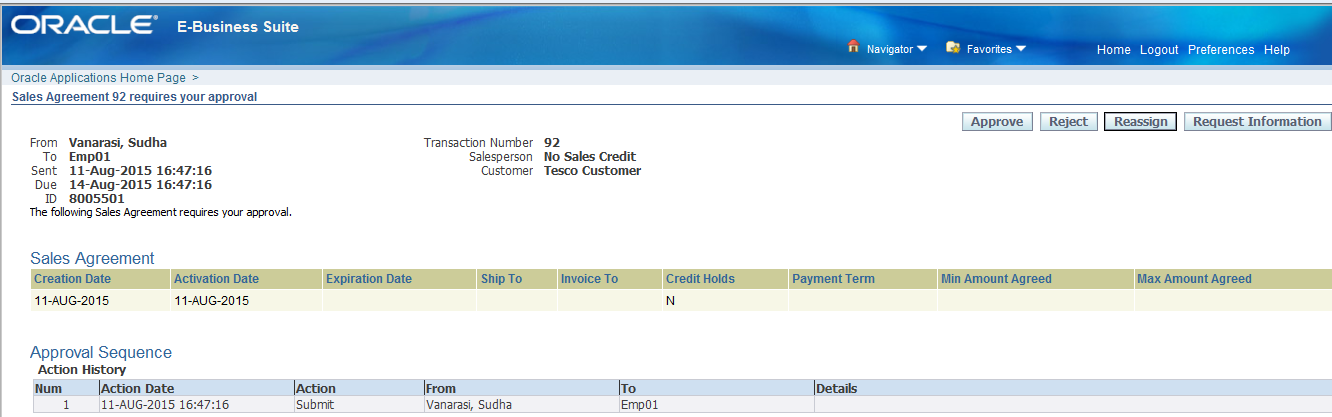
Note that the Sales agreement notification is received.

Open the notification and say “Approve”.
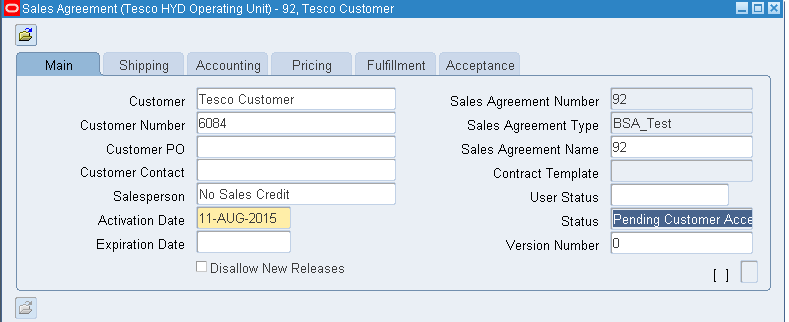
Now check that the sales agreement status changes to “Pending Customer Acceptance”.
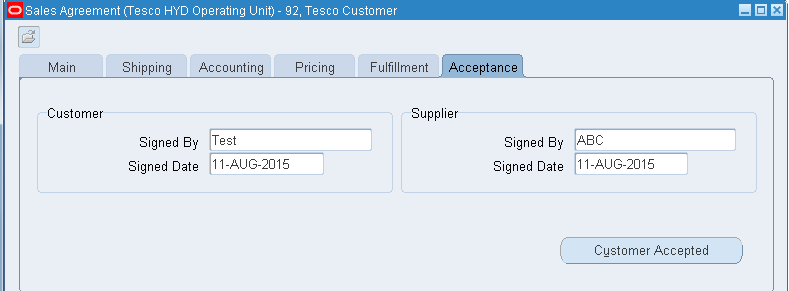
Now assume that, customer has signed and accepted the agreement. Capture the customer acceptance under "Acceptance" TAB by clicking on “Customer Accepted
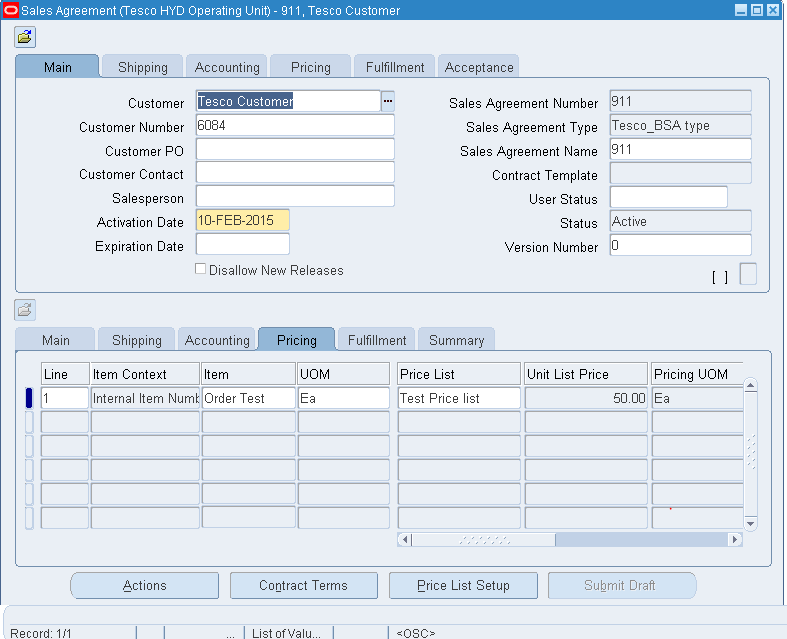
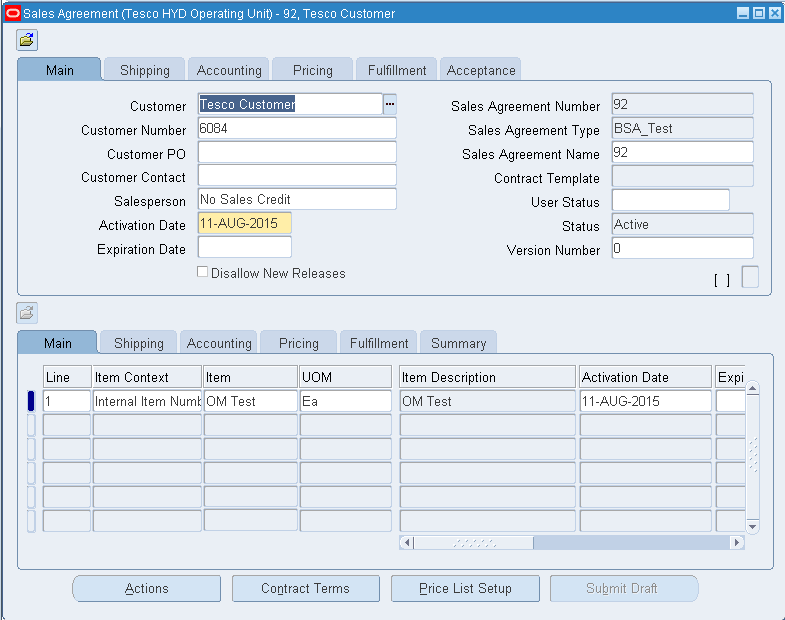
Once the agreement has been accepted by the customer the status of the agreement becomes “ACTIVE” and ready for releases.

Sales Agreement release
Select the sales agreement.
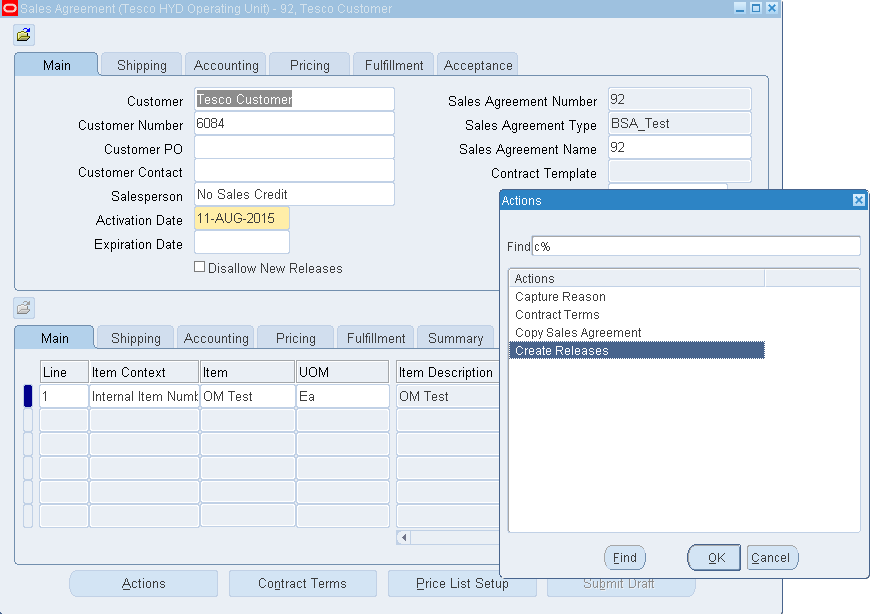
Go to actions button on the bottom, select “Create Releases” and say OK.
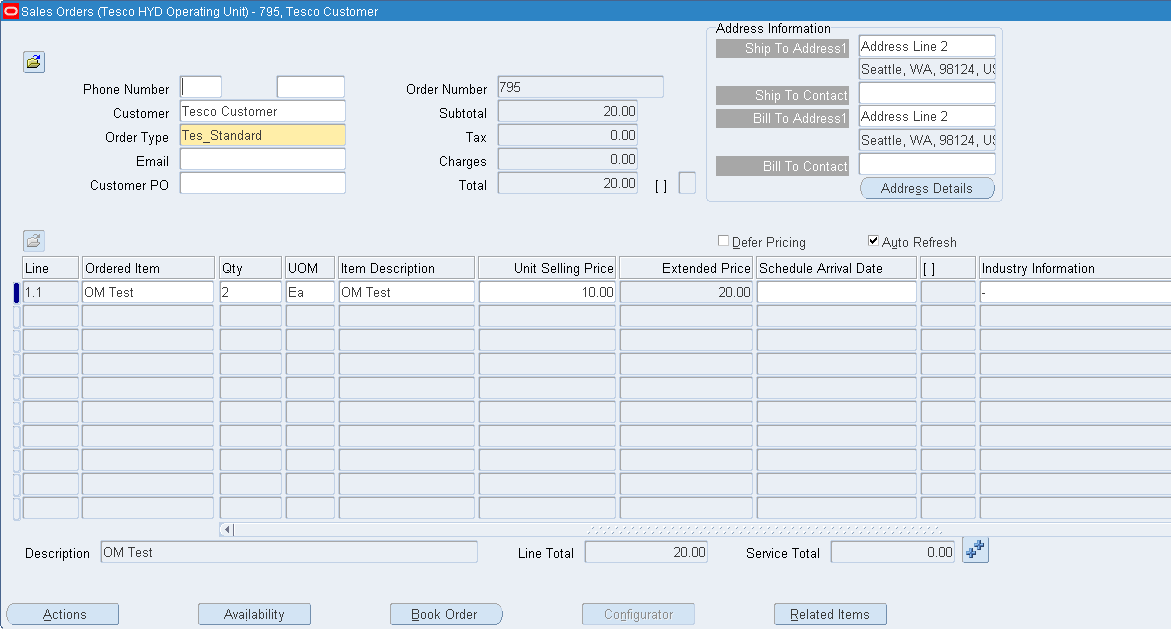
Note the system redirects to the quick sales order form and from here the sales order flow starts.


Author Details:


SUDHAKAR VANARASI
Email: sudhakar.vanarasi@doyensys.com


Wednesday, February 11, 2015

Updating Unit List Price in Blanket Sales Agreement in R12.2

Updating Unit List Price in Blanket Sales Agreement


Exercise 1: Firstly we will try to create a Blanket Sales Agreement.
Responsibility: Order management Super User.
Navigation: Sales Agreements > Sales Agreement.


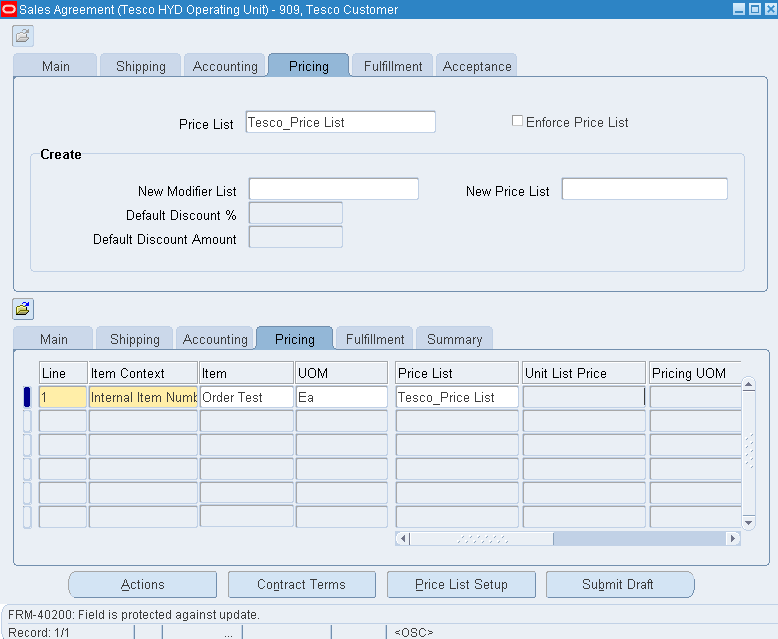
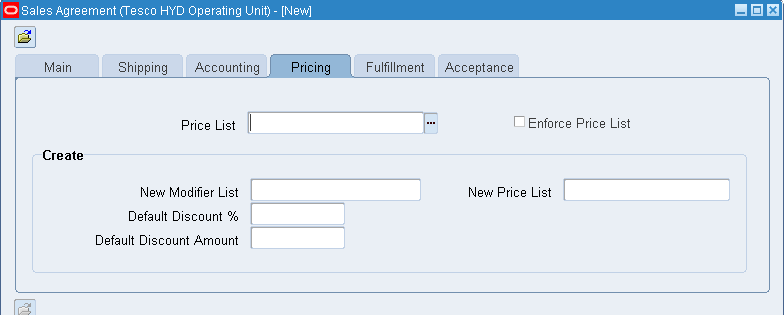
Come to pricing tab in BSA Header and give the price list.

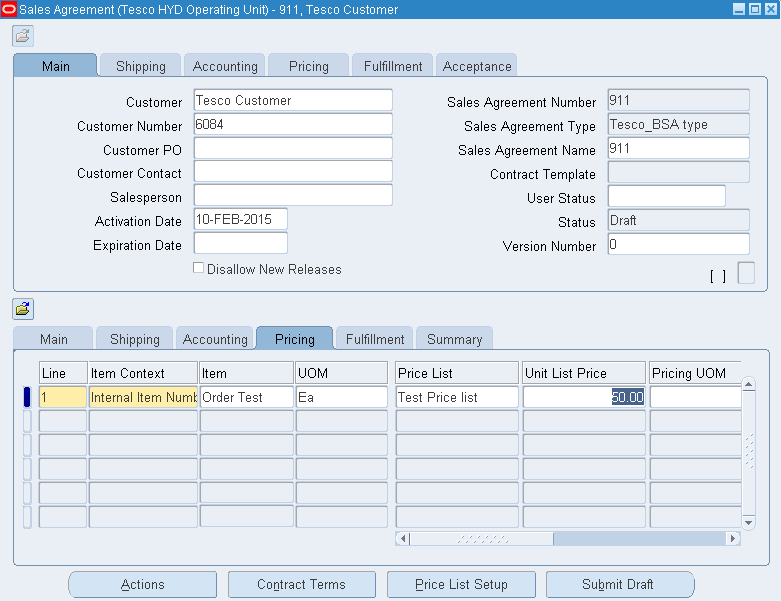
Go to line level and try to give Unit List Price. System will not allow you to enter and says” This field is protected against update”.


Usually when we try to create a BSA with the Global Price list, system will not allow us to edit the Unit List price in the line level.

Solution:

Exercise 2: So we will now find out the possible way to get the price updatable.

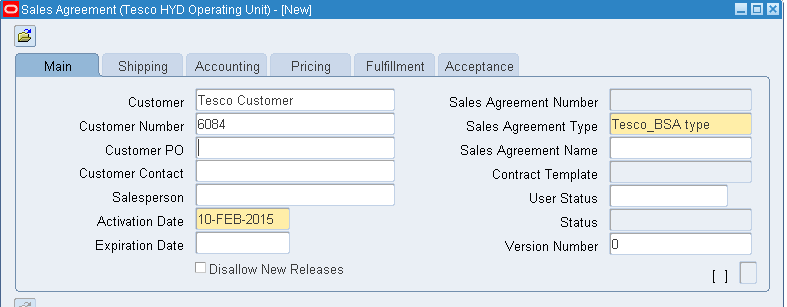
Create a Sales Agreement.

Give the customer name and agreement type.


Make sure the Price List is not given in the Pricing tab in BSA header.


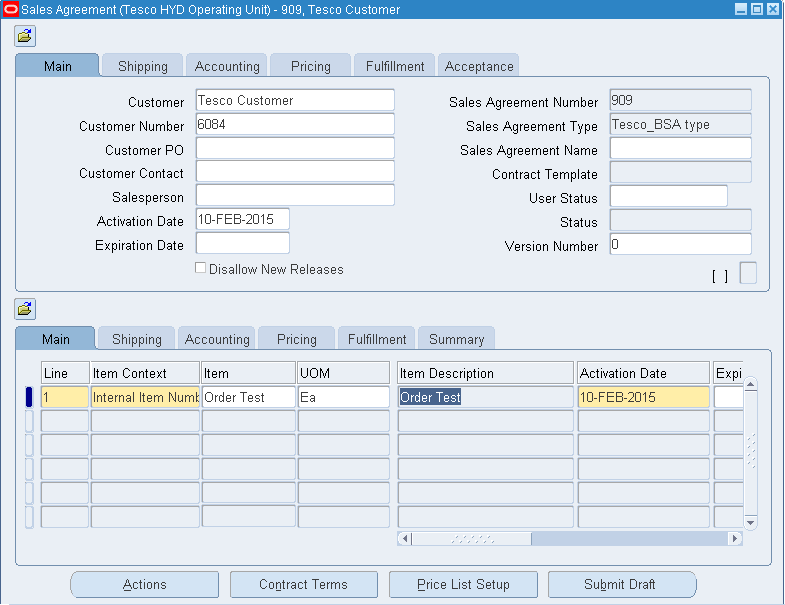
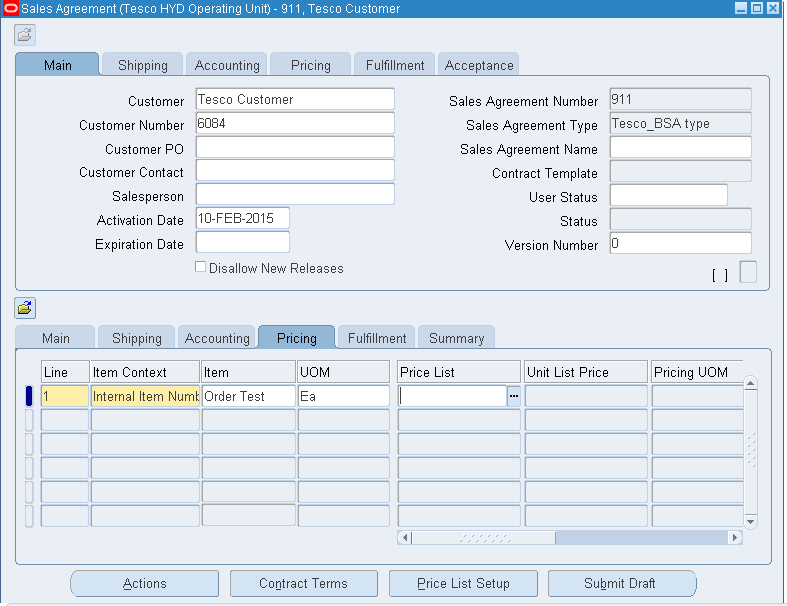
Come to Line level and give the Item and click on Price List Setup button in the bottom.


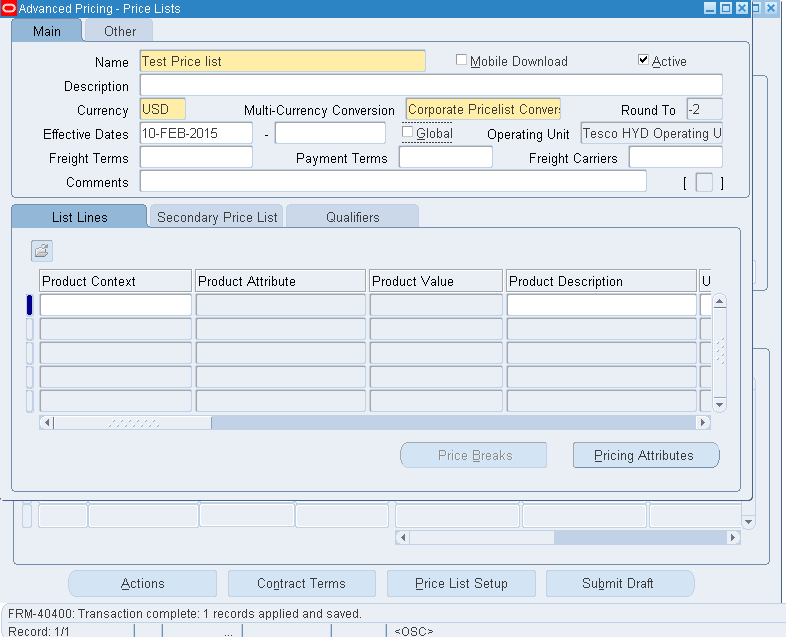
Now the system will be redirected to Advanced Pricing Module as below.

Note the Global field will be unchecked and we can find the operating unit next to that, means the price list what we are creating is not global and limited to our operating unit.


Now come to line level and try to update the unit price and you can now able to update as below.

Now you can go ahead and submit the draft and get approved from the customer and the Blanket Sales Agreement is now active and you can release the orders.


Important Notes:

  • The new Price list created against the BSA would be applicable only for that particular BSA.

  • If you try to add line items even with different items to the existing BPA and create new price list, system will not allow creating another price list. You can only use the existing Price list for particular BSA.

  • Once you save the BSA, we cannot even edit the Unit List Price again for the same item, it will be grayed out.

  • The Price created for the BSA cannot be used to any other purpose say even for sales order as it is for that particular BSA and not Global price list.


Wednesday, December 10, 2014

BSA - Blanket Sales Agreement and Releases in Oracle R12.2


Definition:
  • Blanket Sales Agreements are used when you have specific characteristics related to a purchasing agreement between a customer and a supplier. These characteristics include the date range of the agreement, the items included, the price of the items, the quantity of each item that the parties committed to, as well as other attributes, like freight or payment terms.
  • Below is the step by step procedure to process BPA in order management.

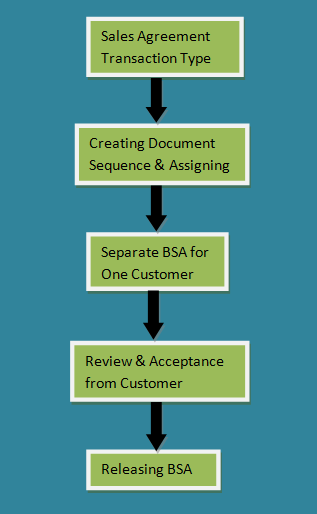
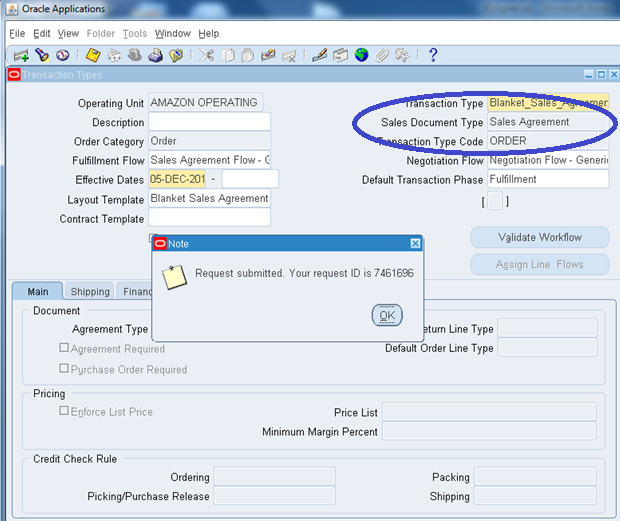
STEP 1: Sales Agreement Transaction Type
  • Let’s create a separate transaction for BSA and document type as Sales Agreement as below.
Invoking: Setup→Transaction Type→Define
  • Here we have created a new transaction type as Blanket_Sales_Agreement.
  • Fulfillment Flow as "Sales Agreement Flow - Generic"

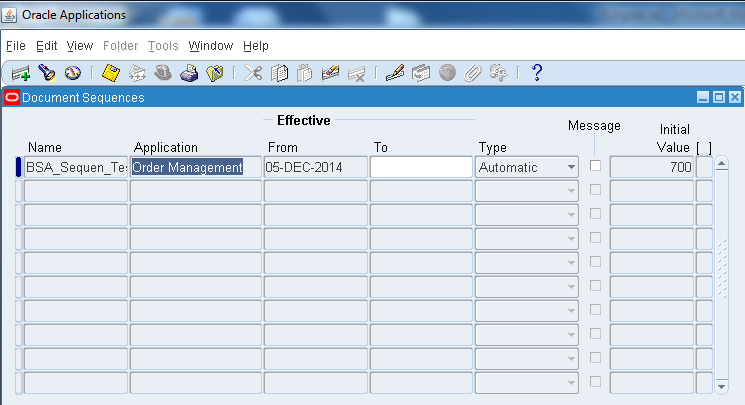
STEP 2: Creating Document Sequence & Assigning
  • Now let’s create a fresh Document sequence and assign for the transaction type we created.
Invoking: Setup→Documents→Define
  • Here we have created sequence as BSA_Sequen_Test
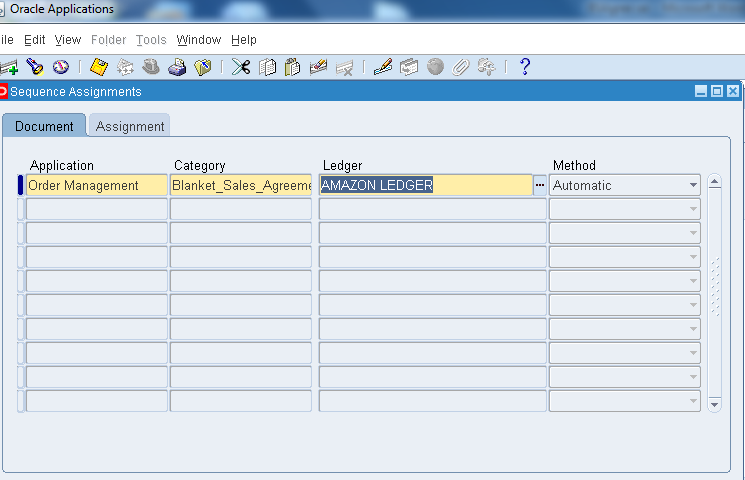
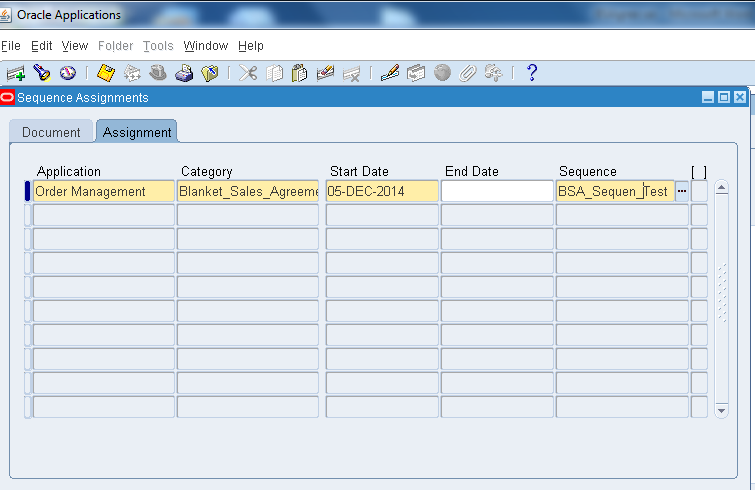
  • And assign the sequence by Invoking: Setup→Documents→Assign
  • Mention the Ledger name in Ledger and Transaction type created in the category, our created sequence in Sequence Field and save the dialog box as below.


STEP 3: Separate BSA for One Customer
Invoking:  Sales Agreement→Sales Agreements
Let’s concentrate here on two separate levels - Header level and Line level.
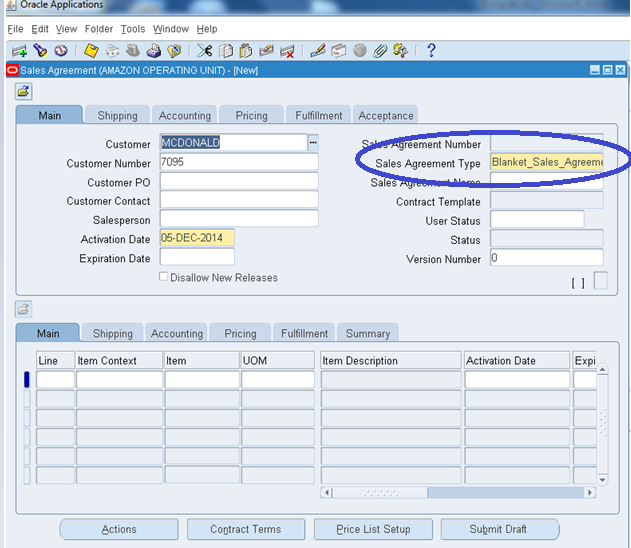
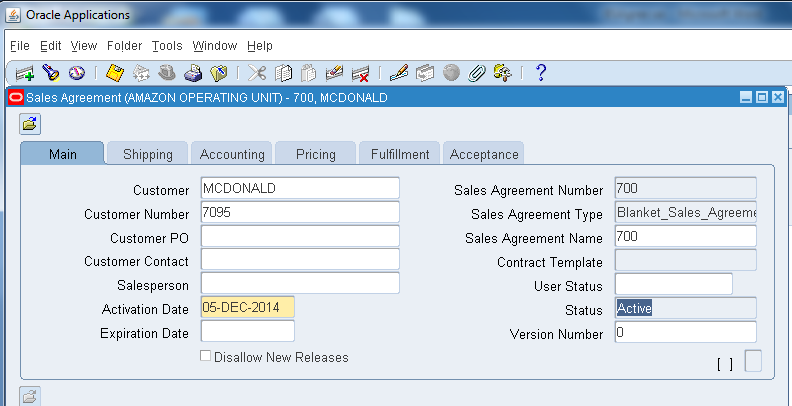
  • Firstly in header, Query the customer you already created and attach our transaction type in Sales Agreement Type as below.
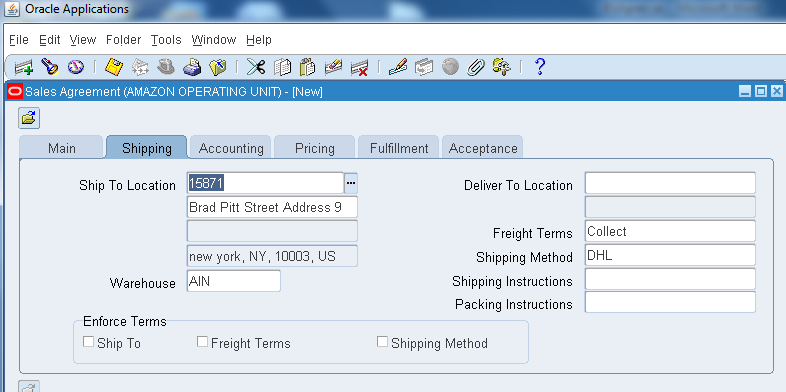
  • Click on the shipping tab and provide the Ship to Location, freight terms, shipping method.
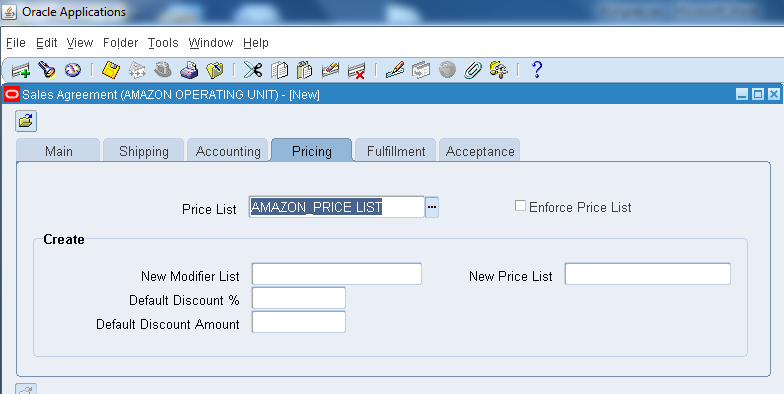
  • In pricing mention the price list you already created.
  • Now if you click on Acceptance Tab, the Customer Accepted button is graded out, since no approval and acceptance has been made yet.
  • Now let’s fillip the line level fields.
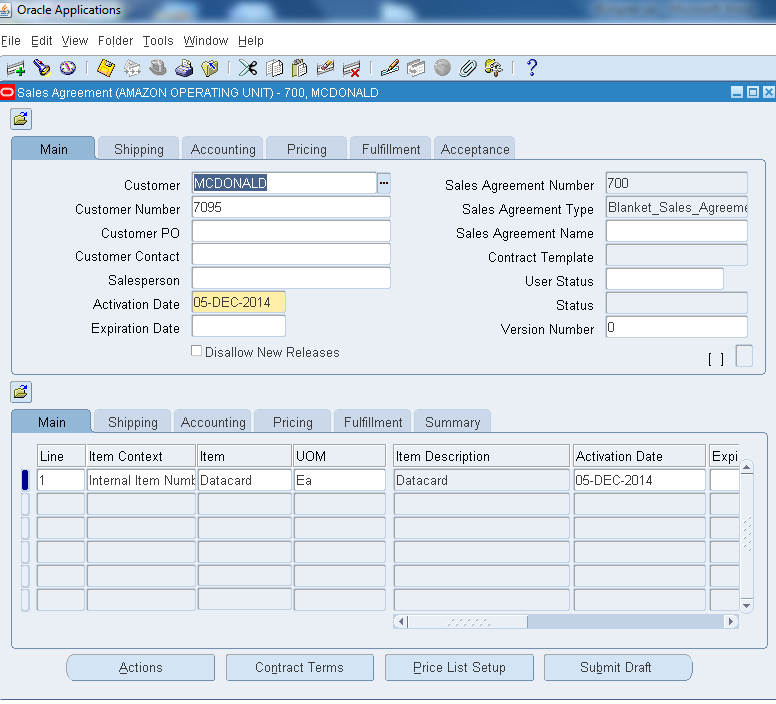
  • Query any item you have already created in inventory so that this item is applicable for BSA and click on submit draft button as below.
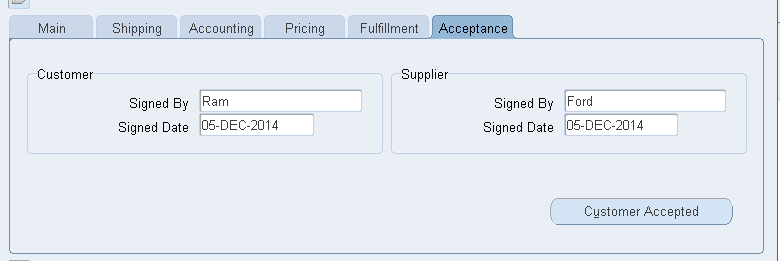
  • Now click on Acceptance tab and provide the Customer and Supplier name of your choice, you can view the Customer Accepted button enabled and click on it, which indicates that the customer has reviewed and accepted the BSA.
  • Now the status of the sales agreement becomes Active from graded.

STEP 4: Releasing BSA
  • On the same page click on action tab and select create Releases.
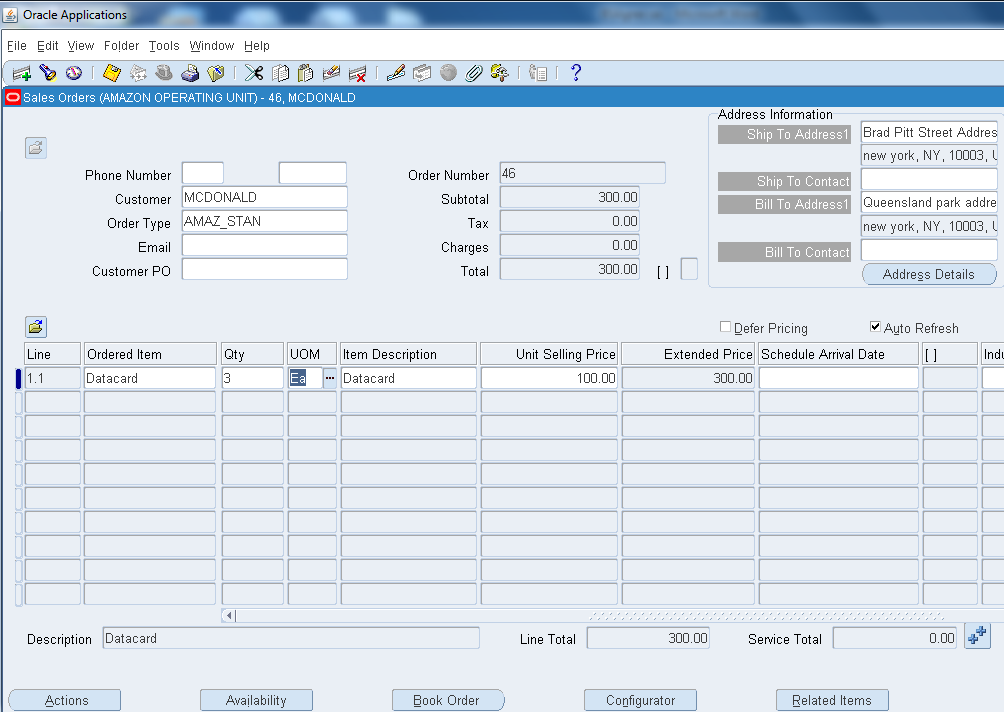
  • New sales order form is opened, book the order as below.
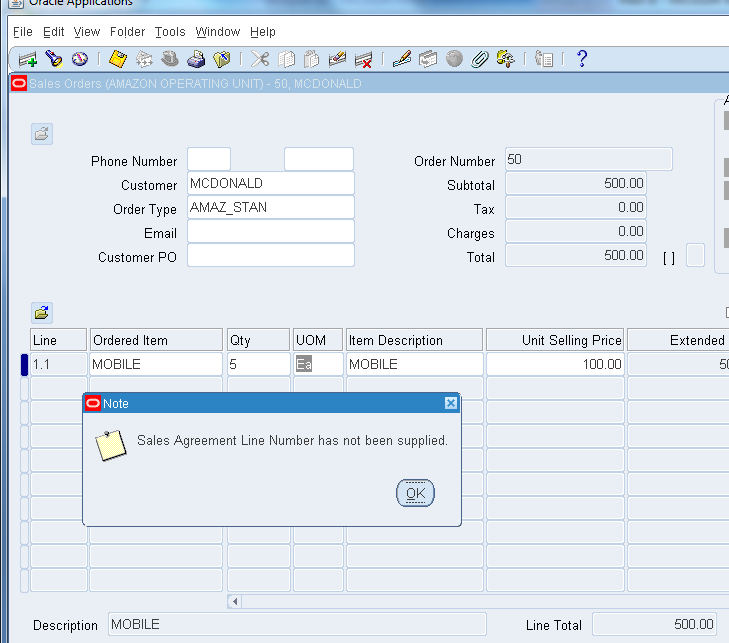
  • Now if you try to query  any other item apart from Datacard and proceed to book, it won’t allow us to process further since we have mentioned only one item(Datacard) in BSA.
  • Error message is below.
  • Now if you query by the order number in sales order the line status will be Awaiting Shipping
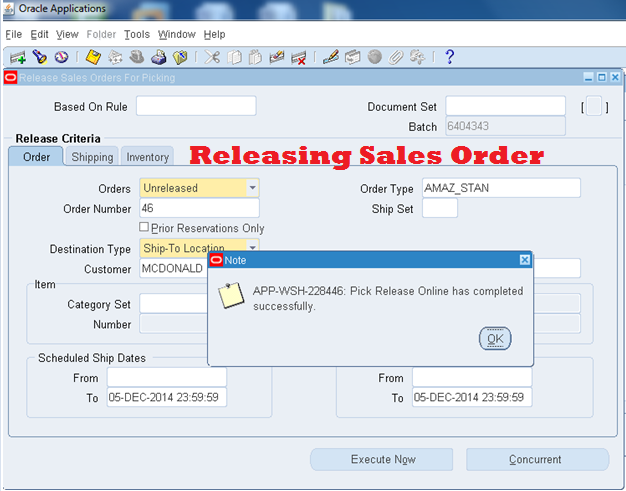
  • From which we can perform O2C cycle as below. Pick Release /Ship Confirm.
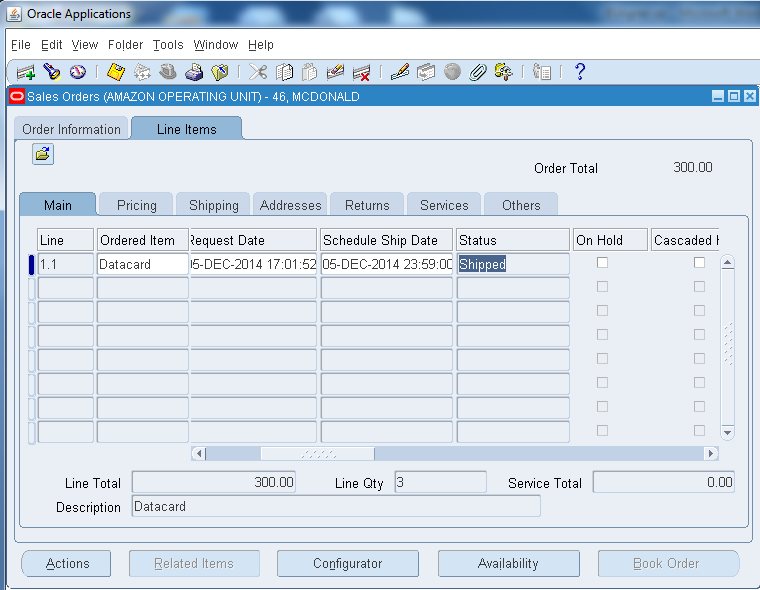
  • Now the status is changed to Shipped.
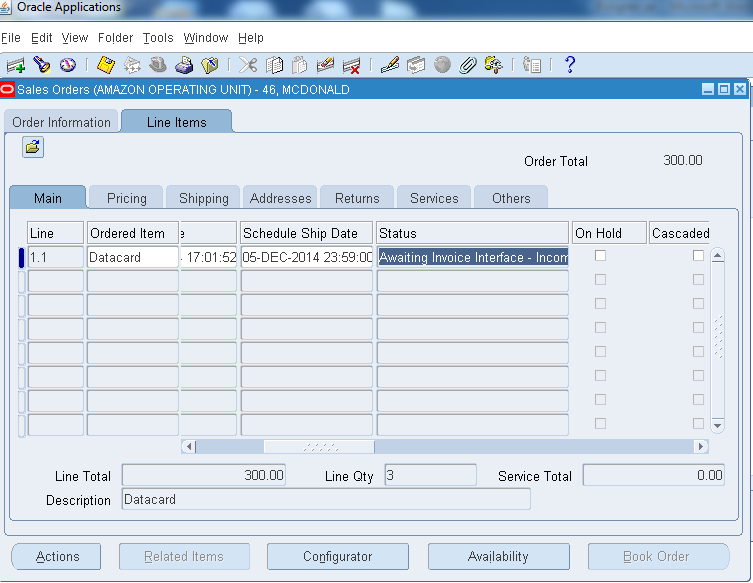
  • Run workflow background process to change the line status to Invoice Interface.


Conclusion:
  • Similarly we can release “n” number of BPA from the Sales Agreement we created.
  • Once a Blanket Sales Agreement is entered for a customer, multiple releases (shipments) against the Blanket Sales Agreement are processed over a period of time within Order Management. The order is fulfilled and billed according to the terms of the Blanket Sales Agreement. Tracking information will also be accumulated for Blanket Sales Agreements, this information is used to view status of orders executed against a Blanket Sales Agreement.

Thank you || Raja||