

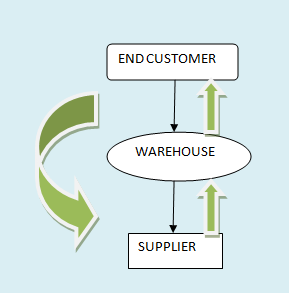
- This order type applies when customer orders a product which you do not stock or manufacture.
- In turn customer places the order, you place the order with supplier and after the shipment from the supplier, and you distribute the product to the customer.
- Below is the flow chart for B2B process flow:
STEP 1: Item Creation for Back 2 Back orders
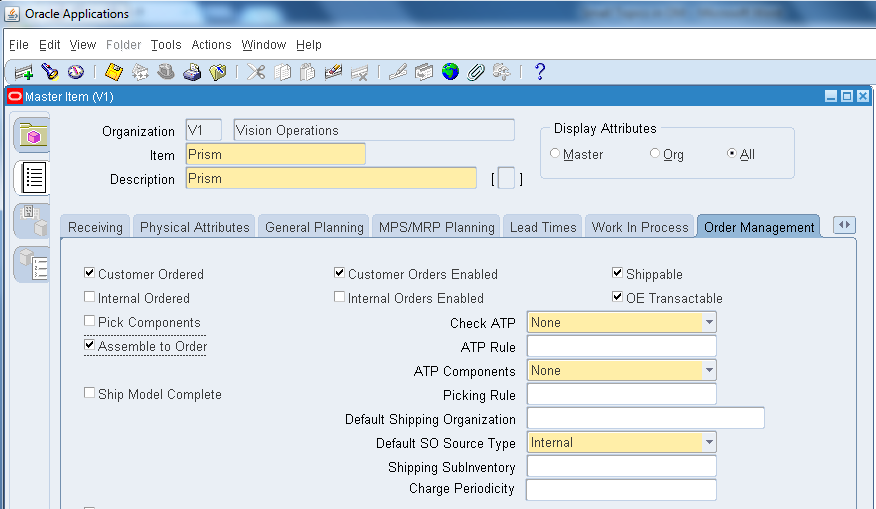
- Item: Prism
- Copy the Purchasing template.
- Purchasing Tab: List Price : $15, Used Approved Supplier © enable
- General Planning Tab: Source Type : Supplier, Make or Buy : Buy
- Order Management Tab: Assemble to Order © enable.
- Assign to our inventory.


STEP 2: CREATE APPROVED SUPPLIER LIST
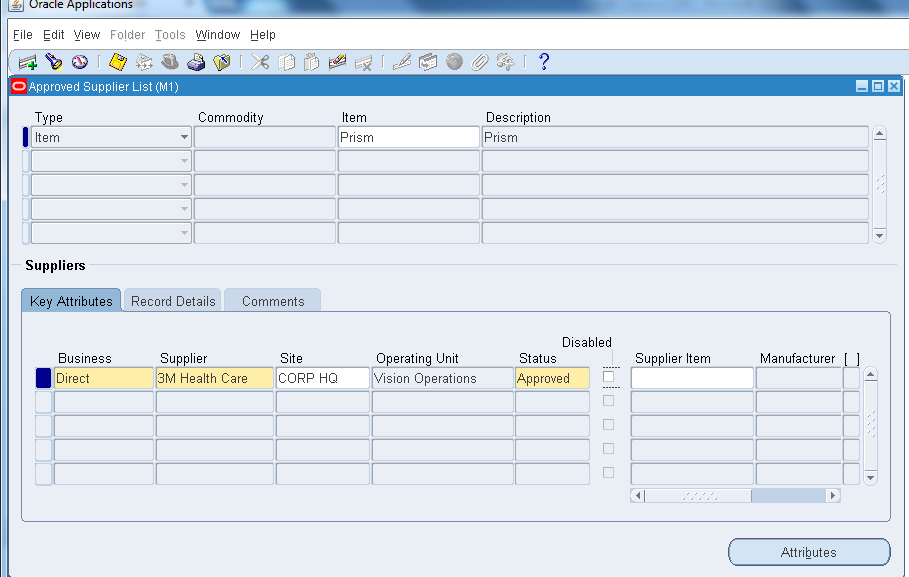
Invoking: Order Management →Purchasing→ Supply Base→ Approved Supplier List
- Lets create an Approved supplier List for the item we created (Prism).
STEP 3: Create Sourcing Rule
Invoking: Order Management →Purchasing→ Supply Base→ Sourcing Rule
- We are going to create Sourcing Rule as: Prism_Sourcing.

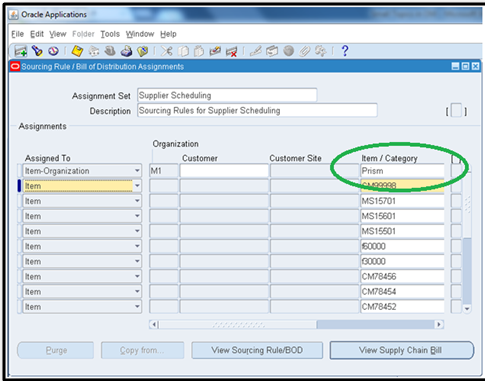
Step 4: Assign Sourcing Rule
- Query the ”Supplier Scheduling Assignment” set by using F11 key & paste our item, Sourcing rule as below.

STEP 5: BOOK SALES ORDER
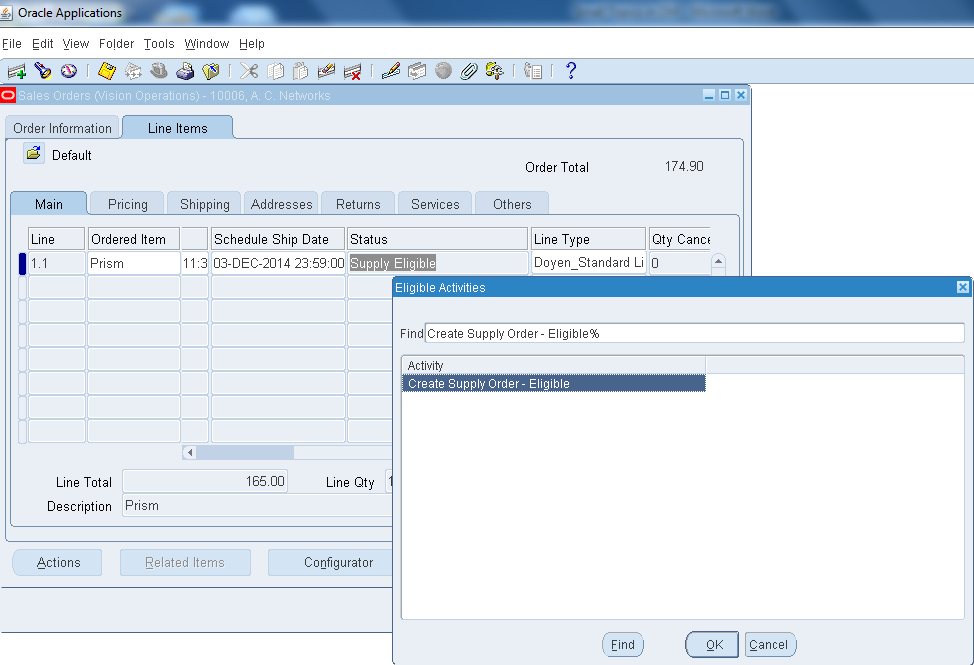
- Now book the sales order and the status of the line will be Supply Eligible.

- Select the Supply Eligible text →Right Click→Progress Order→OK
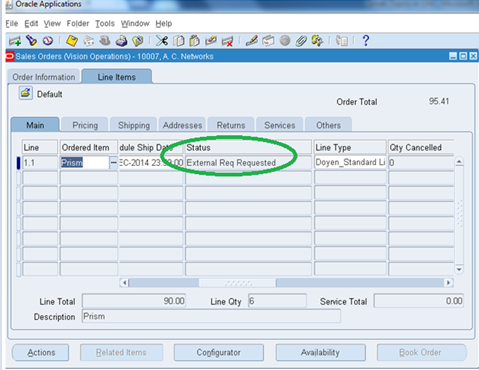
- Now the status will be changed to External Req Requested as below.
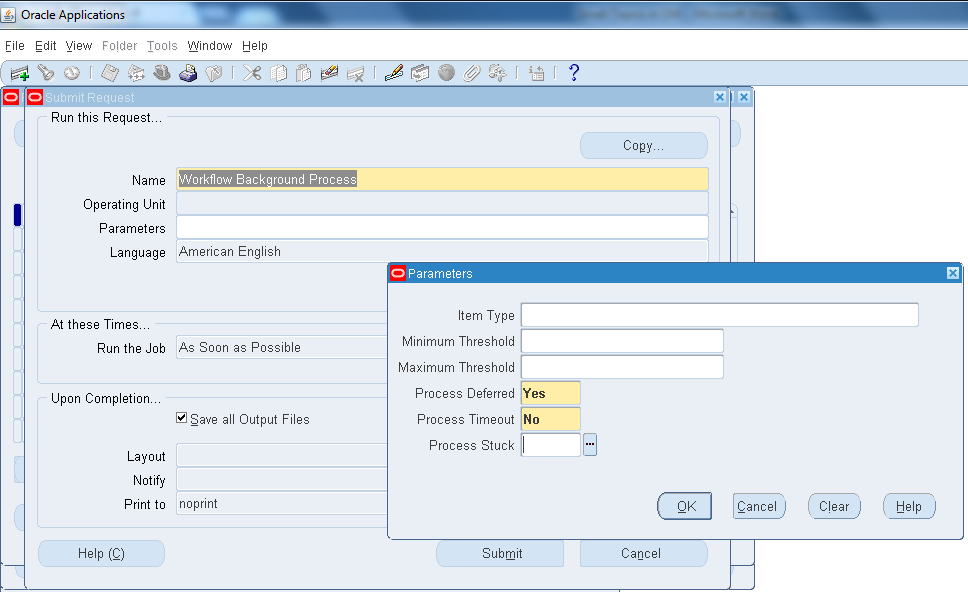
- Now run the Workflow Background Process from View→ Request
STEP 6: Requisition Import
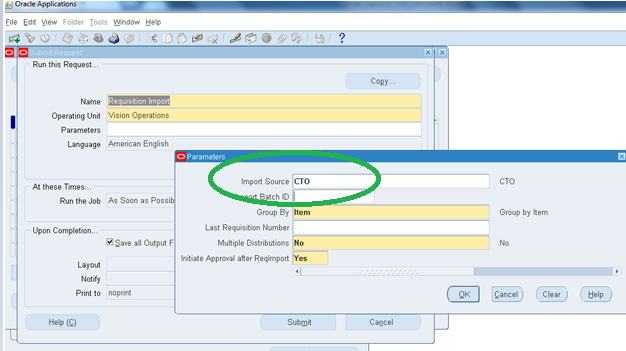
- Switch the responsibility to Purchasing and Run Requisition Import from View→ Request
- Select Import Source as CTO.
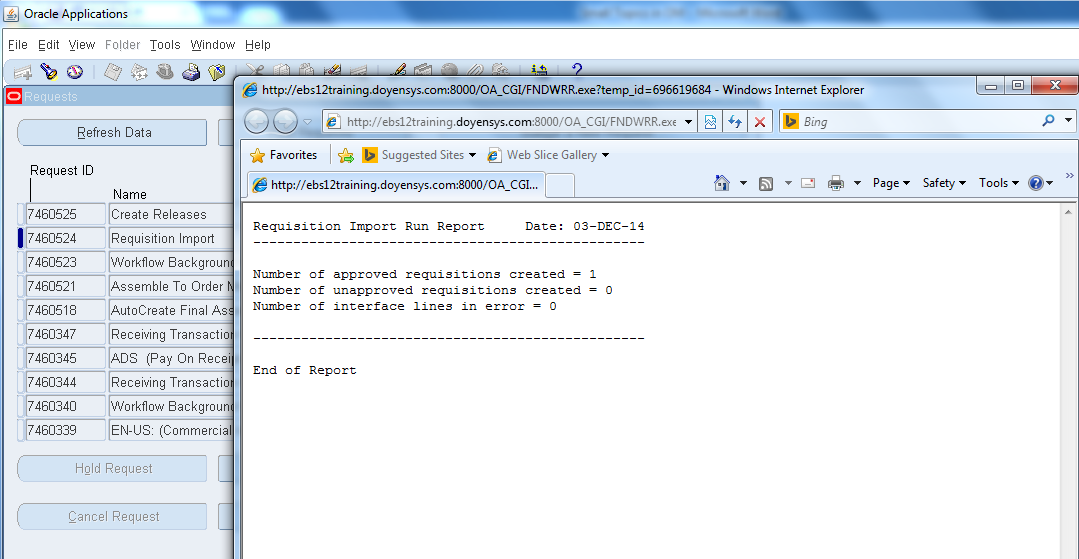
- Here Requisition Import and Create Releases Program runs and view the output, so that we can make sure that the releases has been processed successfully as below.
STEP 7: QUERY REQUISITION
Invoking: Purchasing→Requsitions→ Requisitions Summary
- Now query by the item: Prism (we created) and create the REQ as below.

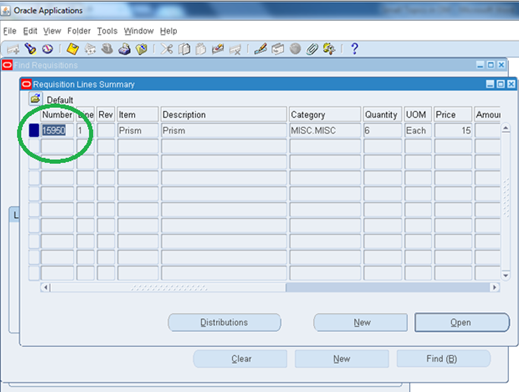
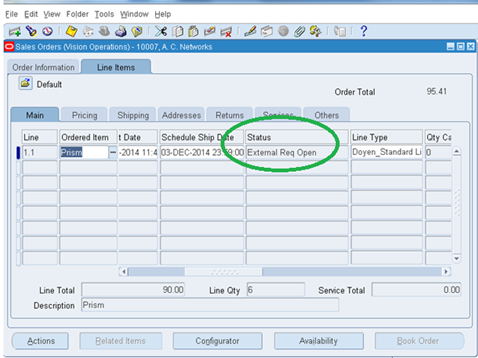
- Now if you check the sales order line status it will be External Req Open.
STEP8: AUTOCREATE PURCHASE ORDER
Invoking: Purchasing→Purchase Order→ Purchase Order Summary
- Now let’s create a purchase order with the req # we created.


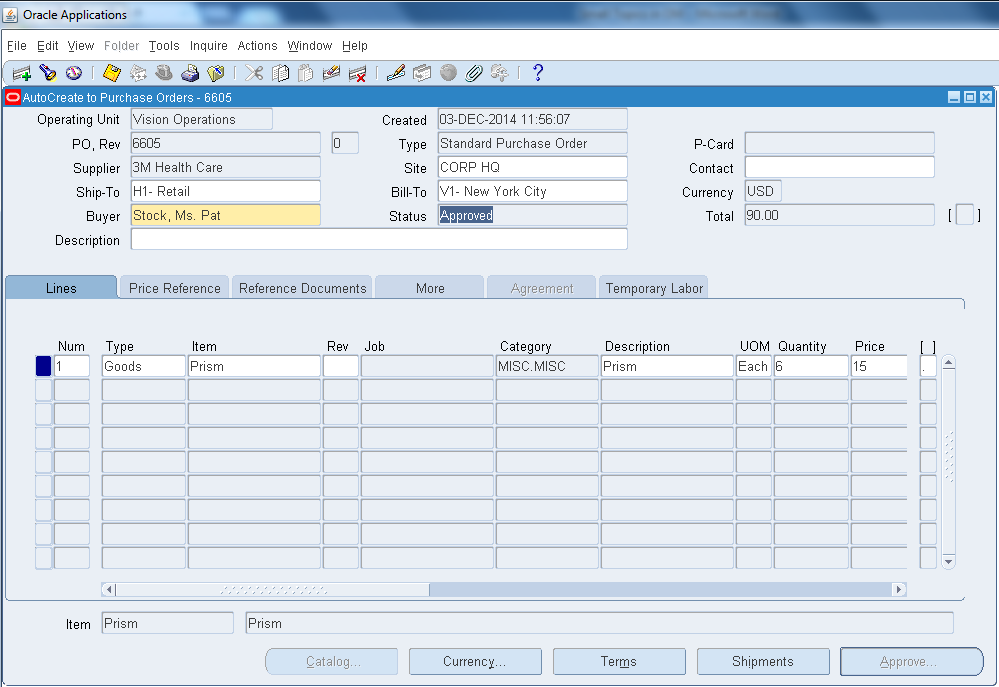
- Now if you check the status of the sales order after creating PO, it will be PO Open.

STEP 9: Taking Receipt
Invoking: Purchasing→ Receiving → Receipts

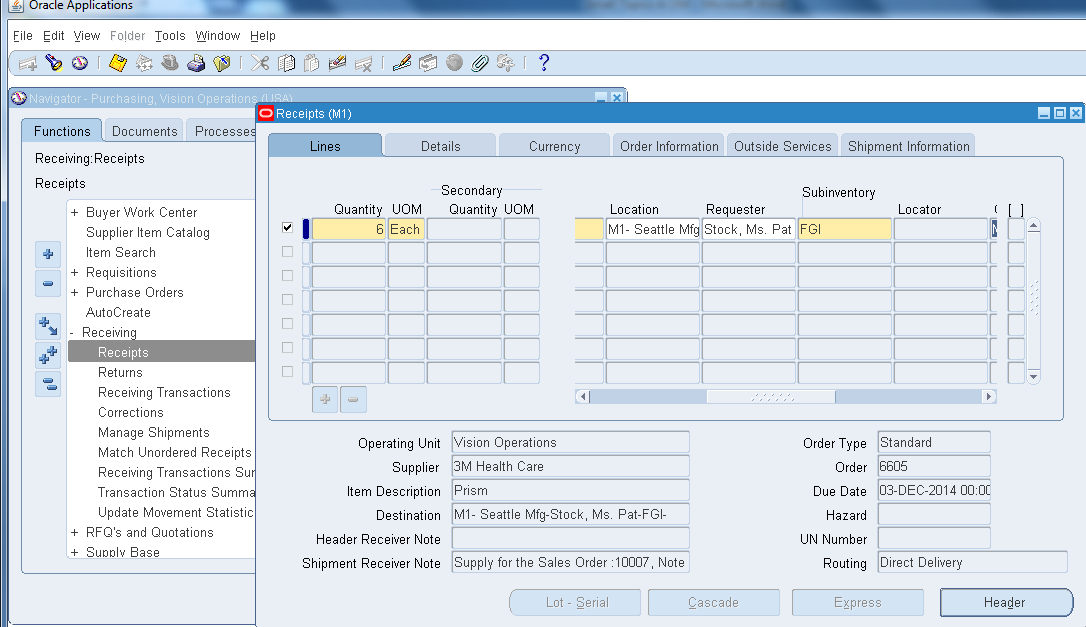
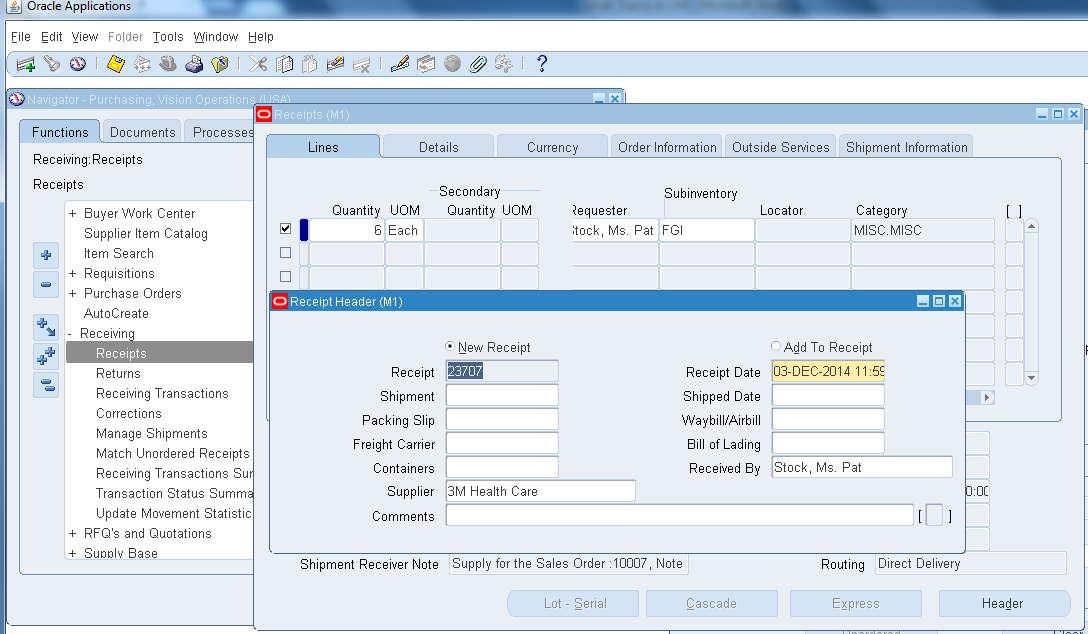
- Corresponding order # created:
Sales Order
|
10007
|
Requisition
|
15950
|
PO
|
6605
|
Receipt
|
23707
|

- Here we took the receipt for the PO created and moved to the Sub Inventory FGI and status will be changed to Awaiting Shipment as above.
- From here we can do normal Pick up release transaction in order to ship the order from inventory to Customer.
Invoking: Order Management→ Shipping→ Release Sales Order

Invoking: Order Management→ Shipping→ Transactions
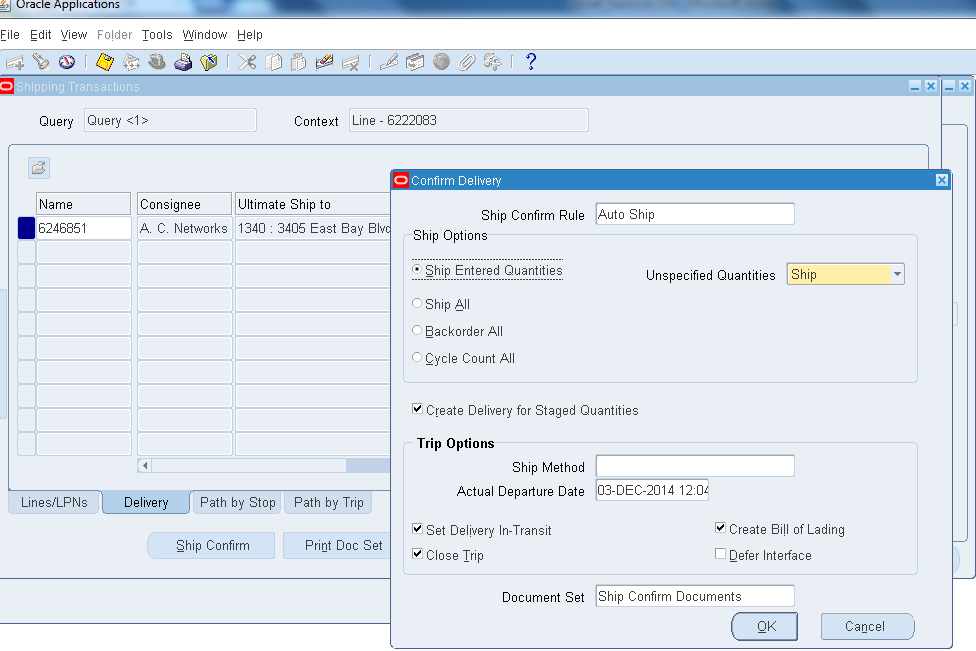
- Running Workflow background Process.
- Final status of order closed, which means the order has been shipped to the customer.
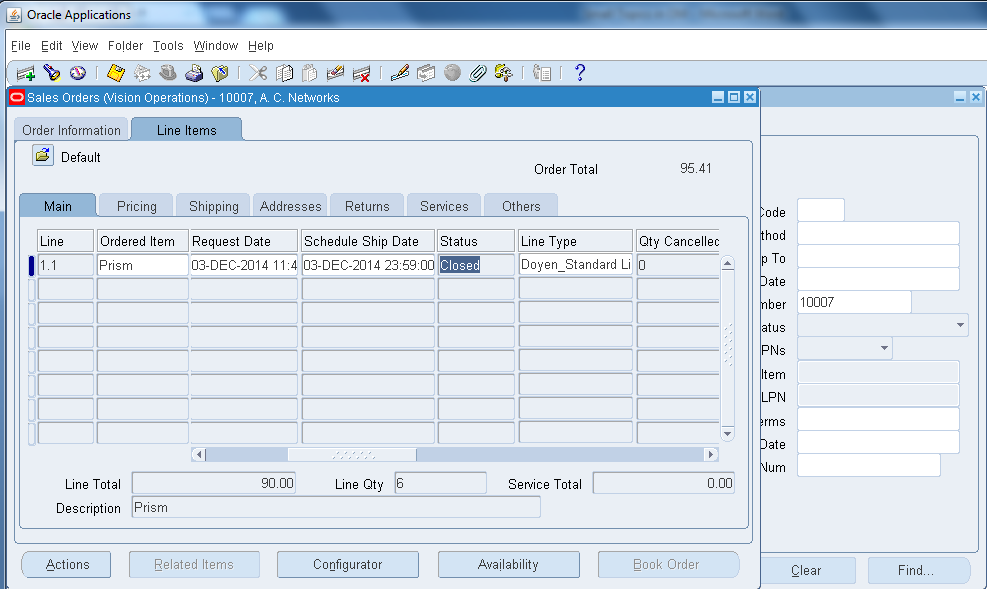
- This completes the Back 2 Back order flow.
DROP SHIP Order Flow
- Drop Ship is mere similar to Back 2 Back order except the supplier directly ships the order to customer rather than our inventory.
- Below is the flow chart for your reference.
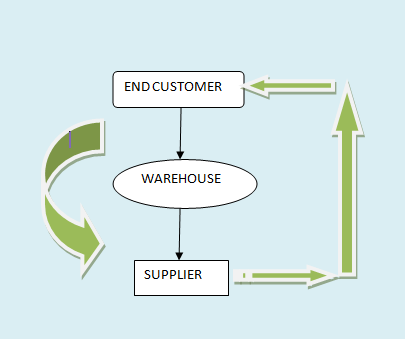
All steps are similar except two changes:
- Source type as External in sales order line
- Import source as ORDER ENTRY while executing Requisition Import
STEP 1: SALES ORDER CREATION
- Let’s start with placing a new sales order.
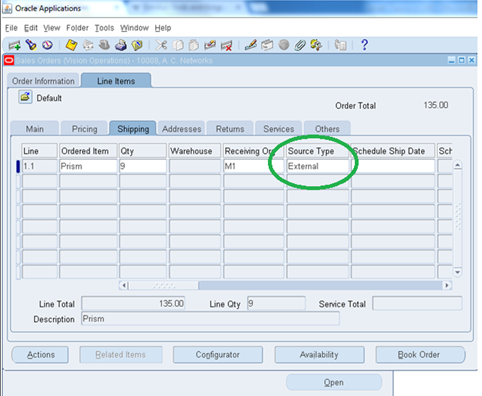
- Follow similar steps as Back 2 Back orders.
Progressing Supply Eligible

- Running Workflow Background process.
- Now the status of the sales order line will be Awaiting Receipt.

STEP 2: Requisition Import
- As discussed before, mention Import Source as ORDER ENTRY as below.


- From here we follow P2P cycle.
Querying REQ, PO, taking Receipt as below.

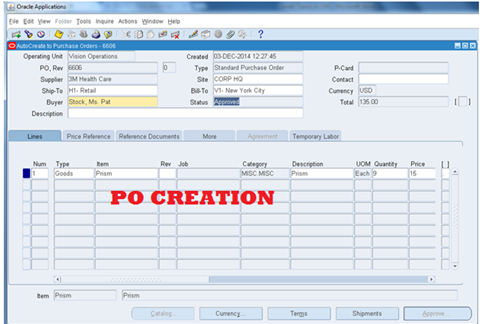
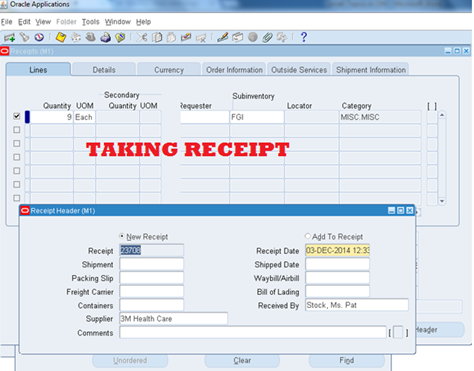
- Corresponding # created:
Sales Order
|
10008
|
Requisition
|
15951
|
PO
|
6606
|
Receipt
|
23708
|
- Now if you check the status of the sales order line it will be shipped.
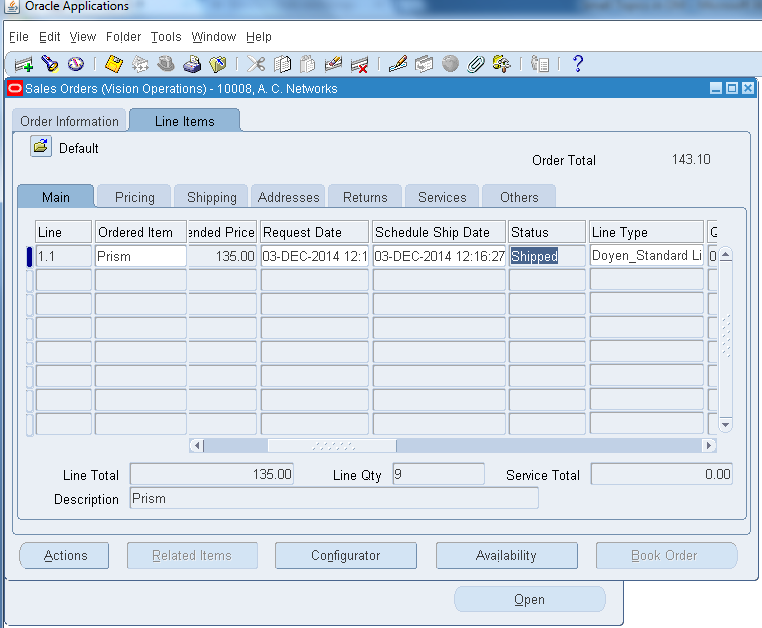
- Run the workflow background process.
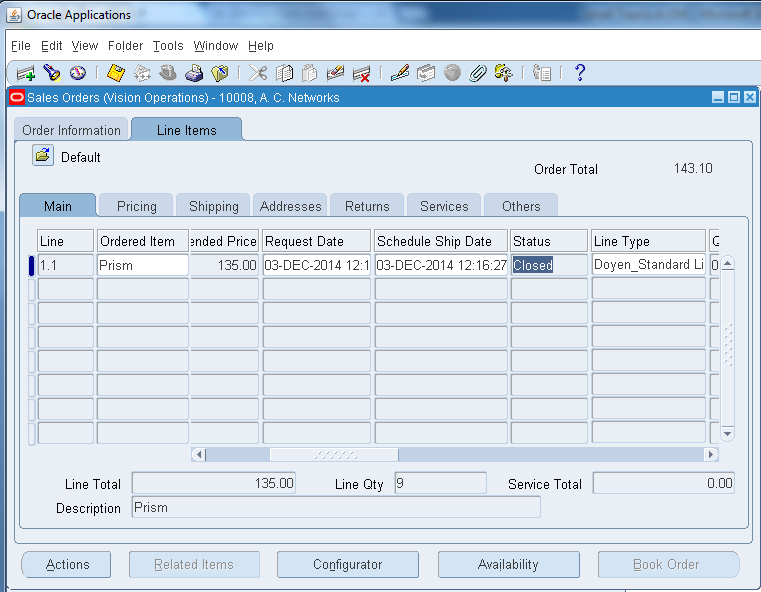
- The status will be closed which means the order has directly been shipped to customer rather than transferred to our inventory.
Different line Status of the Sales Order:
SL NO
|
PROCESS
|
BACK 2 BACK METHOD
|
DROP SHIP METHOD
|
1
|
SALES ORDER BOOKING
|
SUPPLY ELIGIBLE
|
SUPPLY ELIGIBLE
|
2
|
PROGRESSING SUPPLY ELIGIBLE
|
External Req Requested
|
Awaiting Receipt
|
3
|
CREATING REQUSITION
|
External Req Open
|
Awaiting Receipt
|
4
|
CREATING PURCHASE ORDER
|
PO Open
|
Awaiting Receipt
|
5
|
TAKING RECEIPT
|
Awaiting Shipment
|
SHIPPED
|
6
|
After Performing O2C CYCLE
|
CLOSED
|
Not Applicable directly send to the Customer CLOSED
|
- This completes the explanation about BACK 2 BACK METHOD & DROP SHIP METHOD in Oracle EBS R12.
Thank you,
Raja
