Showing posts with label Back 2 Back Order. Show all posts

Thursday, August 13, 2015

Back to Back Sales Order Cycle Setups and Process Flow in R12.2

Back to Back Orders in Oracle

Setups Required:

Step1: Create Transaction type.
Use Order Fulfillment flow as Order Flow – Generic.
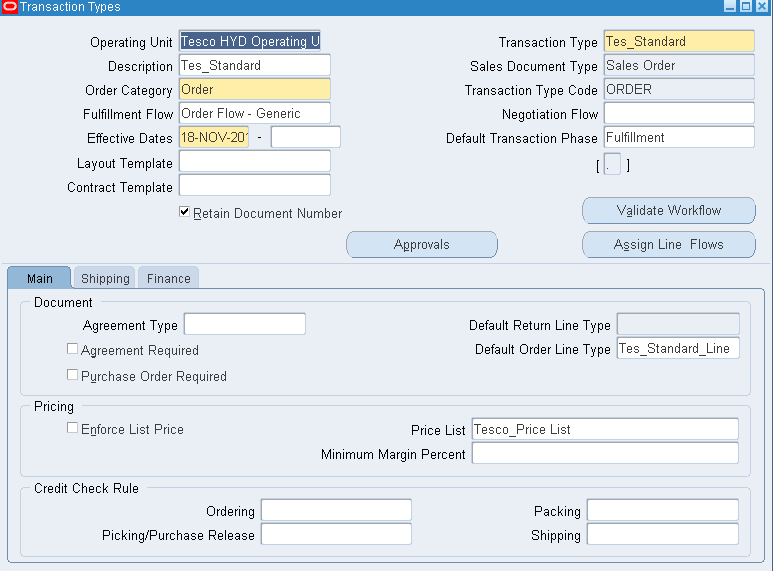


Use the Line flow and validate the workflow then create a document sequence and assign to the above transaction type.

Step2: Create an Item with attributes.
Go to Inventory and create an item (B2B item1 here)
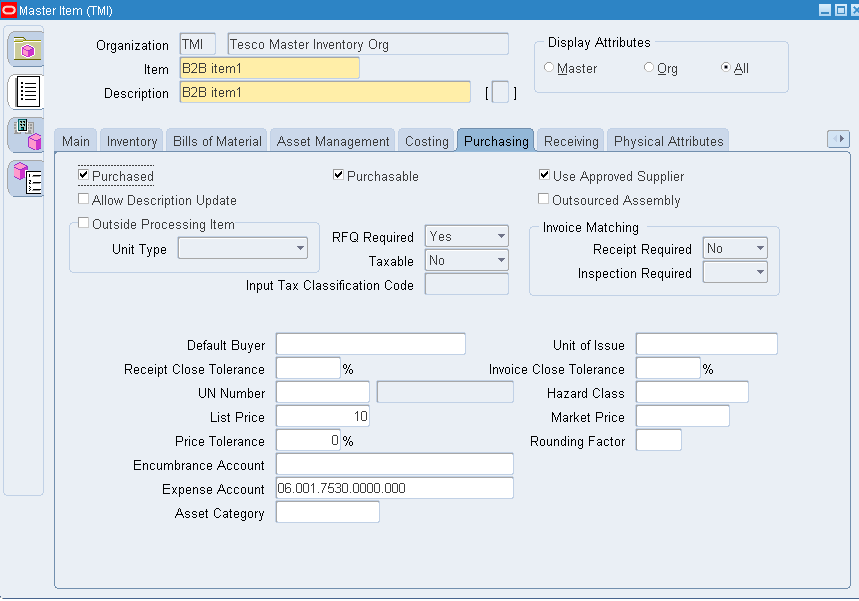
Enable "Use Approved Supplier" attribute and enter "List Price" in Purchasing TAB.

In General Planning tab enter "Make or Buy Field to BUY".
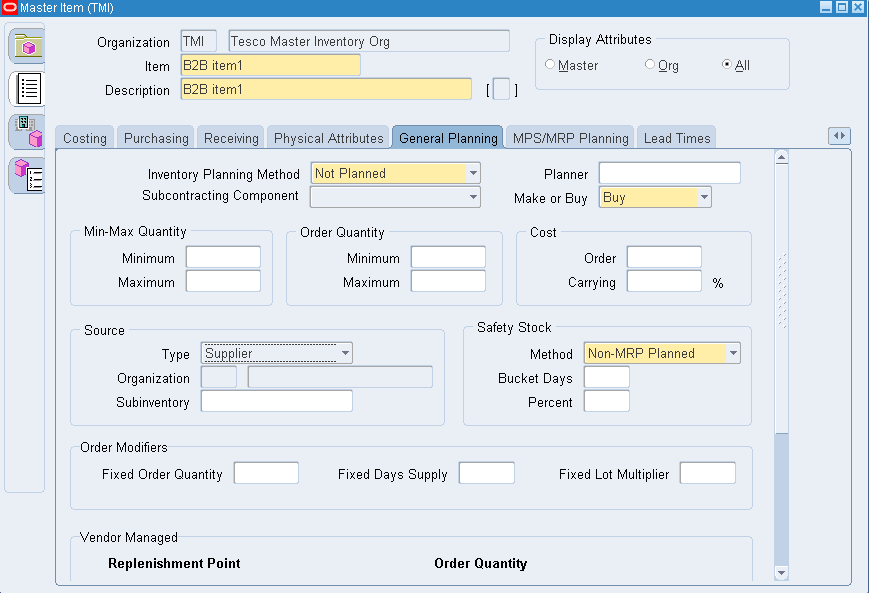
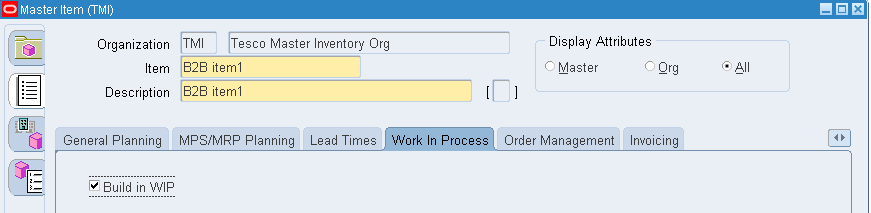
In Work in Process tab check the "Build in WIP" check Box as below.
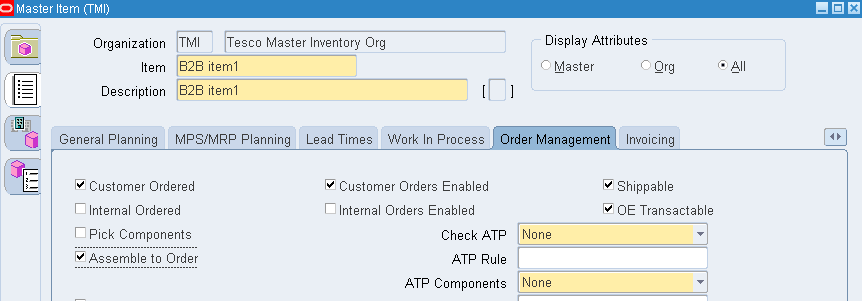
In order Management tab, make sure you check "Assemble to Order" check box.
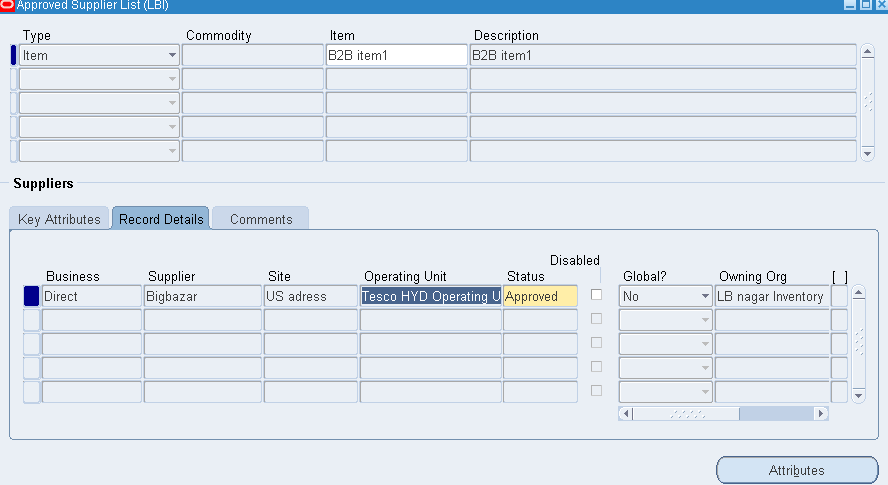
Step3: Create approved supplier list.
Go to Purchasing Responsibility.
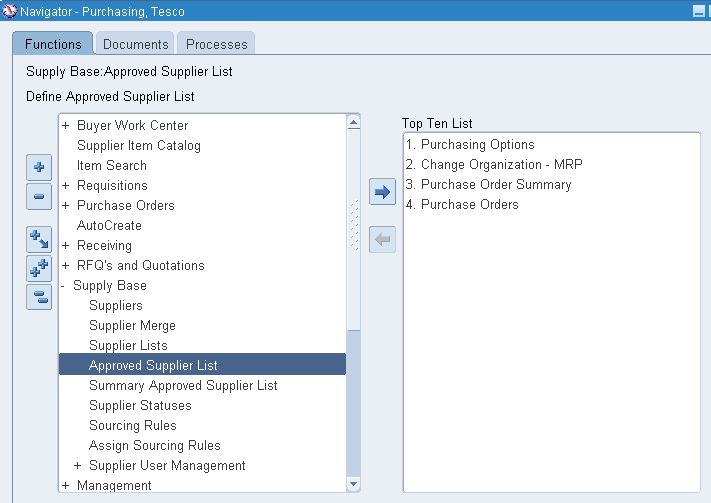
Select the Item and give the supplier and make the status to approve as below.
Step4: Create Sourcing rules.
Navigation: Supply Base > Sourcing Rules.
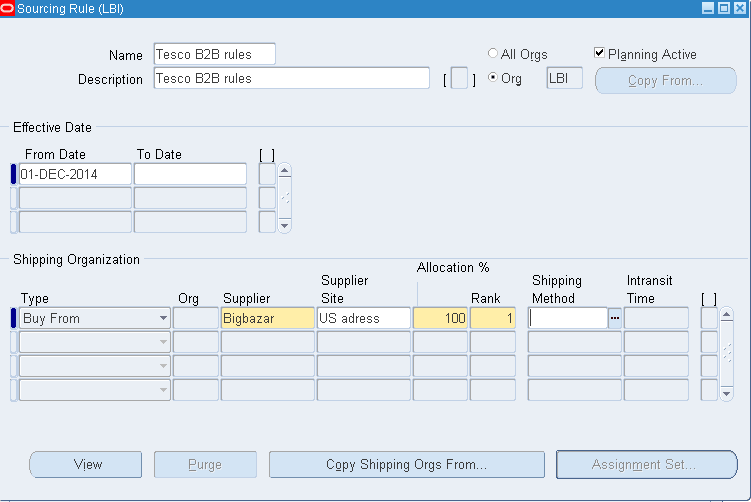
Create a sourcing rule with type as "Buy From" and the selected supplier and allocate the Rank as below and save.
Step5: Create Assignment set.
Navigation: Supply Base > Assign Sourcing Rule.
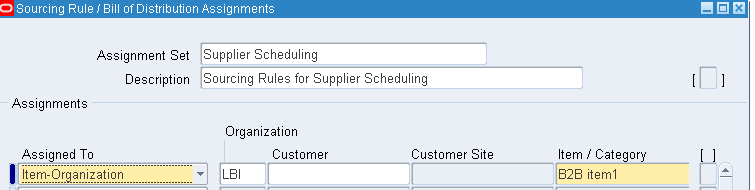
Create an Assignment set as below and assign the item and organization.
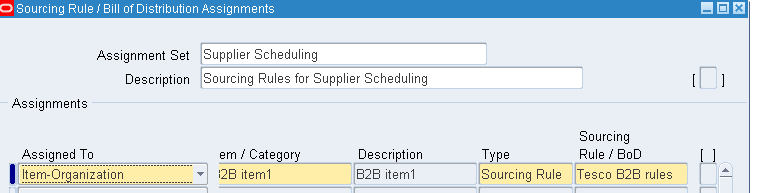
Go to Sourcing rule field and assign the sourcing rule created earlier.
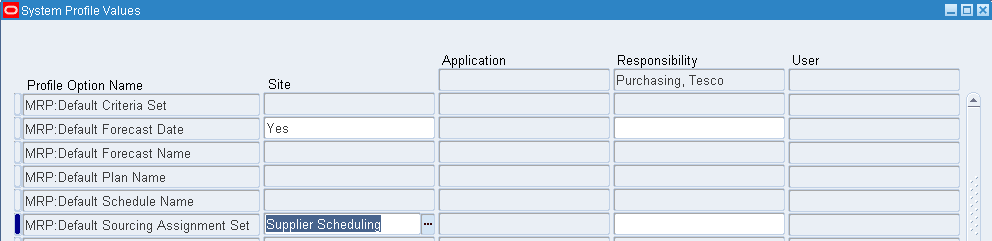
Step6: Change MRP default assignment profile option.
Make sure that the assignment set with sourcing rules should be entered in the below given profile option.

Back To Back Order Process Flow:
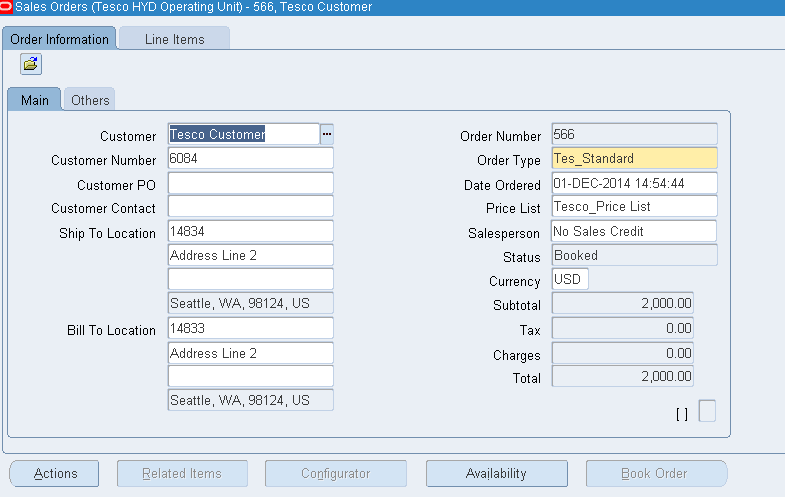
Create a Sales order and book the Order.
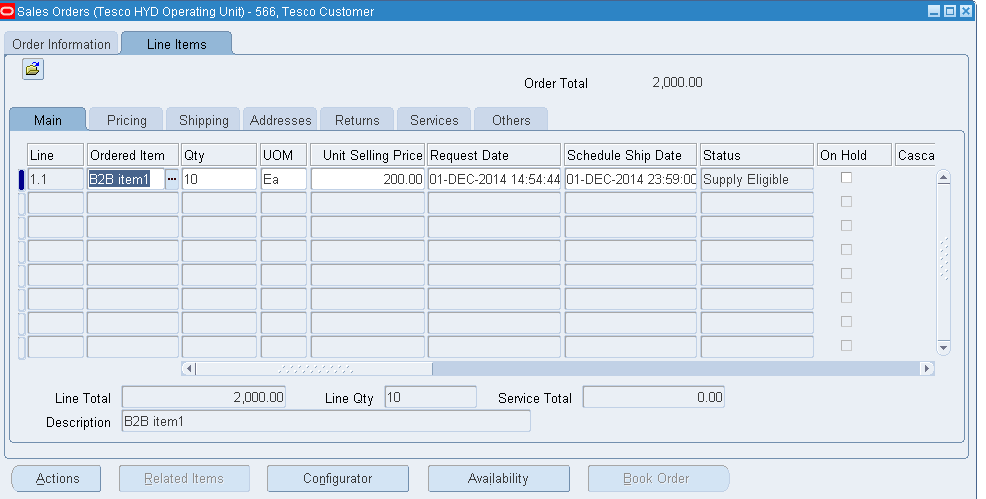
Note that the line status becomes "Supply Eligible".
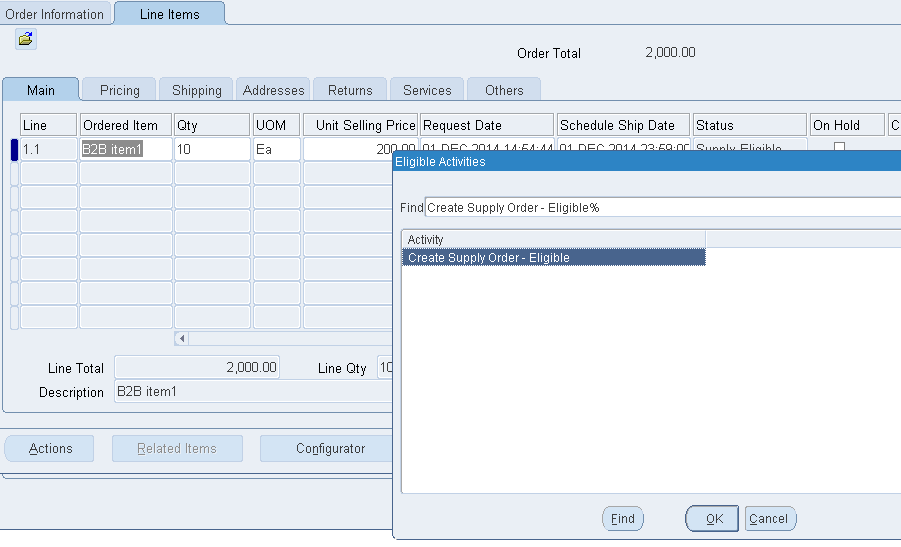
Click "Actions" or right click on the status and say “Progress Order” and say OK.
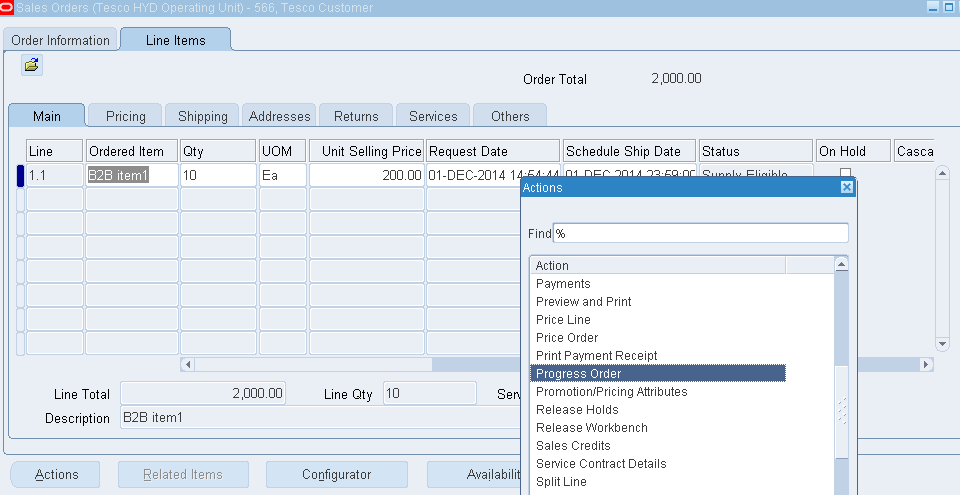
You will get a popup message as below saying “Create Supply Order- Eligible

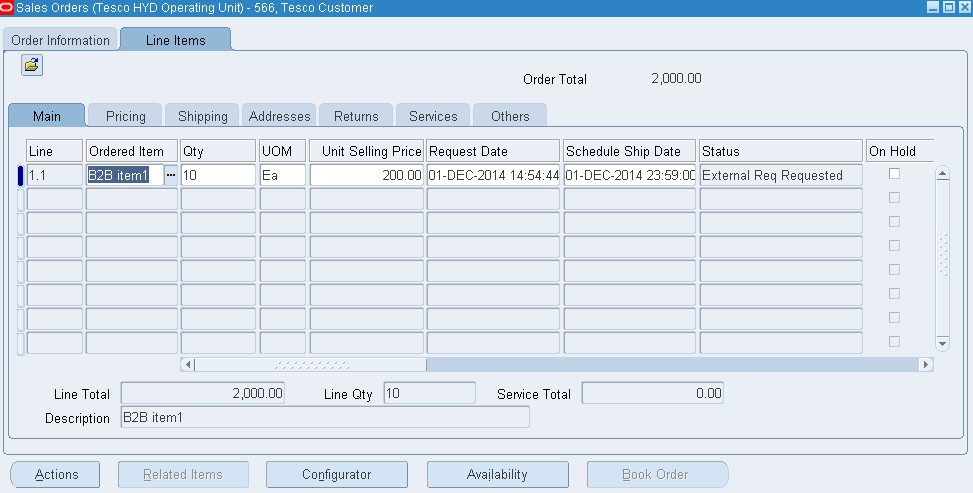
Now if you check the order status it says “External Req Requested
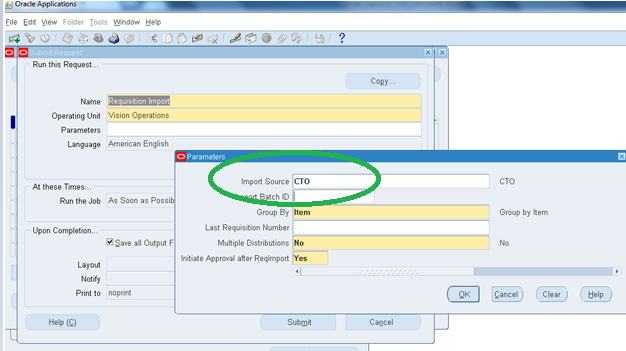
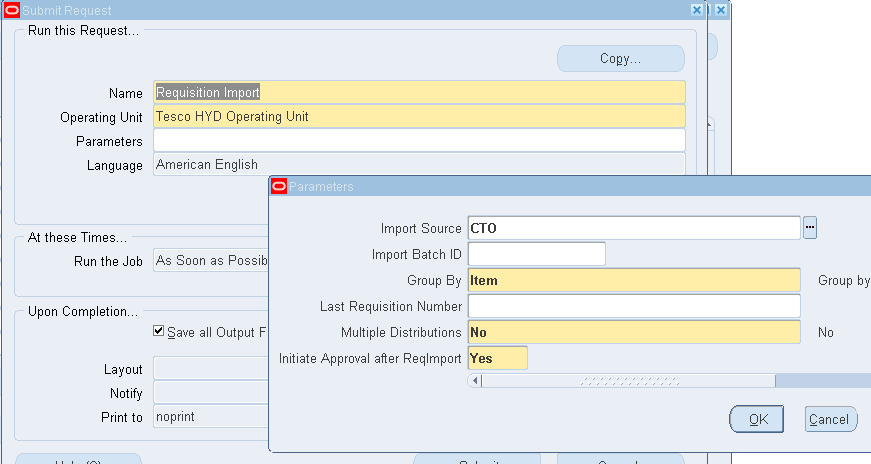
Then Go to Purchasing and run the "Requisition Import" report with CTO as Import Source.
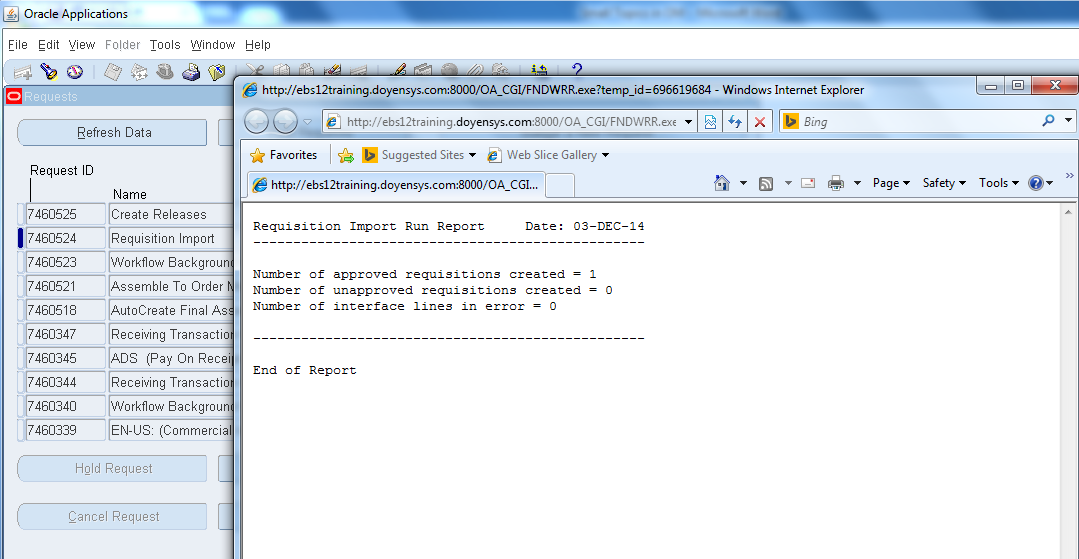
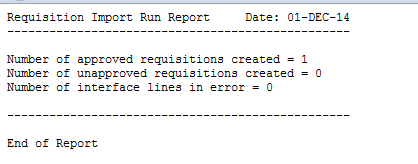
Check the output where you can notice one requisition got created.


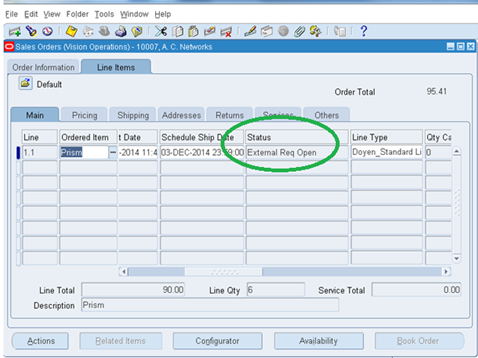
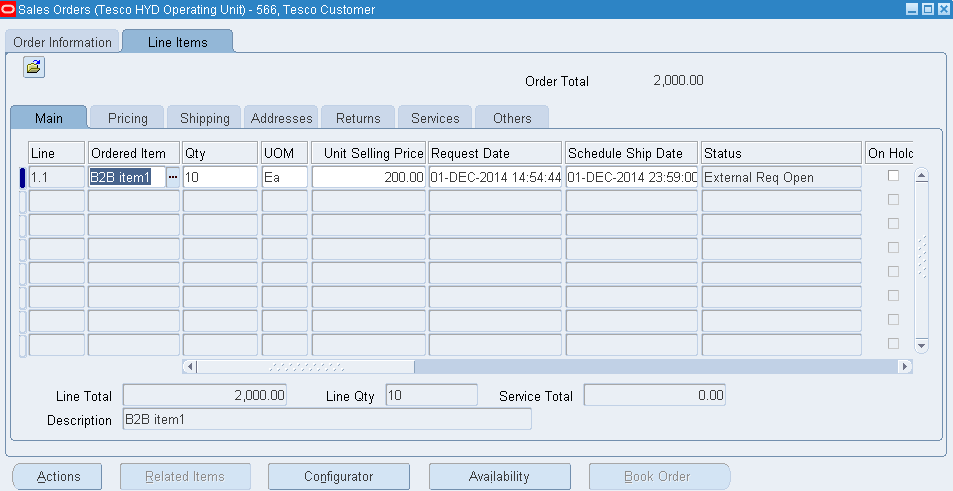
Go back to the Order and note the status now changed to “External Req Open”.
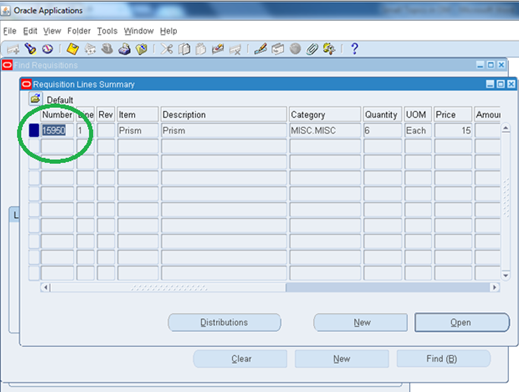
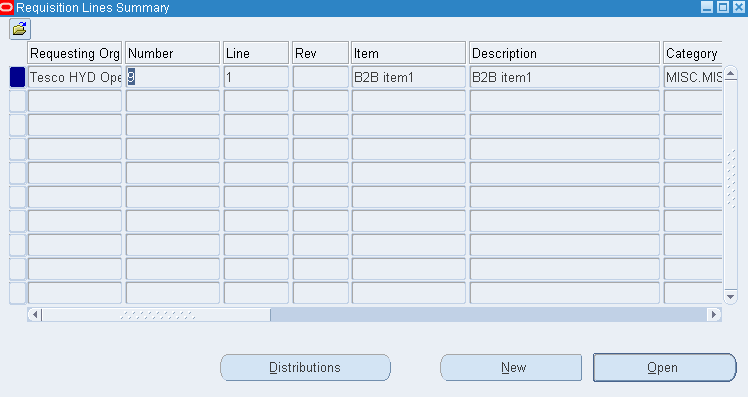
Go to Purchasing and check the Requisition created.
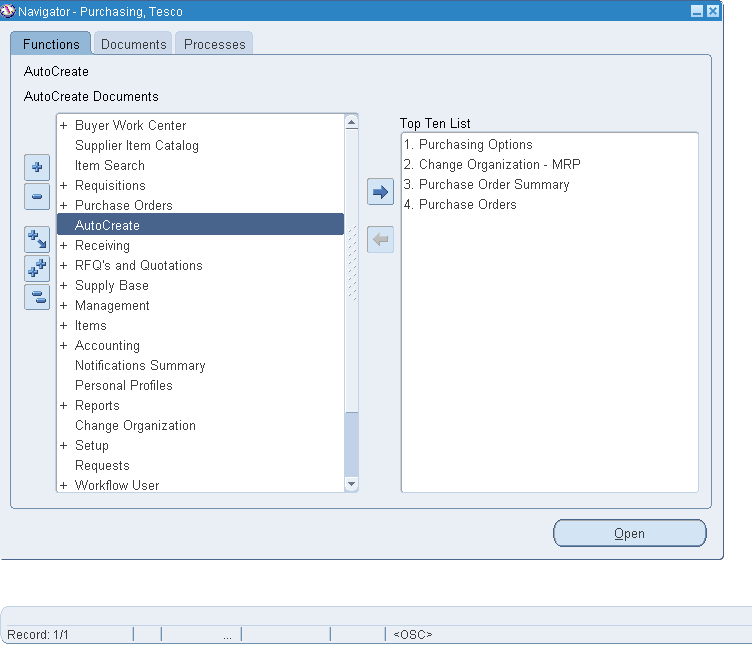
Auto create the requisition to purchase order.
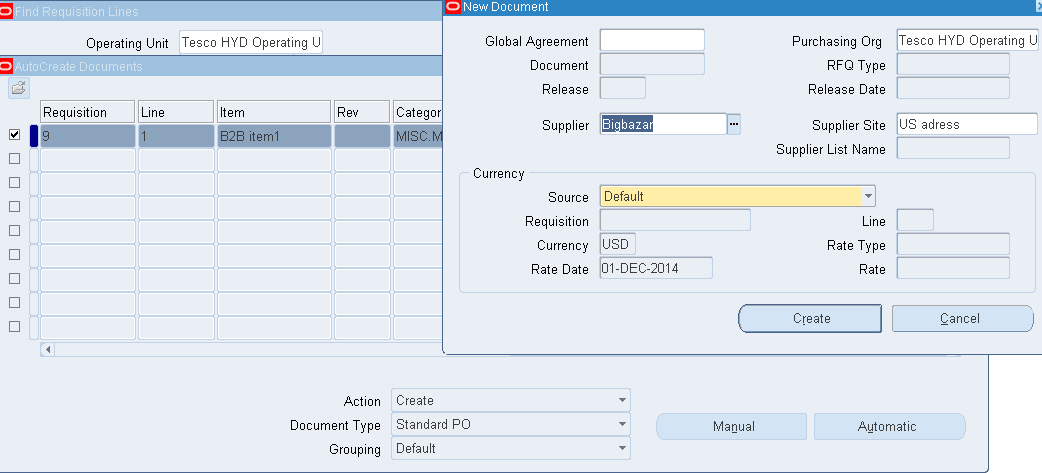
Select the requisition line and say Create.
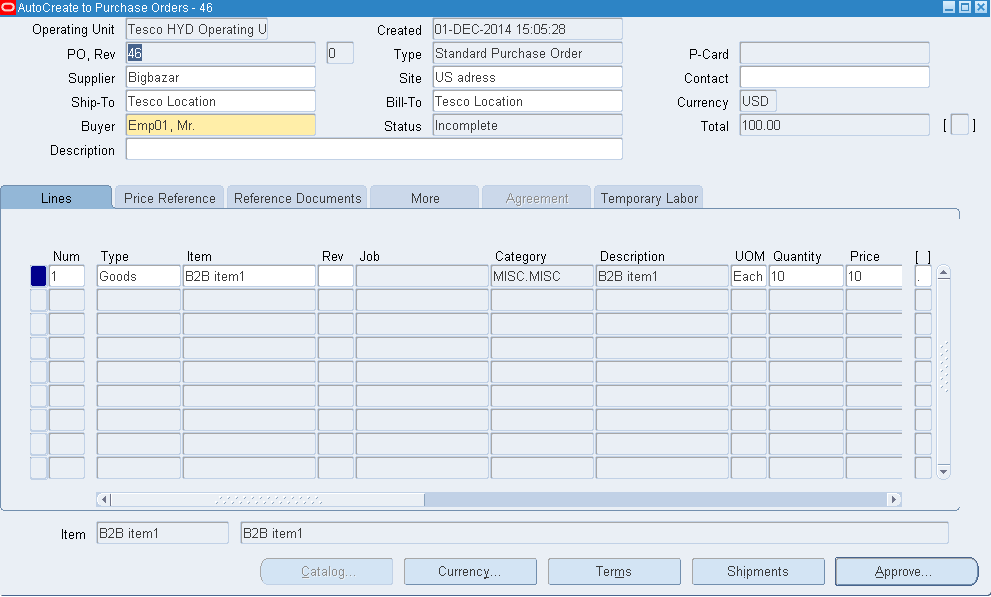
You will be directed to purchase order form.
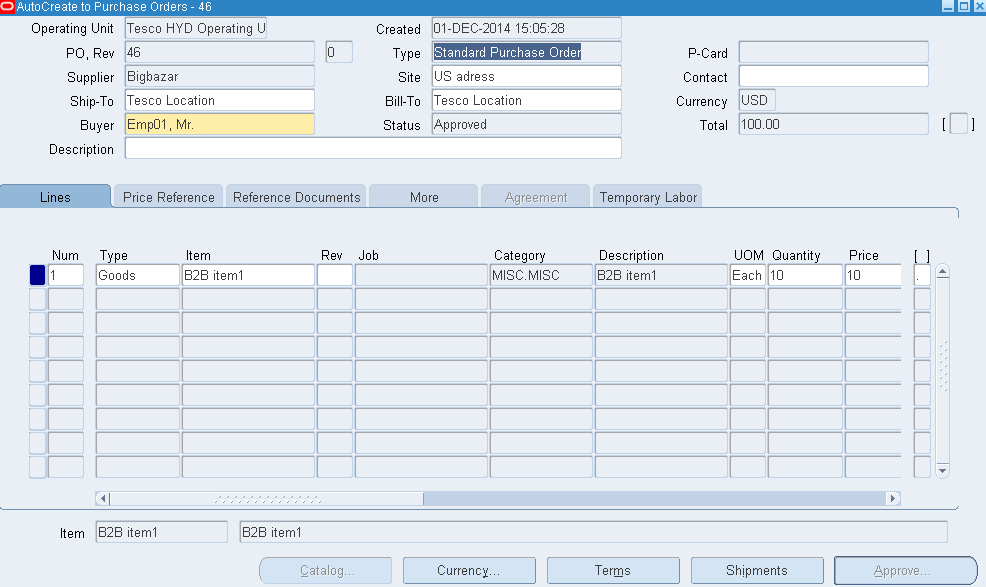
Make sure you get the purchase order approved as below.
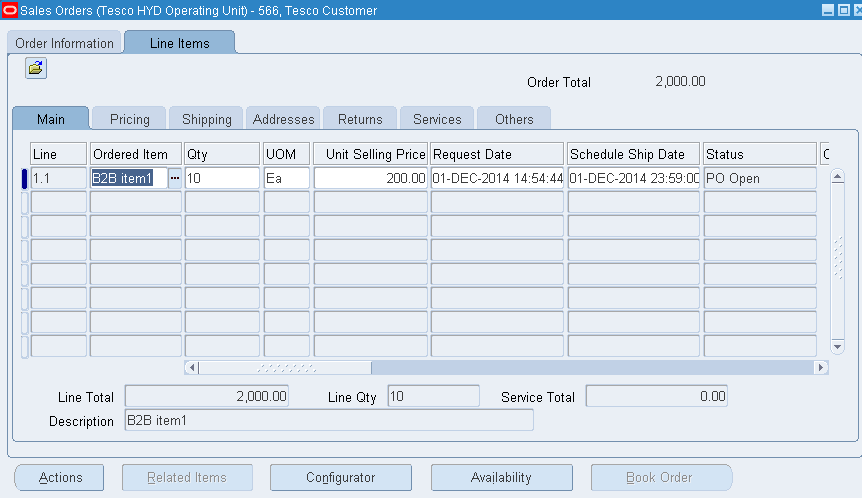
Go back to the Order and check the status changed to “PO Open

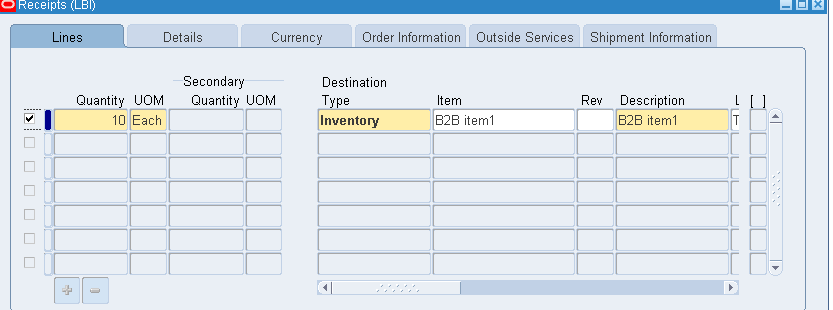
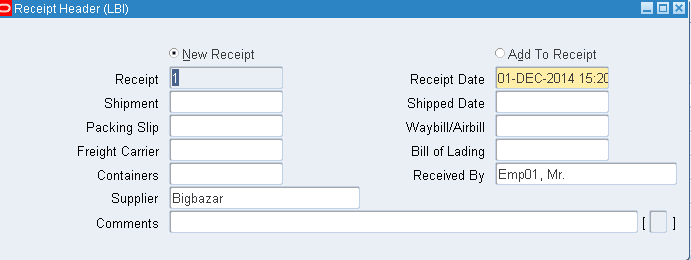
Complete the Receiving process as below.
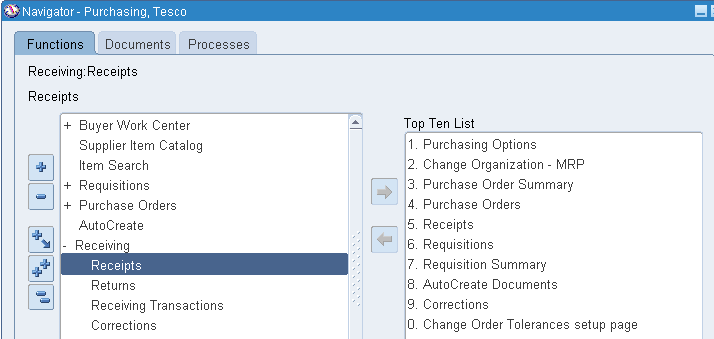
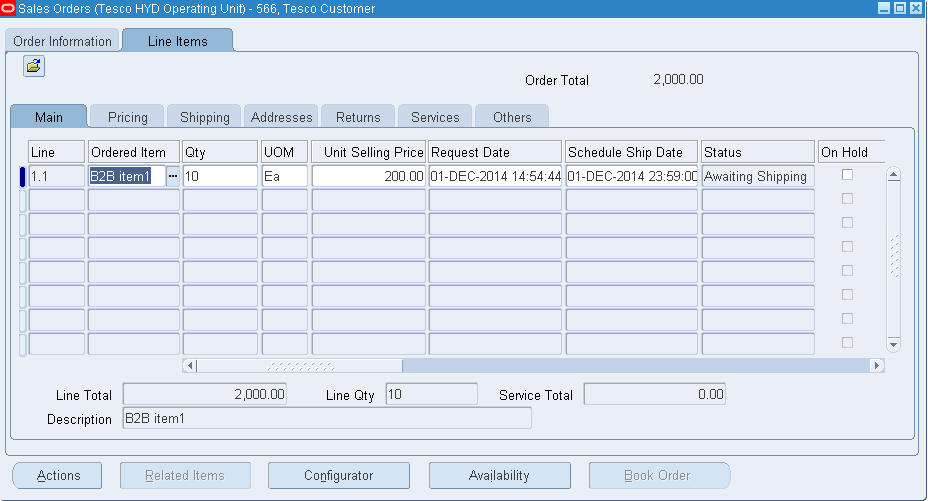
Now if you notice the sales order status is “Awaiting Shipping”, means now you can pick release and ship the order to customer.
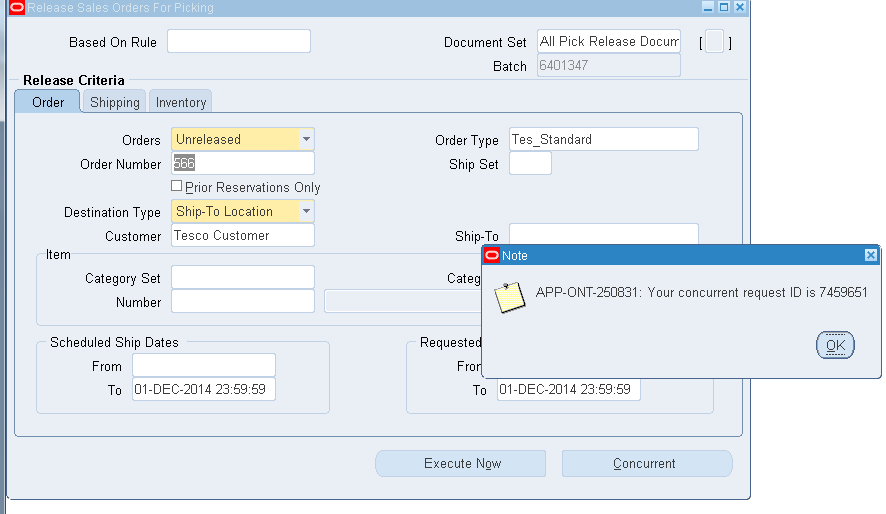
Pick Release the Order.
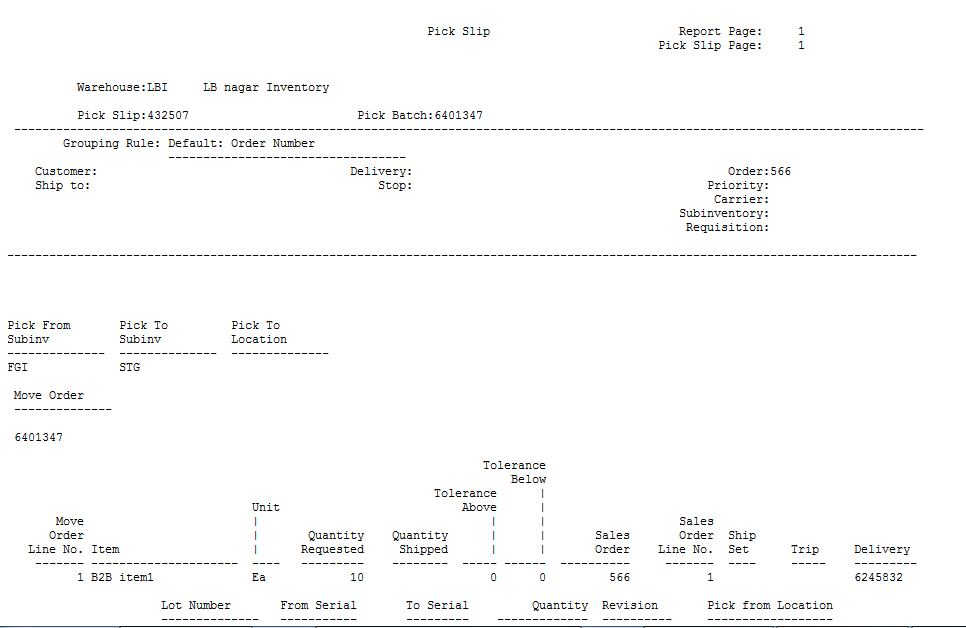
Pick Slip Report.
Ship the Order.
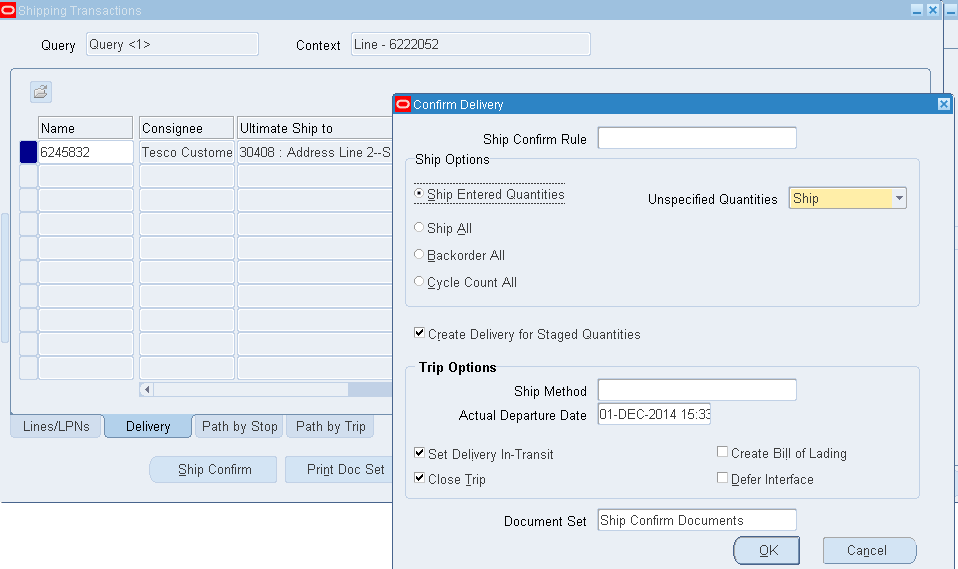
Sales Order got interfaced to Receivables as below.
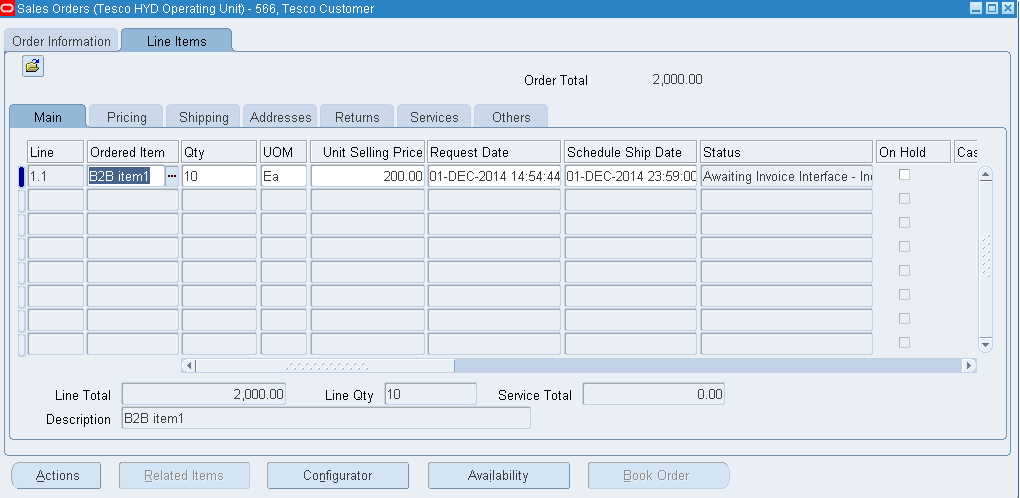
This ends the demonstration on the Back to Back Orders in oracle.

---- SUDHAKAR VANARASI


Thursday, December 4, 2014

Back 2 Back and Dropship Order Process in Oracle R12.2


  • This order type applies when customer orders a product which you do not stock or manufacture.
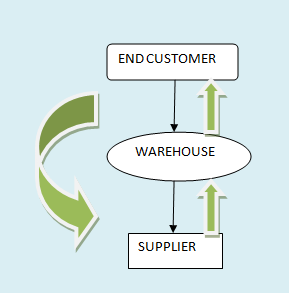
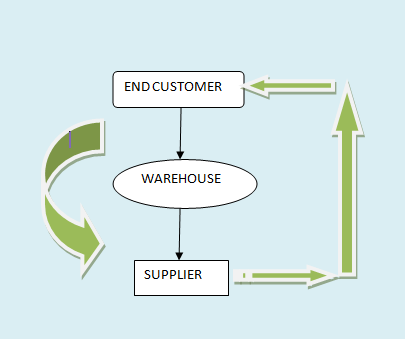
  • In turn customer places the order, you place the order with supplier and after the shipment from the supplier, and you distribute the product to the customer.
  • Below is the flow chart for B2B process flow:

STEP 1: Item Creation for Back 2 Back orders
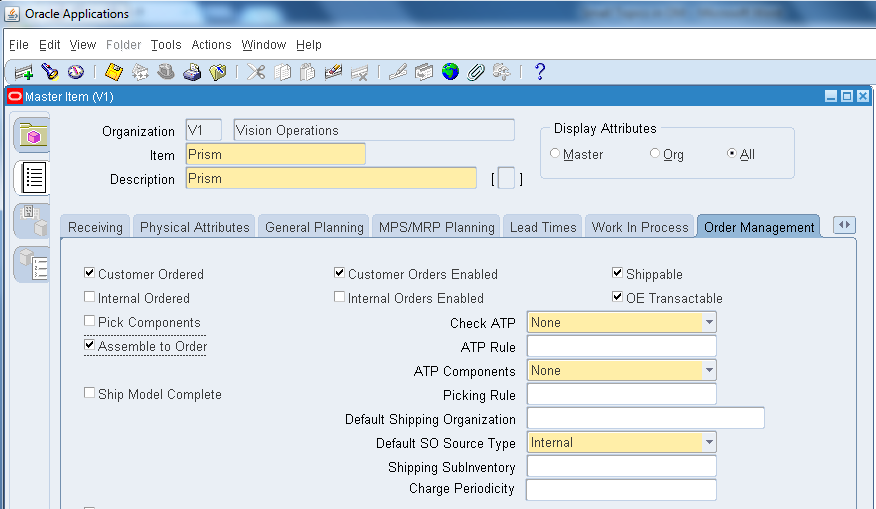
  • Item: Prism
  • Copy the Purchasing template.
  • Purchasing Tab: List Price : $15, Used Approved Supplier © enable
  • General Planning Tab: Source Type : Supplier, Make or Buy : Buy
  • Order Management Tab: Assemble to Order © enable.
  • Assign to our inventory.


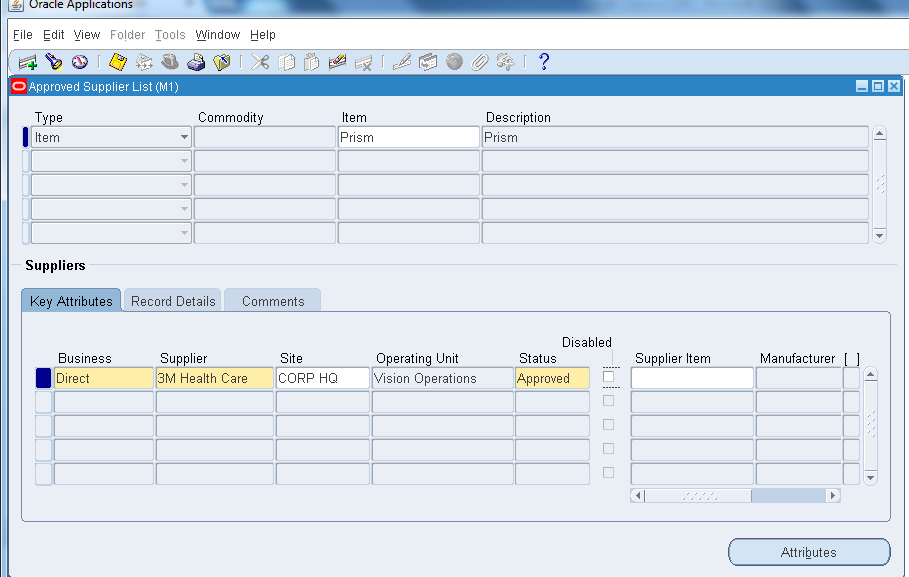
STEP 2: CREATE APPROVED SUPPLIER LIST
Invoking:  Order Management →Purchasing→ Supply Base→ Approved Supplier List
  • Lets create an Approved supplier List for the item we created (Prism).

STEP 3: Create Sourcing Rule
Invoking:  Order Management →Purchasing→ Supply Base→ Sourcing Rule
  • We are going to create Sourcing Rule as: Prism_Sourcing.


Step 4: Assign Sourcing Rule
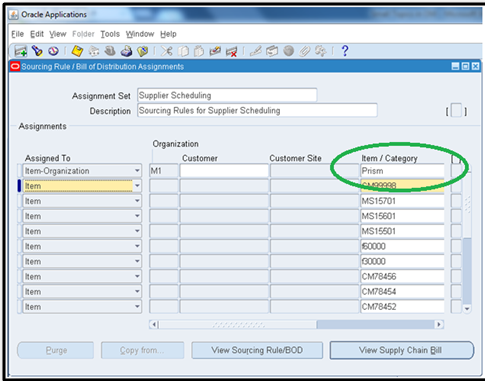
  • Query the  ”Supplier Scheduling Assignment”  set by using F11 key & paste our item, Sourcing rule as below.

STEP 5: BOOK SALES ORDER
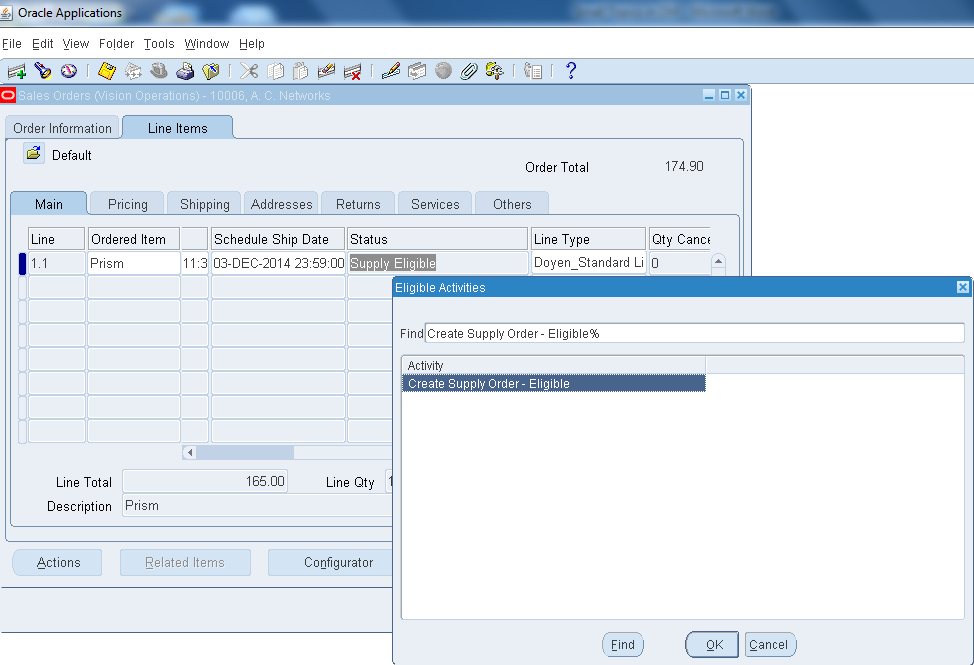
  • Now book the sales order and the status of the line will be Supply Eligible.

  • Select the Supply Eligible text →Right Click→Progress Order→OK

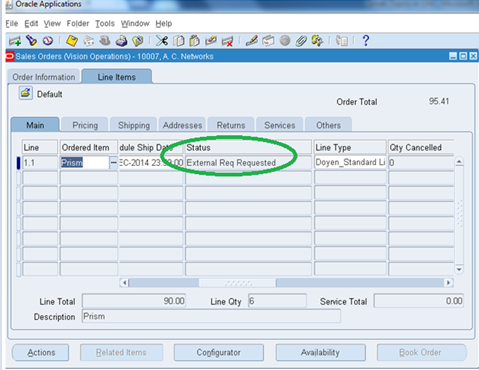
  • Now the status will be changed to External Req Requested as below.

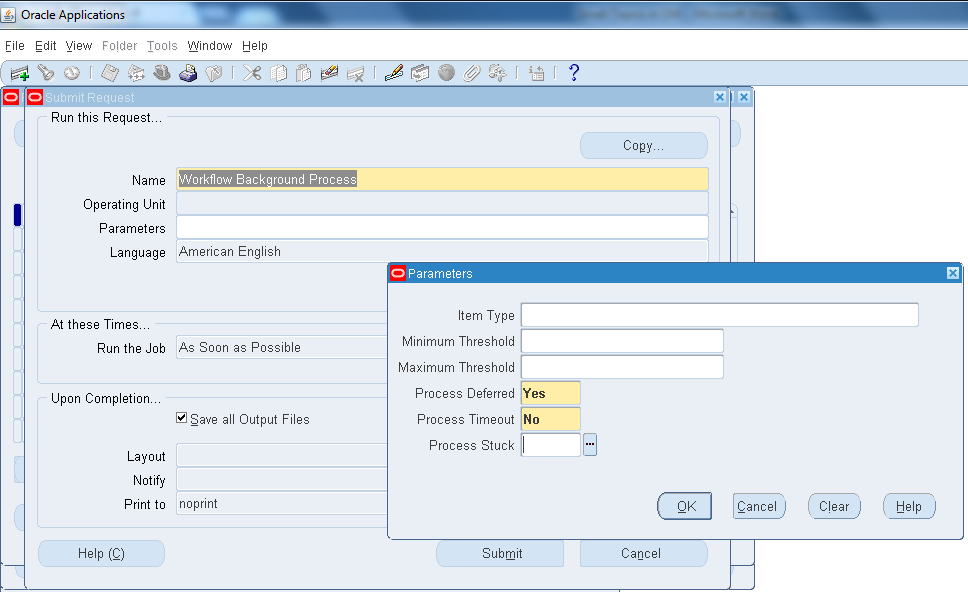
  • Now run the Workflow Background Process from View→ Request

STEP 6: Requisition Import
  • Switch the responsibility to Purchasing and Run Requisition Import from  View→ Request
  • Select Import Source as CTO.


  • Here Requisition Import and Create Releases Program runs and view the output, so that we can make sure that the releases has been processed successfully as below.

STEP 7: QUERY REQUISITION
Invoking: Purchasing→Requsitions→ Requisitions Summary
  • Now query by the item: Prism (we created) and create the REQ as below.


  • Now if you check the sales order line status it will be External Req Open.


STEP8: AUTOCREATE PURCHASE ORDER
Invoking: Purchasing→Purchase Order→ Purchase Order Summary
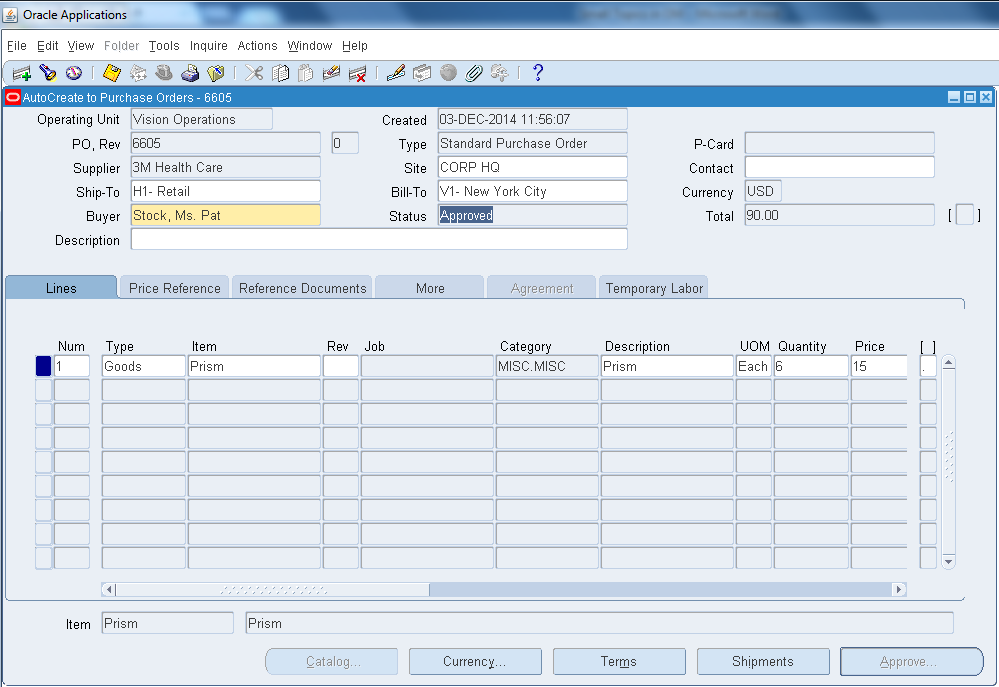
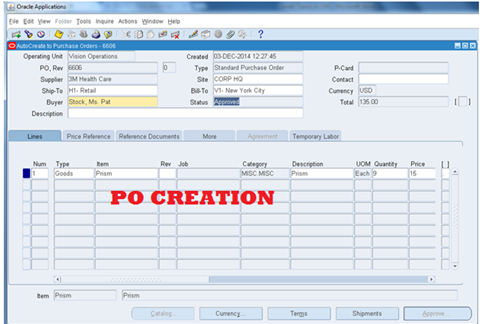
  • Now let’s create a purchase order with the req # we created.


  • Now if you check the status of the sales order after creating PO, it will be PO Open.


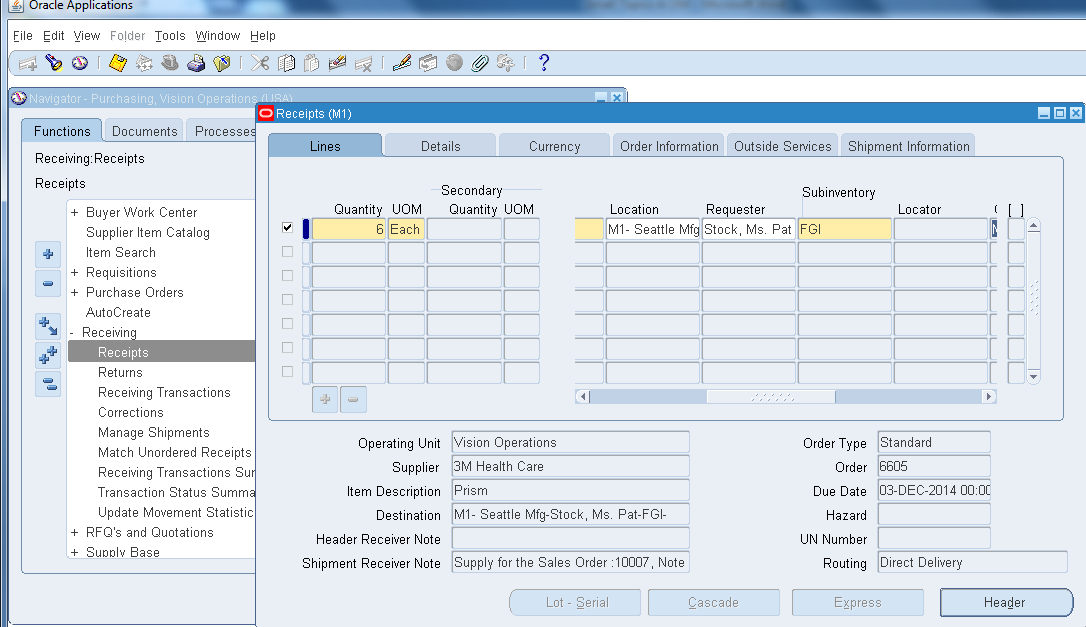
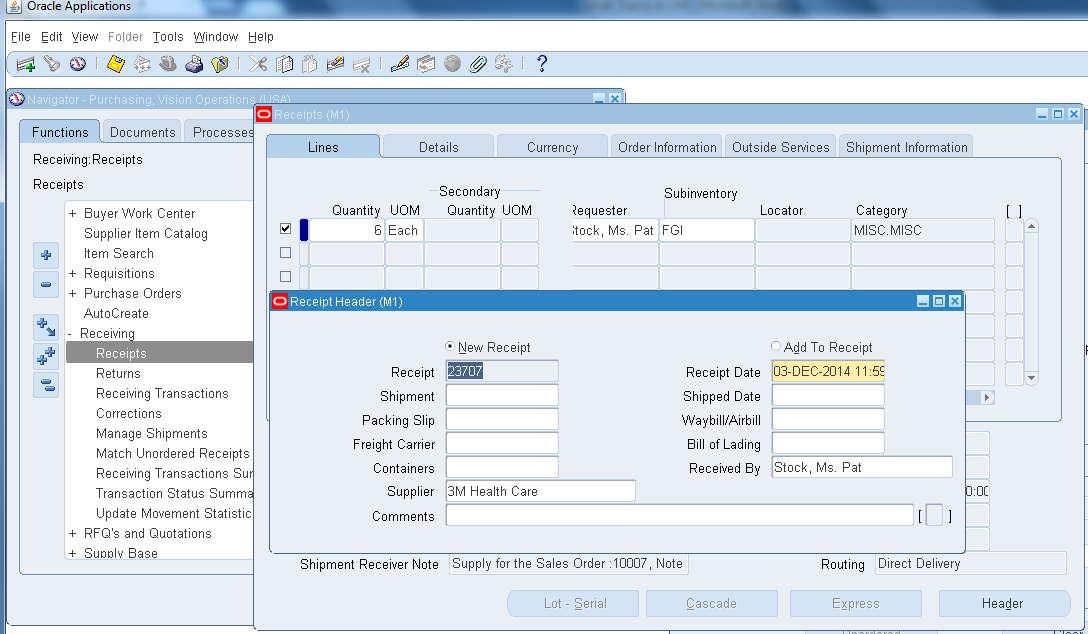
STEP 9: Taking Receipt
Invoking: Purchasing→ Receiving → Receipts


  • Corresponding order # created:
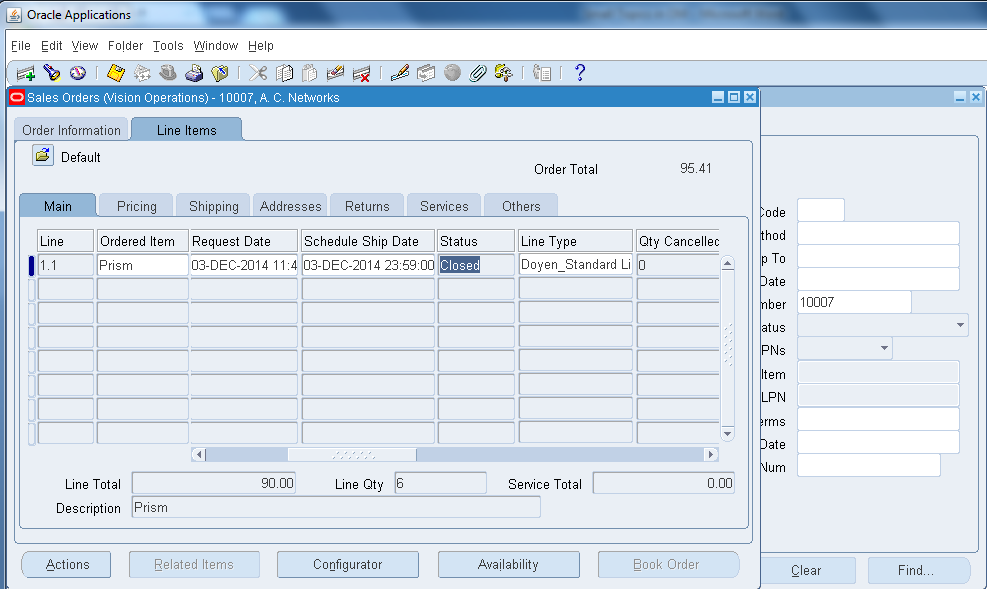
Sales Order
10007
Requisition
15950
PO
6605
Receipt
23707

  • Here we took the receipt for the PO created and moved to the Sub Inventory FGI and status will be changed to Awaiting Shipment as above.
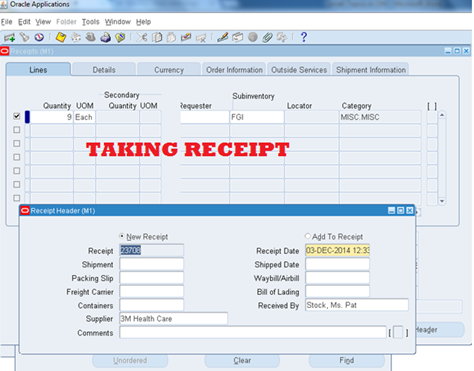
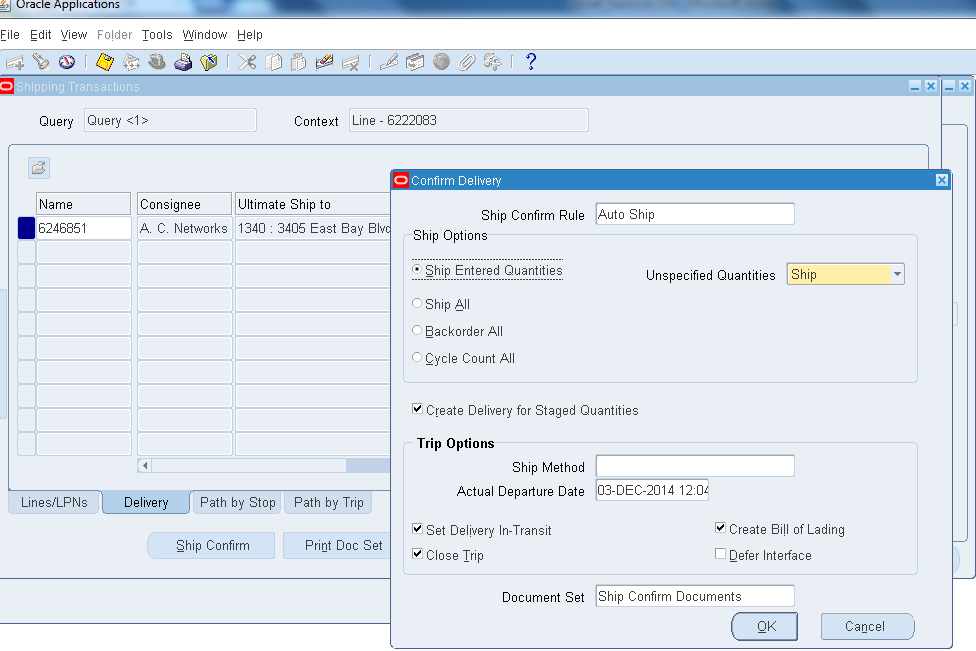
STEP 10: PICK Release/ Ship Confirm
  • From here we can do normal Pick up release transaction in order to ship the order from inventory to Customer.
Invoking: Order Management→ Shipping→ Release Sales Order

Invoking: Order Management→ Shipping→ Transactions


  • Running Workflow background Process.

  • Final status of order closed, which means the order has been shipped to the customer.


  • This completes the Back 2 Back order flow.


DROP SHIP Order Flow


  • Drop Ship is mere similar to Back 2 Back order except the supplier directly ships the order to customer rather than our inventory.
  • Below is the flow chart for your reference.
All steps are similar except two changes:
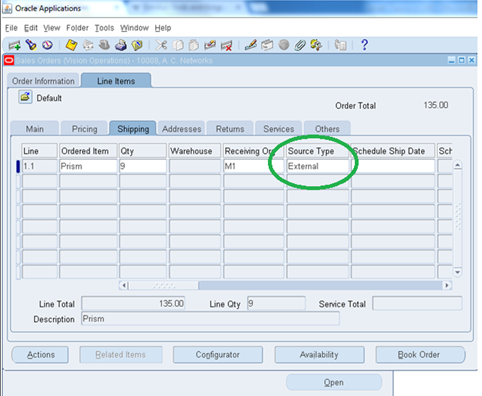
  • Source type as External in sales order line
  • Import source as ORDER ENTRY while executing Requisition Import

STEP 1: SALES ORDER CREATION
  • Let’s start with placing a new sales order.

  • Follow similar steps as Back 2 Back orders.


Progressing Supply Eligible

  • Running Workflow Background process.

  • Now the status of the sales order line will be Awaiting Receipt.

STEP 2: Requisition Import
  • As discussed before, mention Import Source as ORDER ENTRY as below.

  • From here we follow P2P cycle.
Querying REQ, PO, taking Receipt as below.


  • Corresponding # created:
Sales Order
10008
Requisition
15951
PO
6606
Receipt
23708

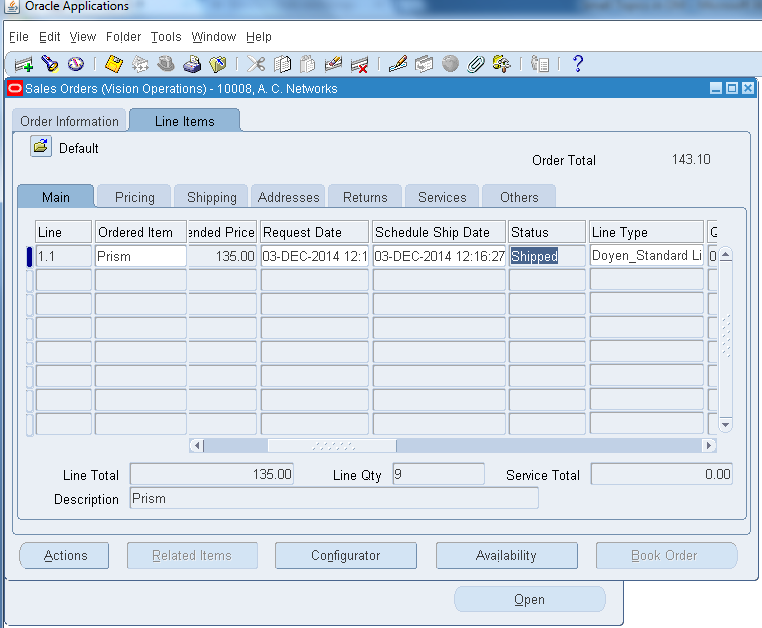
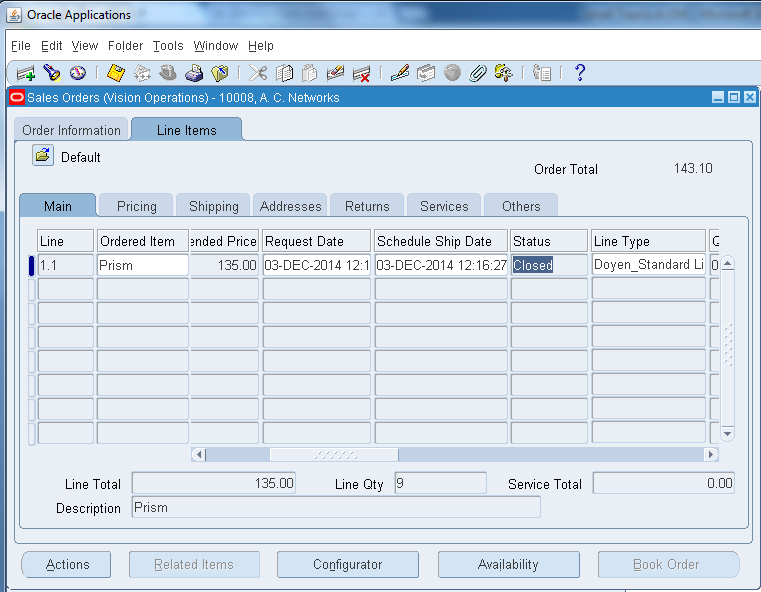
  • Now if you check the status of the sales order line it will be shipped.


  • Run the workflow background process.


  • The status will be closed which means the order has directly been shipped to customer rather than transferred to our inventory.


Different line Status of the Sales Order:
SL NO
PROCESS
BACK 2 BACK METHOD
DROP SHIP METHOD
1
SALES ORDER BOOKING
SUPPLY ELIGIBLE
SUPPLY ELIGIBLE
2
PROGRESSING SUPPLY ELIGIBLE
External Req Requested
Awaiting Receipt
3
CREATING REQUSITION
External Req Open
Awaiting Receipt
4
CREATING PURCHASE ORDER
PO Open
Awaiting Receipt
5
TAKING RECEIPT
Awaiting Shipment
SHIPPED
6
After  Performing O2C CYCLE
CLOSED
Not Applicable directly send to the Customer CLOSED


  • This completes the explanation about BACK 2 BACK METHOD & DROP SHIP METHOD in Oracle EBS R12.
Thank you,
Raja