Thursday, 5 March 2015

Allow Negative Quantity functionality in Shipping Process

Purpose:
The purpose of this Document is to provide some troubleshooting guide for issue where sales orders are not getting backordered even though insufficient inventory is available.
Goal:
Book a sales order, Pick and ship confirm the order even if  the tem does not have the On hand quantity in the inventory.
Pre requisities:
1. The item must be set to NOT Reservable ( the Reservable flag in the Master Items form should be Unchecked).
Go to Organization Item form and uncheck the Reservable flag as below.
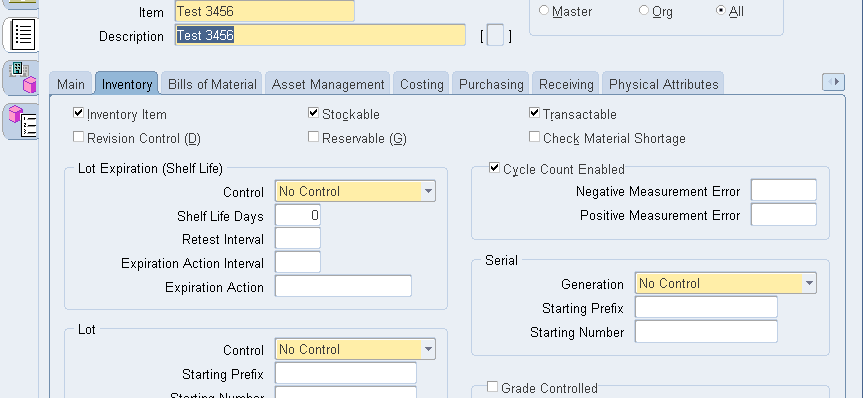
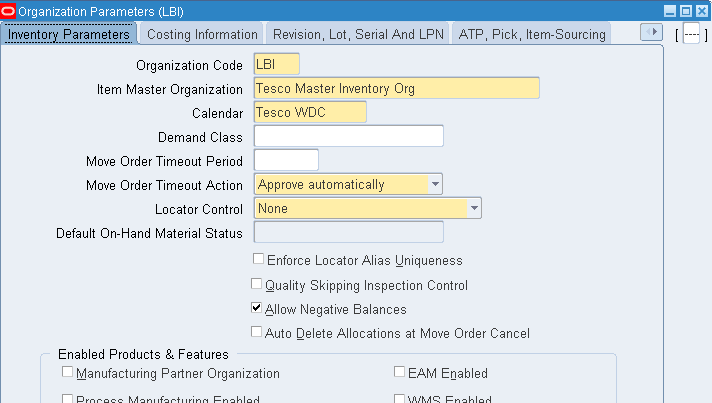
2. Negative balances must be allowed (Check the 'Negative Balances Allowed attribute in the Organization Parameters form) as below.
Go to Organization Parameters form, select your Inventory Org where you are performing the entire cycle and check Allow Negative Balances check box.
3. Setup a Default Sub-inventory for the item using the Item Transaction Default window.
Responsibility: Inventory.
Navigation:  Setup > Transactions > Item transaction Defaults.
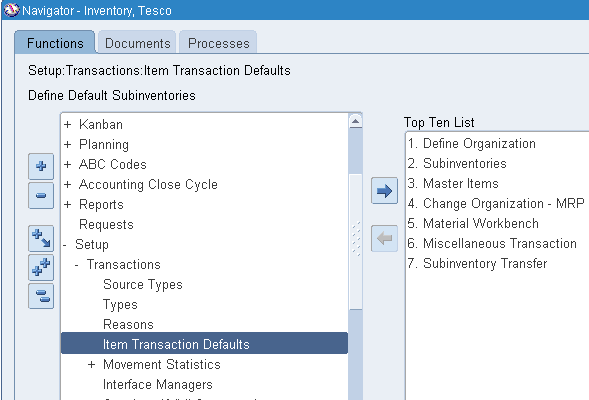
Select the Item and default its sub-inventory for Shipping. (This setup is for shipping the order)
Apart from the above setups make sure the below Profile Options are there as below.
  1. Set profile WSH: Over picking Enabled to YES
  2. Set profile GMI: Allow Negative Inventory to YES
Mandatory Check:
Make sure that no On Hand Quantity is available for the Item in the sub-inventory as below.
Go to Material work bench in inventory responsibility and query the item and check the OHQ.

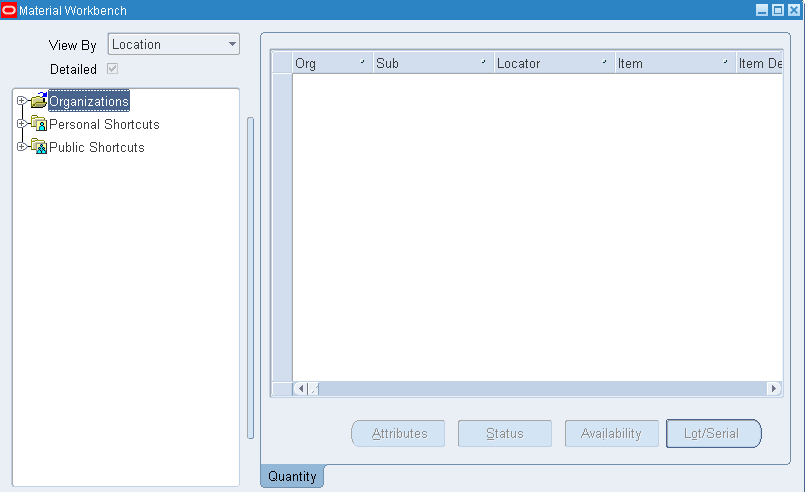
Exercise: Now let us perform the sales order flow and check the required functionality.
Step 1: Book the Order.
Go to Order management responsibility and book the order for 5 quantities as below.
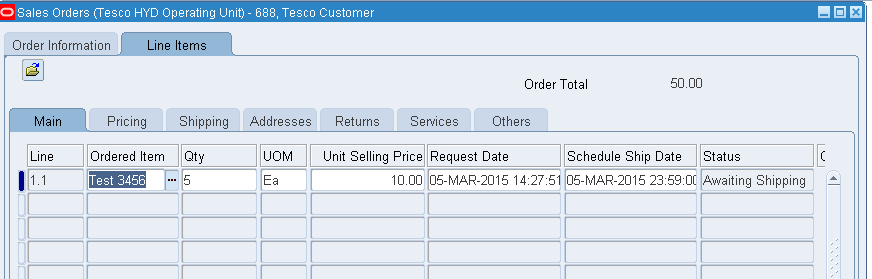
Make sure that you are using the inventory (Ware house) which we have allowed negative balances.

Step 2: Release the Order as below by the sales order number.
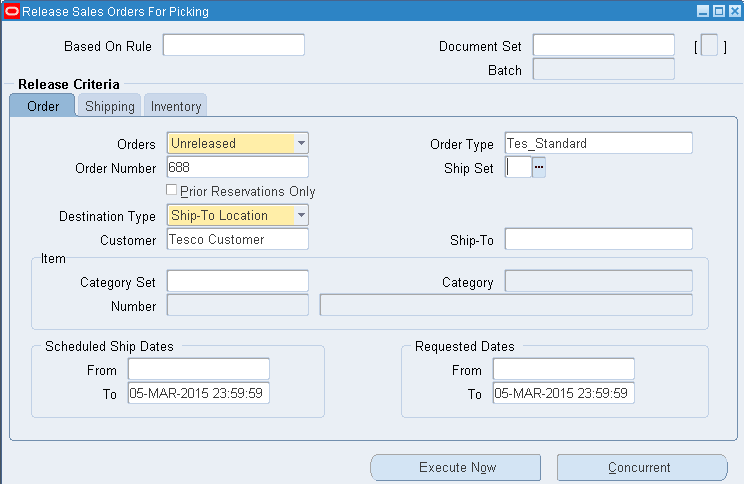
Make sure the concurrent programs are running.
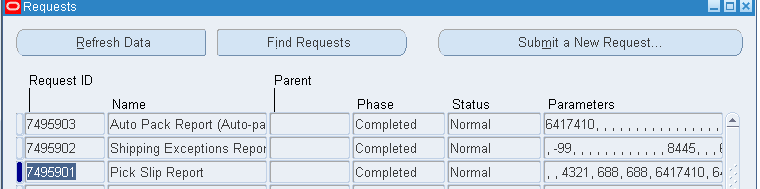
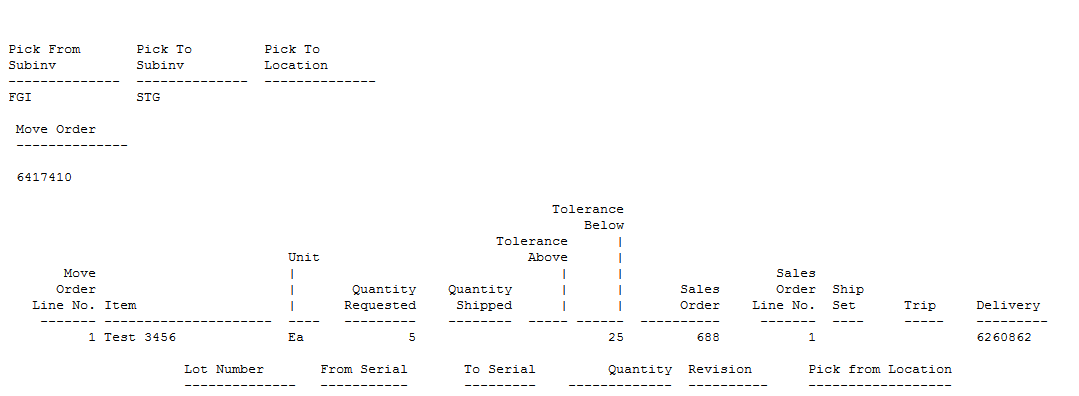
Now once the reports are done, check the Pick slip report.
You can now notice the item has released from the warehouse with Move order and Delivery numbers.
(Actually in the normal business flow items should have backordered as we do not have enough quantity in the inventory to fulfill.)
Check the Line status of the order where we can observe as picked.

Step 3: Ship Confirm the Order.
Now Ship Confirm the same by using shipping transaction form as below.
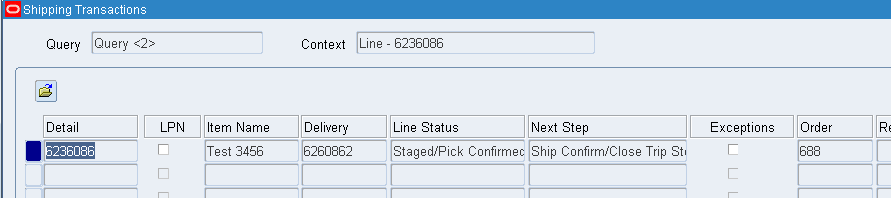
The order will be shipped. (Check the order Line status).
Step 4: Now Go to Inventory Responsibility and check the On Hand quantity for the Item.
We will be now able to see -5 quantities in the Sub-Inventory as below.
Additional Notes:
The Reservable attribute enables you to create material reservations for the item. You can reserve an item only when you have sufficient inventory.
Oracle Inventory has enhanced support for picking non-reservable items. This feature can be employed when on-hand quantities are not closely tracked and when inventory is often driven negative during shipment confirmation. When a line for a non-reservable item is pick released, the system will not attempt to generate allocations for the material; pick confirm will not be required. Instead, the line status is immediately changed to Released and the delivery line becomes eligible for shipment confirmation. The sub-inventory and locator on the delivery line, which will become the sub-inventory and locator from which the ship confirmation transaction issues the inventory, is taken from the Shipping Item Transaction Default for that item. If insufficient quantity is available in that location, and if negative quantities are enabled in that organization, the shipment confirmation will drive inventory negative. Reservation control for a sub-inventory overrides reservation control for an item. In other words, if an item is reservable but a sub-inventory is not, the item quantity in that sub-inventory is not reservable.

Note: If the reservable attribute is checked, Oracle Order Management allows reservation of the item during order entry. If material hasn't been reserved prior to pick release, pick release creates reservations for material when the pick wave move order is allocated.


Thursday, 12 February 2015

Price Tolerance Percentage and Price Tolerance Amount Functionality in Purchase Orders - R12.2


GOAL:

Understanding the Price Tolerance Amount functionality in Oracle Purchasing.


Exercise 1: Price Tolerance (%) options in Purchasing.

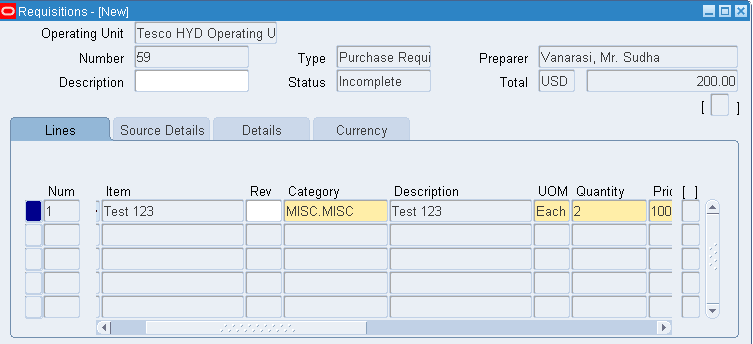
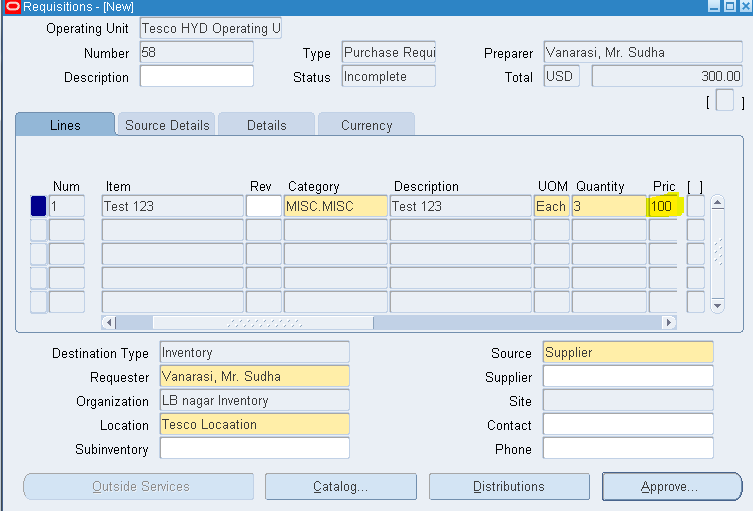
Step 1: Raise a requisition for an item (Test 123) with price as 100.

Responsibility: Purchasing.
Navigation: Requisitions >Requisitions.

Approve the Requisition.

Step 2: Auto Create the Requisition into Purchase Order.
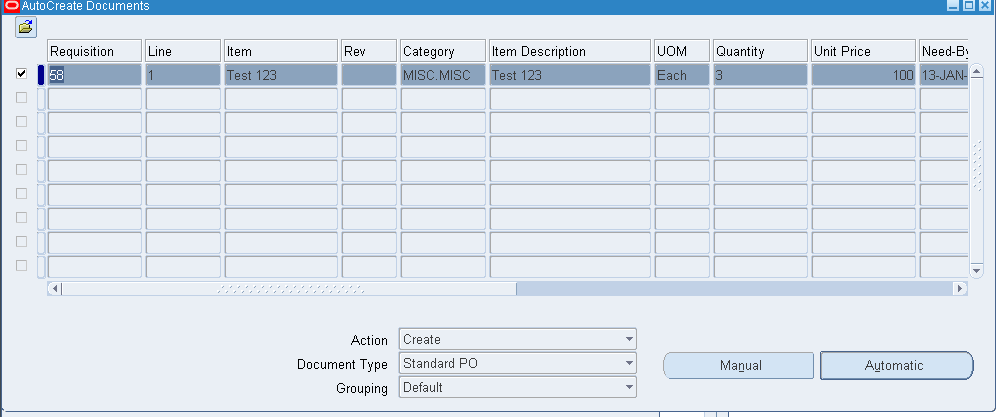
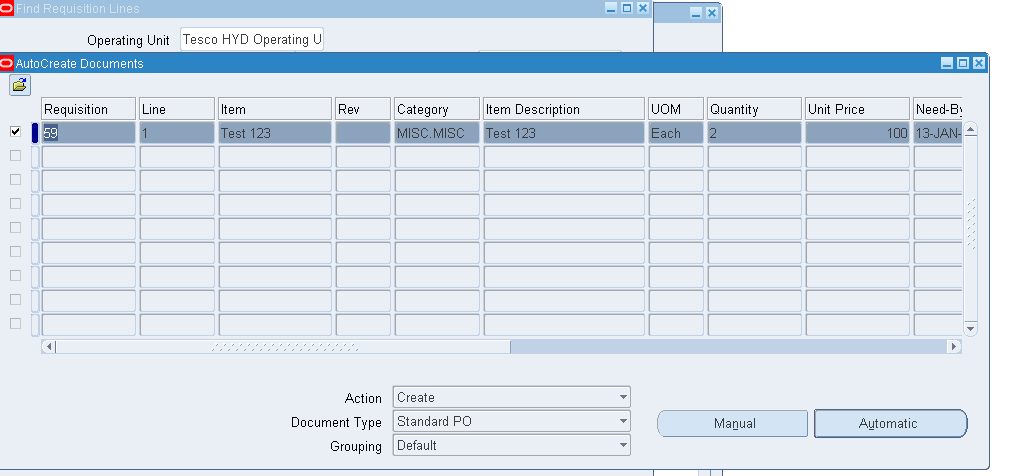
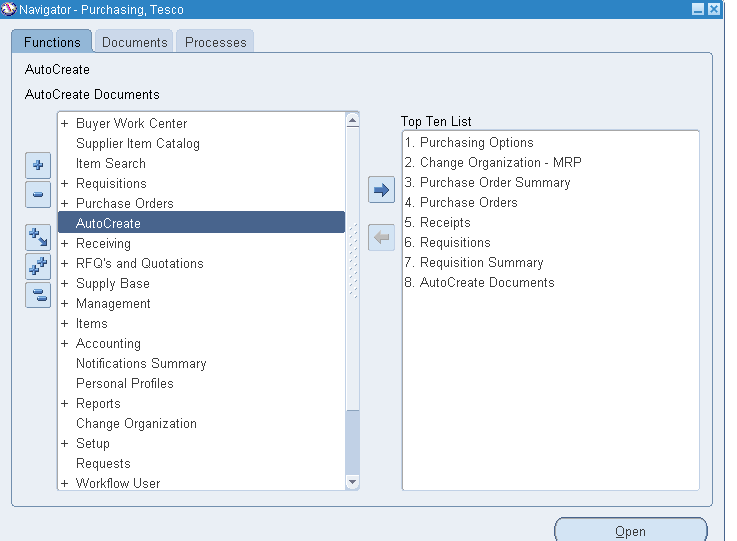
Navigation: AutoCreate.
Select the Requisition line by checking the box and click on Automatic option at the bottom and say OK.
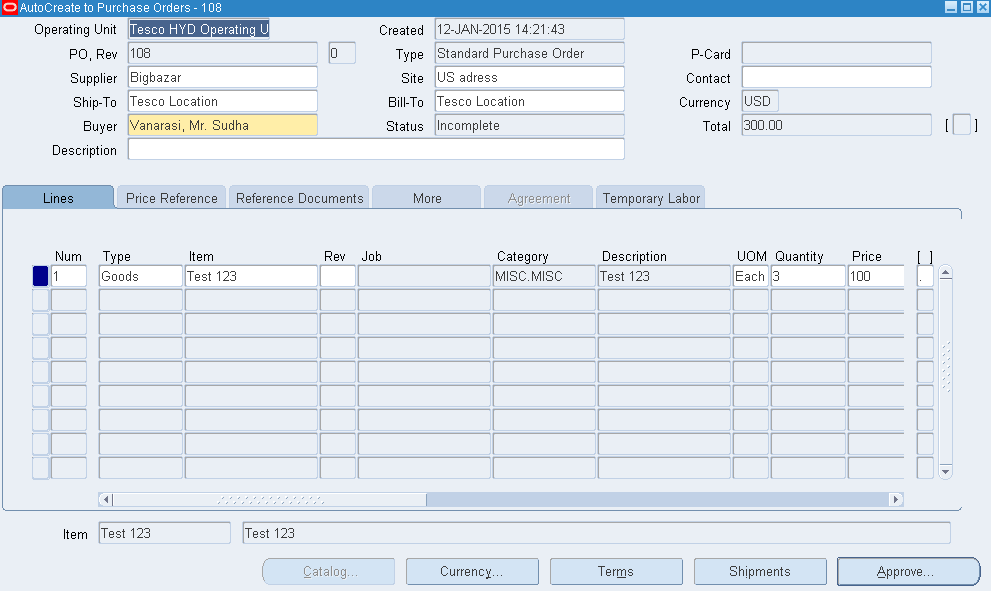
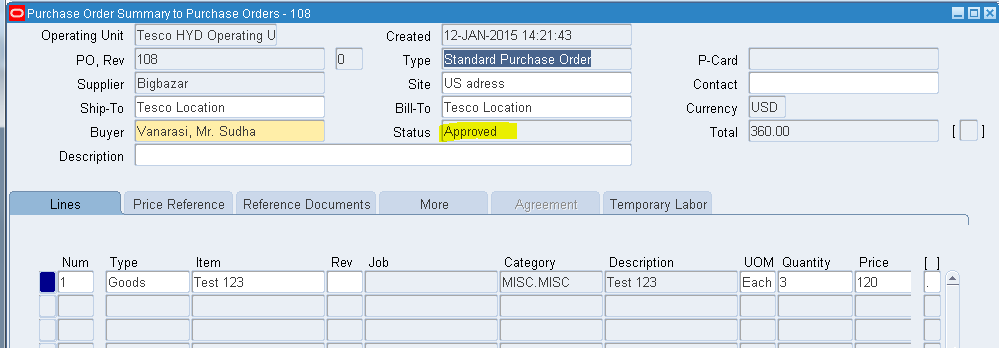
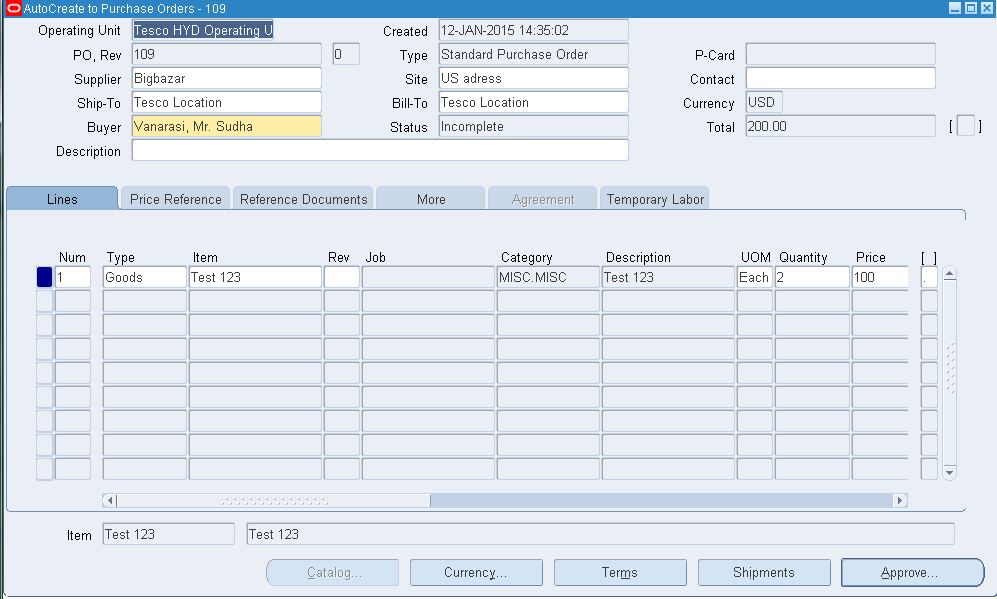
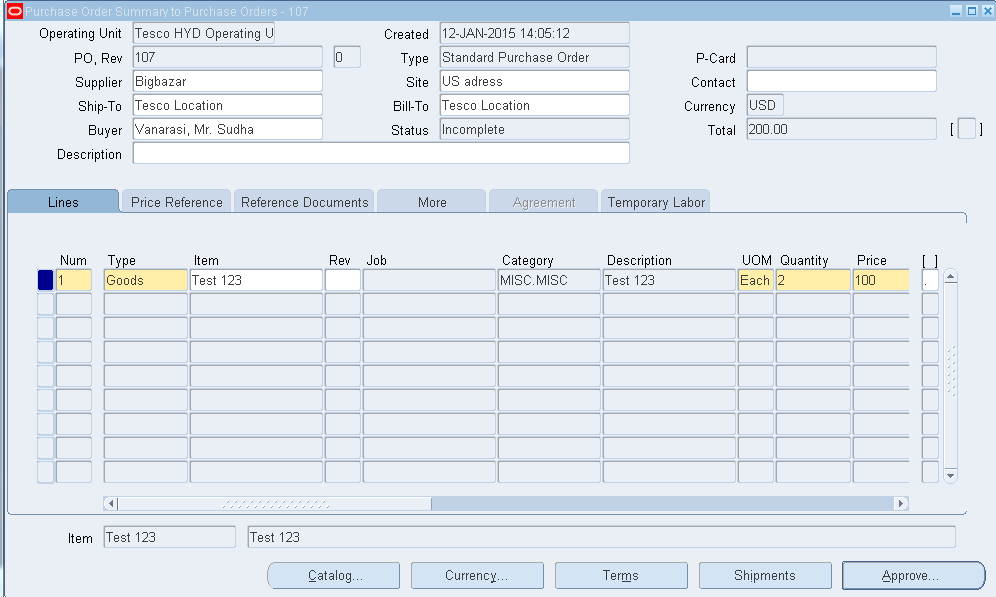
Now the PO will be auto created as below.
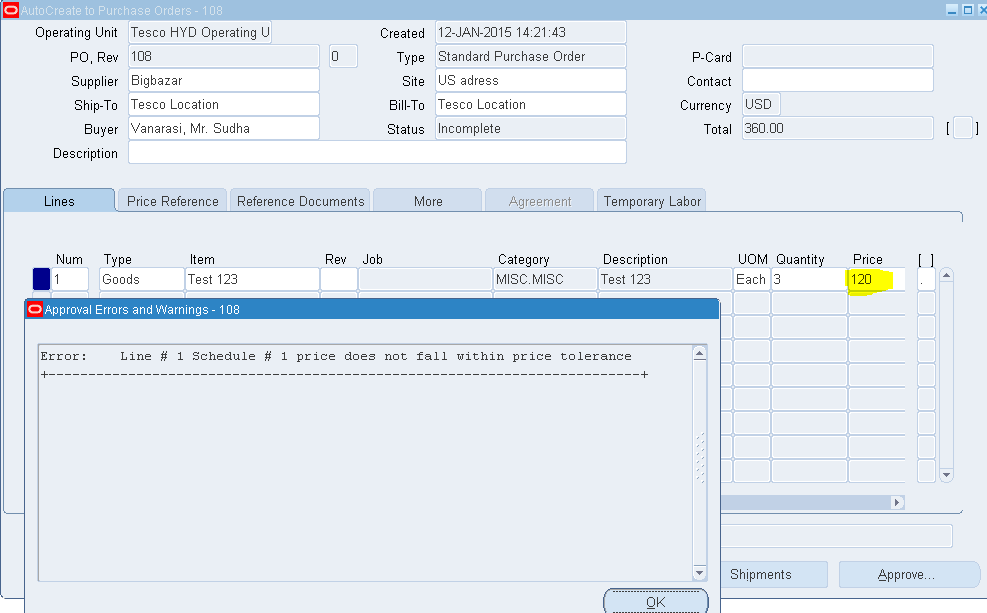
Now try to change the line price (Say 120 here from 100) and approve.
We will get an error message saying as “Price does not fall within tolerance.”
Step 3: Check Purchasing Options.
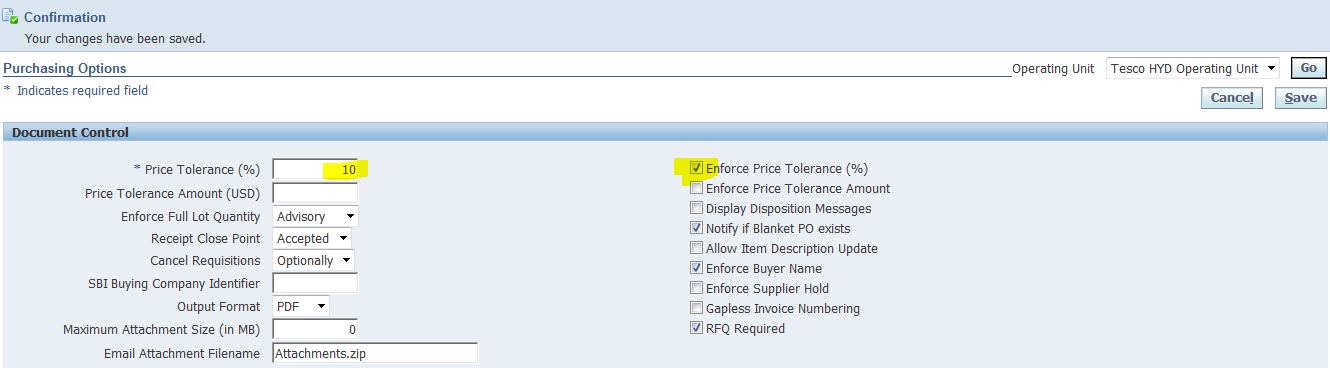
Navigation: Setup >Organizations >Purchasing Options.
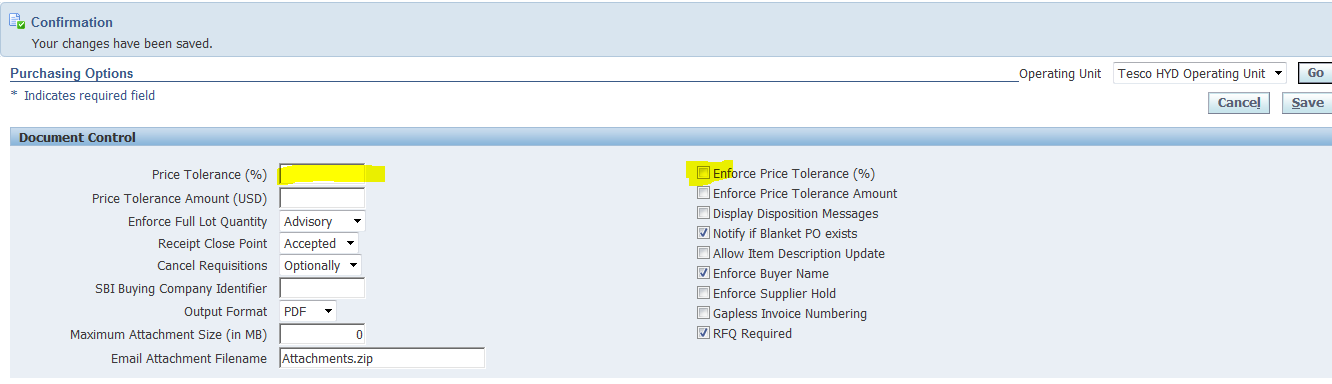
Note that we have price tolerance of 10% and Enforce Price tolerance is checked.
“This is the percentage by which the Autocreated purchase order line price cannot exceed the requisition line price. If you select Enforce Price Tolerance, you can create, but not approve, purchase orders for which this tolerance is exceeded. There is no restriction on how much a price can decrease.”
Now Make the both fields blank as below and save.
Now you will be able to approve the PO, no matter how much is the price.
Exercise 2: Price Tolerance (%) options at Item levels.

Make the Price tolerance at purchasing level as below.
Now create a requisition with price as 100.
Auto Create the Requisition line into PO.
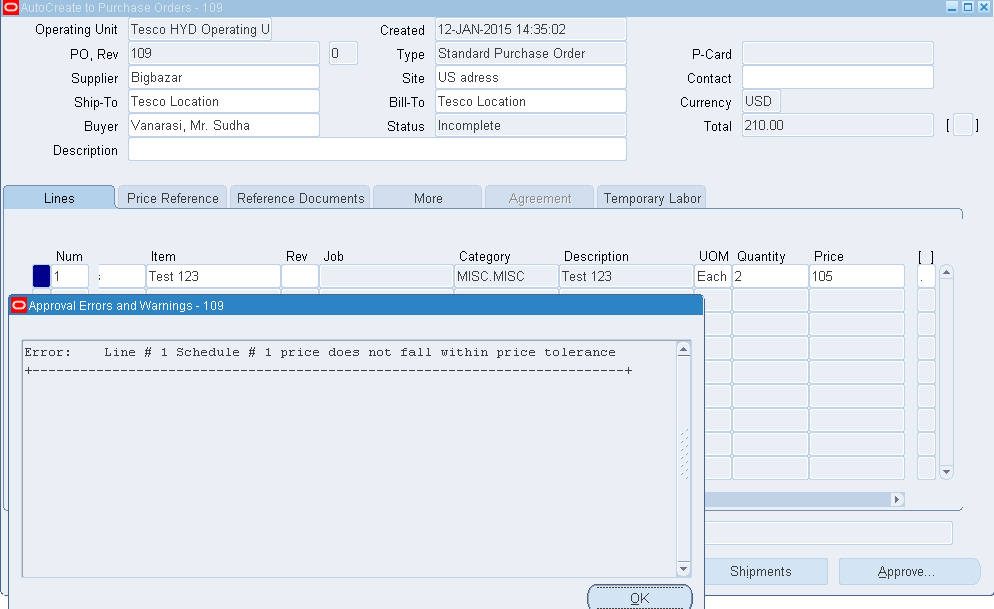
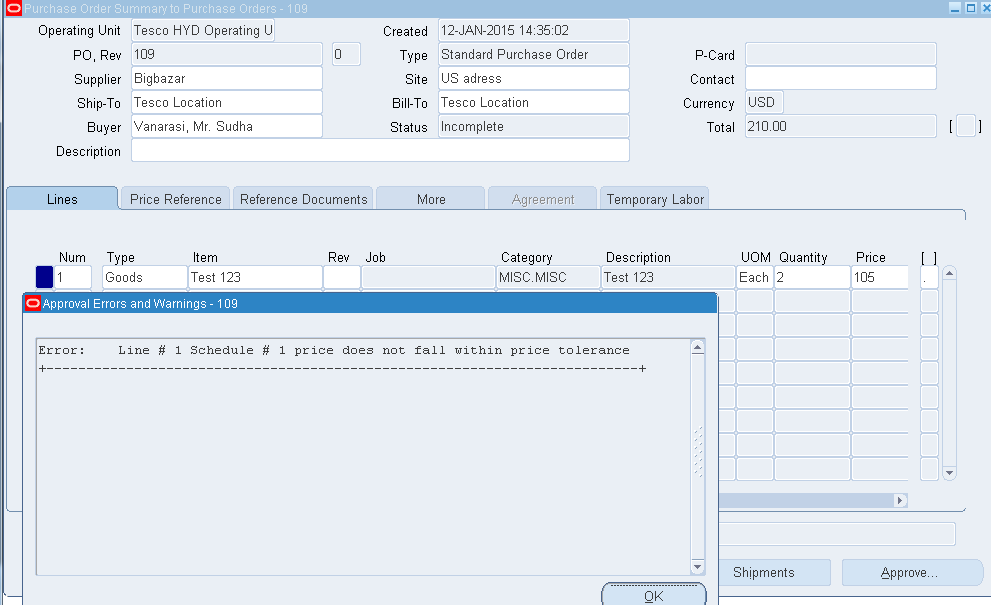
Try to change the price in the Purchase order as 105 as it falls within the tolerance and try approving.
System throws the below error message again.
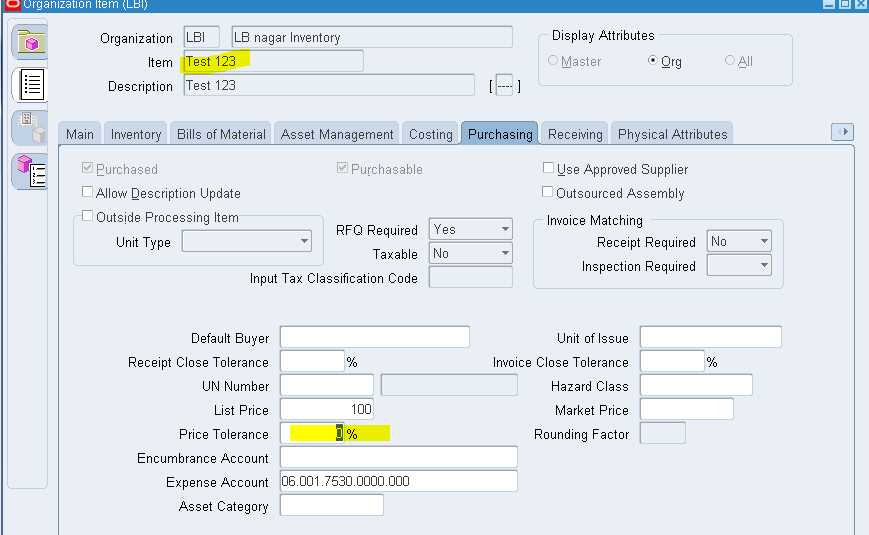
To overcome the error, Go To Organization Items and query the Item.
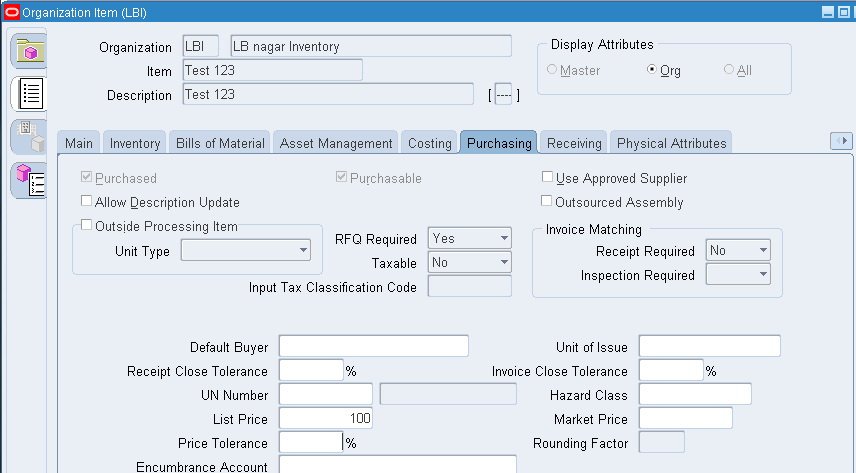
Check the Price tolerance % and make it to null as below and save.
Now if you try to approve the system still throws the error again.
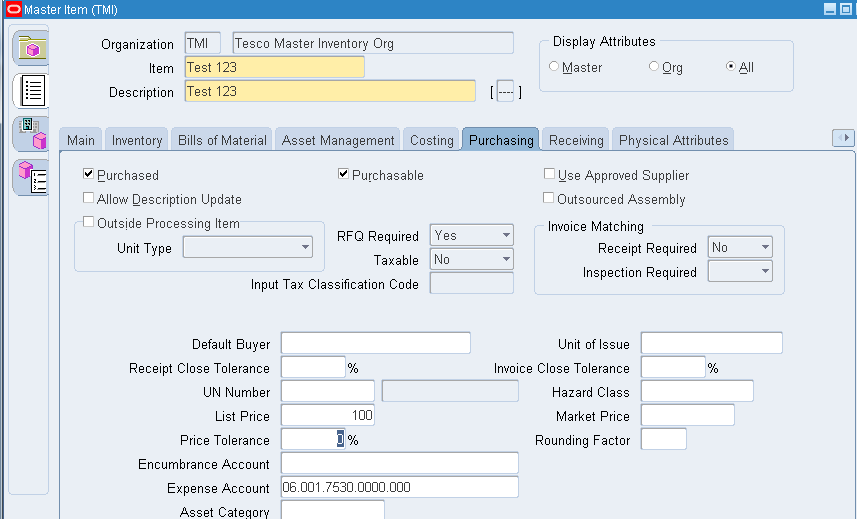
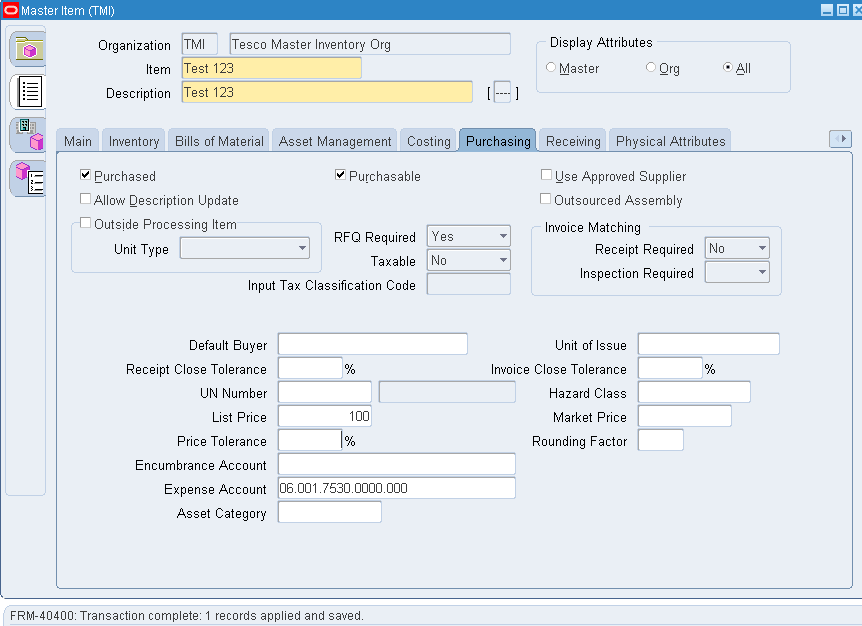
Go to master Item form and query the Item and make sure the tolerance is cleared and save.
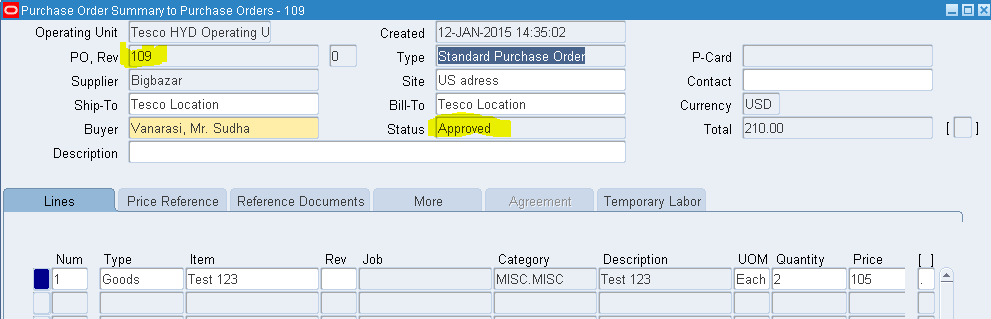
You can now able to approve the Purchase Order.
Note:
There are 3 levels of check for the above functional error to look out for:
  • Purchasing Options.
  • Organization Item level.
  • Master Item level.

Exercise 3: Exercise on Price Tolerance Amount.


Follow the same process of creating a requisition and auto create with 100 as its price as in the above exercises.

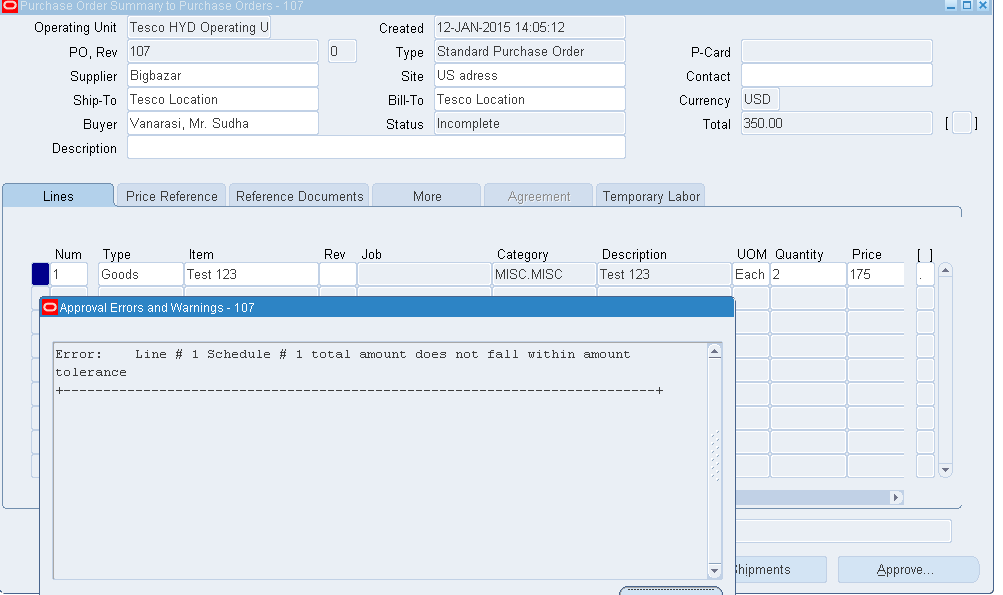
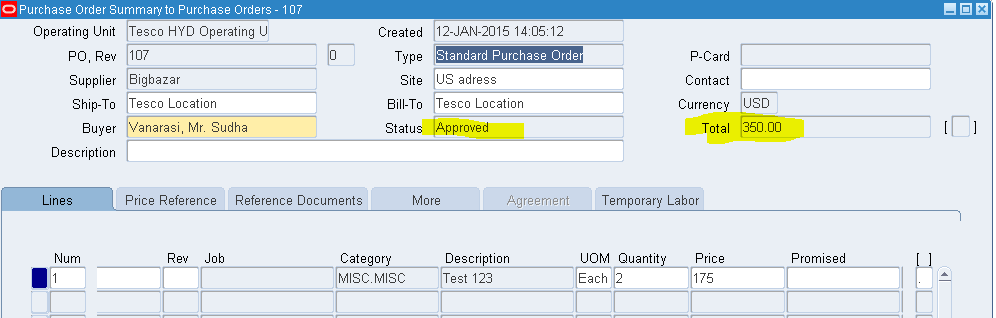
Change the price to 175 and try to approve the purchase order.
The system throws a error saying “Total amount does not fall within amount tolerance”.
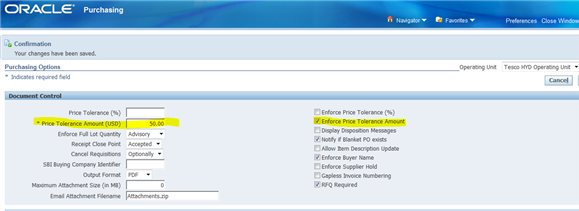
Now look into the Purchasing Options and there is a tolerance of 50 given in the Price tolerance amount field and that’s the reason the system is giving error as we have exceeded the tolerance.
Because earlier the PO Total Amount was 200 and now that has been changed to 350 which is above 50, means we can only change the amount with in 50 as per the tolerance we have given.
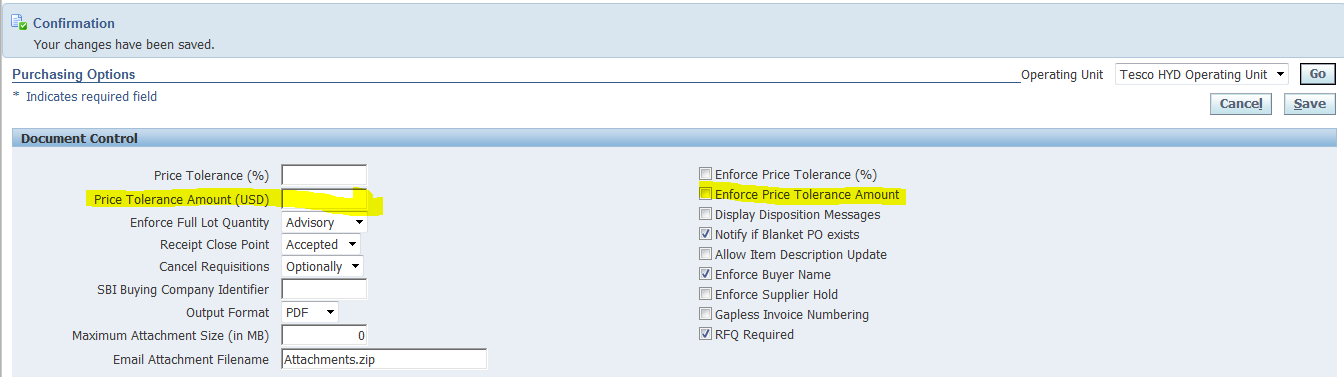
Now clear the tolerance amount and uncheck the enforce button and save.
Now you can be able to approve the purchase Order.


Wednesday, 11 February 2015

Order Management Under Shipment Tolerance functionality while splitting the order lines in R12.2

 
Remained Order Line gets cancelled after we split the Order line in shipping tranasaction form and ship the line.


This document makes you understand the under shipment tolerance functionality while we split the order for ship confirm in shipping transaction form.


If we have define the Tolerance and performs Over/Under, system will not Retain the Unstaged quantity, rather it will cancel the remaining Unstaged quantity (as long as Over/Under tolerance fulfilled).

So let us see the under shipment functionality in the below exercise:
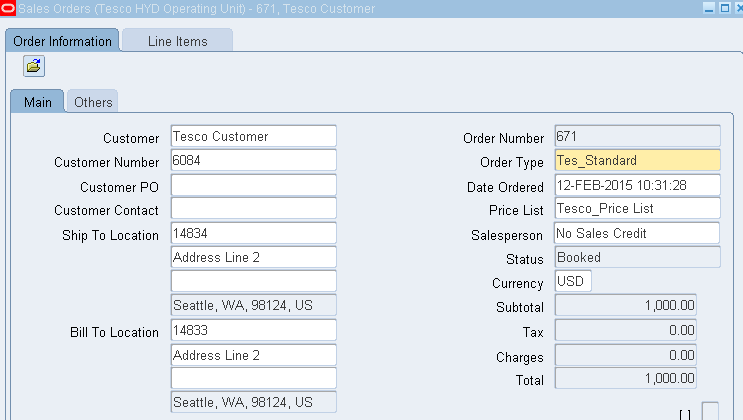
Step 1: Create a sales order.
Responsibility: Order Management Super User.
Navigation: Orders, Returns > Sales Orders.
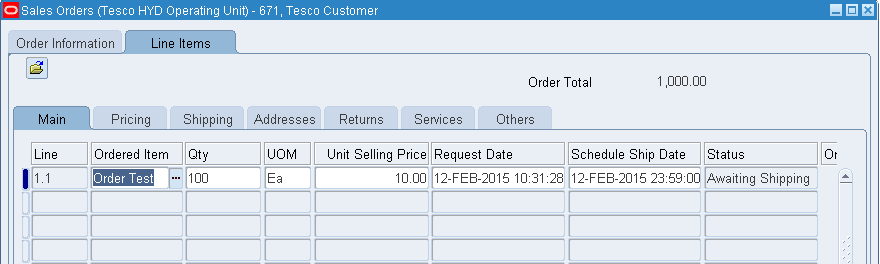
Create the order for 100 quantity and book the order.
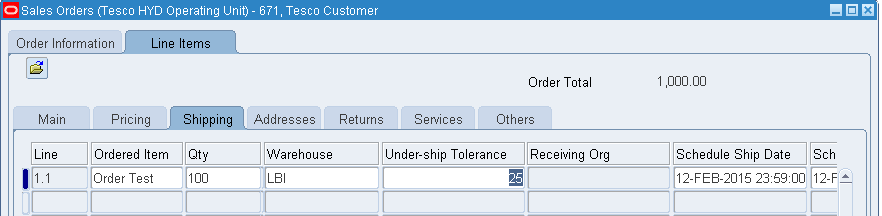
Come to Shipping tab and we can find the Under-ship tolerance will be 25% default.
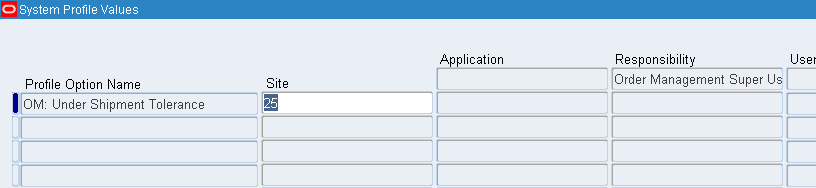
The Tolerance is picking as 25% on the above screen as the tolerance is given under the profile option as below.

Step 2: Split the Order.
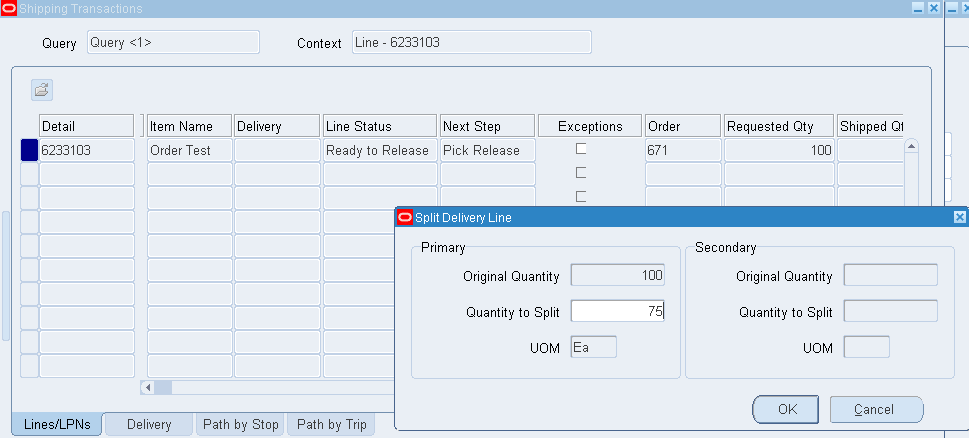
Split the Order in the shipping transaction form. Right click on the line and select spilt, the below box appears. Give quantity split to 75 and say OK.
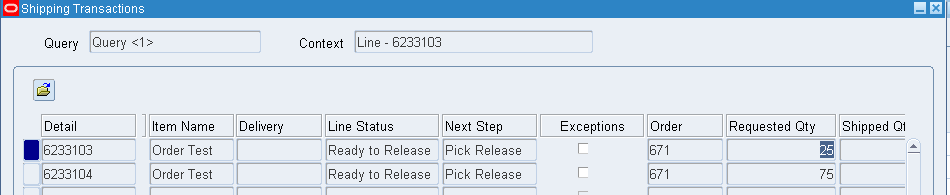
Now if we observe the line has been split to 75 and other line for 25 quantities.
Come to second line with 75 quantity and right click and say Launch Pick release, means we are just releasing the second line of 75 quantity.
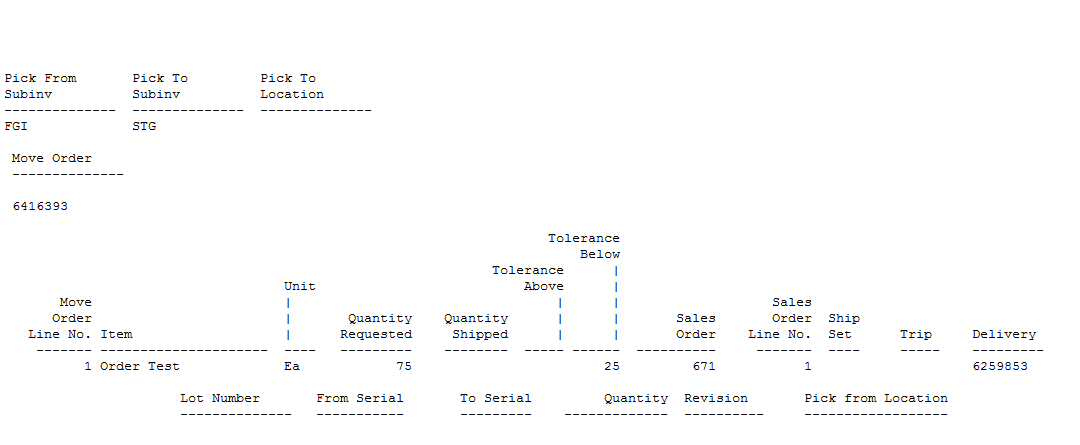
We can see the Pick slip report which says 75 quantities has been picked.
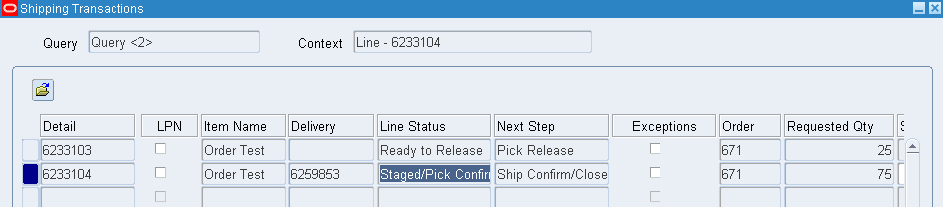
Now perform the Ship Confirm process for the same line. Note the delivery number has been created only for the picked line.
Run the Work flow background Process report.
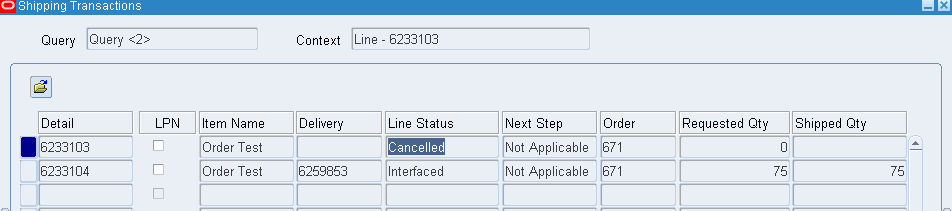
Now if we check the shipping transaction form, the line has been shipped and interfaced and the other line got cancelled. (See the line status).
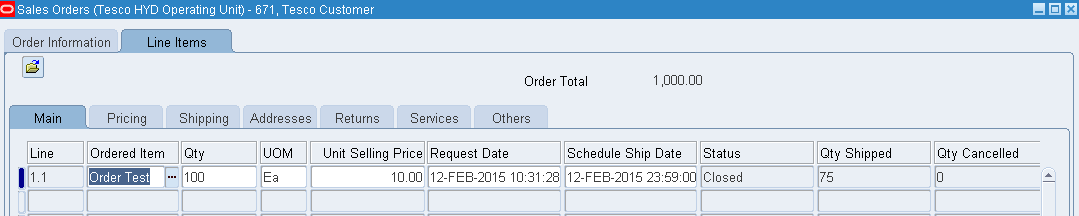
The Order line status in sales order form will be closed with 75 Qty Shipped.
This functionality is because we have set the under ship tolerance is 25% and our ordered quantity is 100, if you ship 75 or more, the order line is considered to be fulfilled. The system will automatically close the line and cancel all the related Back ordered line.


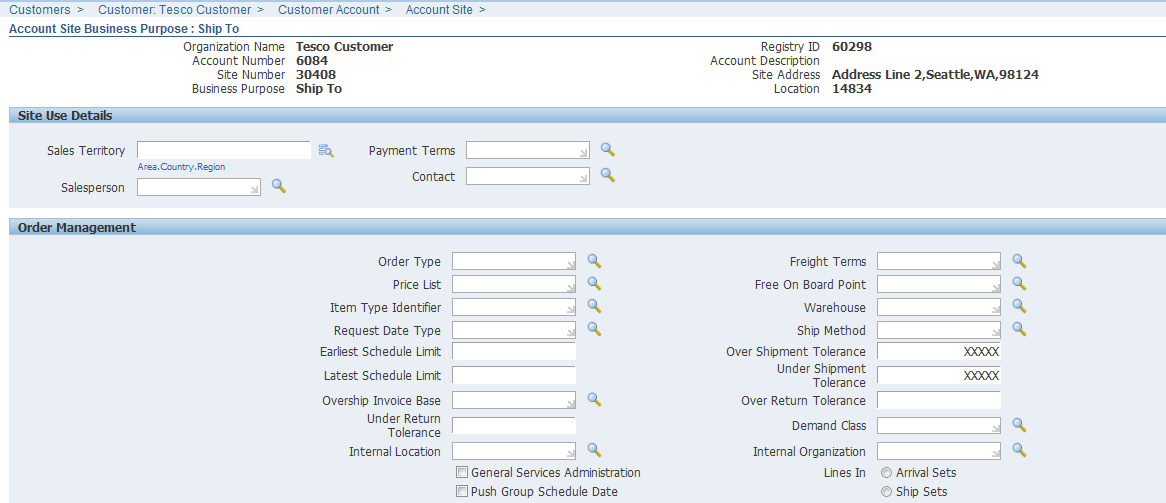
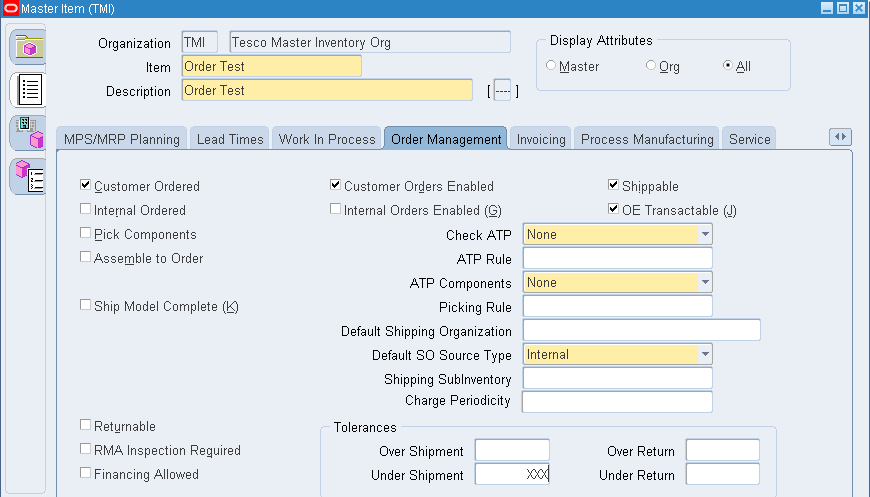
However, this shipment tolerance values can be overridden at Customer, Bill To or Item level as given in the below screen shots.
1. Customer and customer Bill to level.
2. Item Level ----------- Order Management tab > Tolerances.